Catalog QR code generator for digital product displays

Connect customers instantly to your complete product catalog with scannable codes that transform any display into an interactive shopping experience.
How QR codes bridge physical displays and digital catalogs
Browsing through physical product displays might mean relying on whatever information was printed on tags or asking sales staff for details. Customers would jot down model numbers or try to remember product names to look up later. But it doesn't have to be like this. Now retailers and manufacturers can place QR codes on displays that instantly connect shoppers to comprehensive digital catalogs with full specifications, pricing, and availability.
A catalog QR code links directly to your digital product catalog, whether it's hosted on your website, a PDF document, or a specialized catalog platform. When customers scan the code, they access detailed product information, high-resolution images, pricing, and often the ability to purchase or request quotes immediately from their phone.
This approach works particularly well for businesses with extensive product lines that can't fit all details on physical displays. In this guide I'll walk you through creating effective catalog QR codes that enhance your customer's shopping experience. You can also explore our guide on PDF QR codes if you're working with catalog documents, or check out QR code business cards for connecting personal catalogs to networking materials. So let's dive right in!
Real-world applications for catalog QR codes
Catalog QR codes solve the problem of limited physical display space while giving customers immediate access to complete product information. They work across industries where detailed specifications matter. Learn more about creating effective QR codes for flyers to promote your catalog system.
Retail showrooms and furniture stores
Display floor models with QR codes linking to full catalogs showing all available colors, sizes, and configurations that aren't physically displayed.
Trade shows and exhibitions
Booth displays featuring QR codes that connect visitors to comprehensive product catalogs they can browse during and after the event. Consider combining this with event QR codes for a complete trade show experience.
Manufacturing and industrial suppliers
Equipment displays with QR codes linking to technical specifications, compatibility charts, and detailed product documentation.
Automotive dealerships
Vehicle displays connecting customers to complete trim level comparisons, option packages, and pricing information for the entire model lineup.
Setting up your catalog QR code system
Creating catalog QR codes involves more than just linking to a webpage - you need to consider mobile optimization and user experience for customers browsing on their phones.
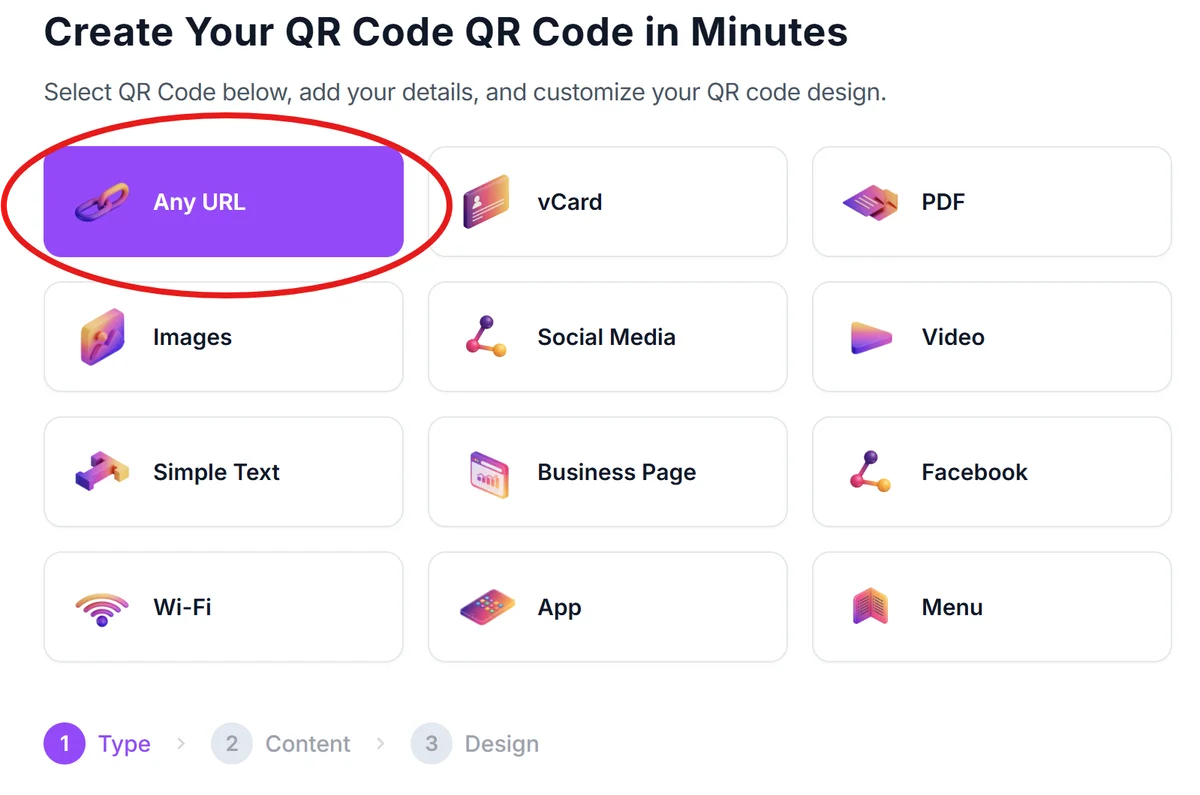
Access the QR code generator
Visit qrcodeveloper.com and select the URL QR code option to link to your digital catalog location.
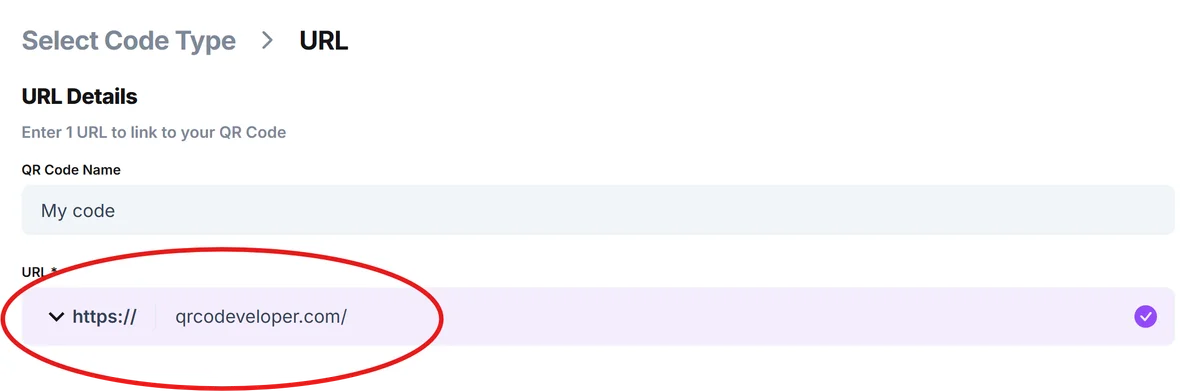
Enter your catalog URL
Input the direct link to your digital catalog, whether it's a website page, hosted PDF, or catalog platform URL. Ensure the link works properly on mobile devices.
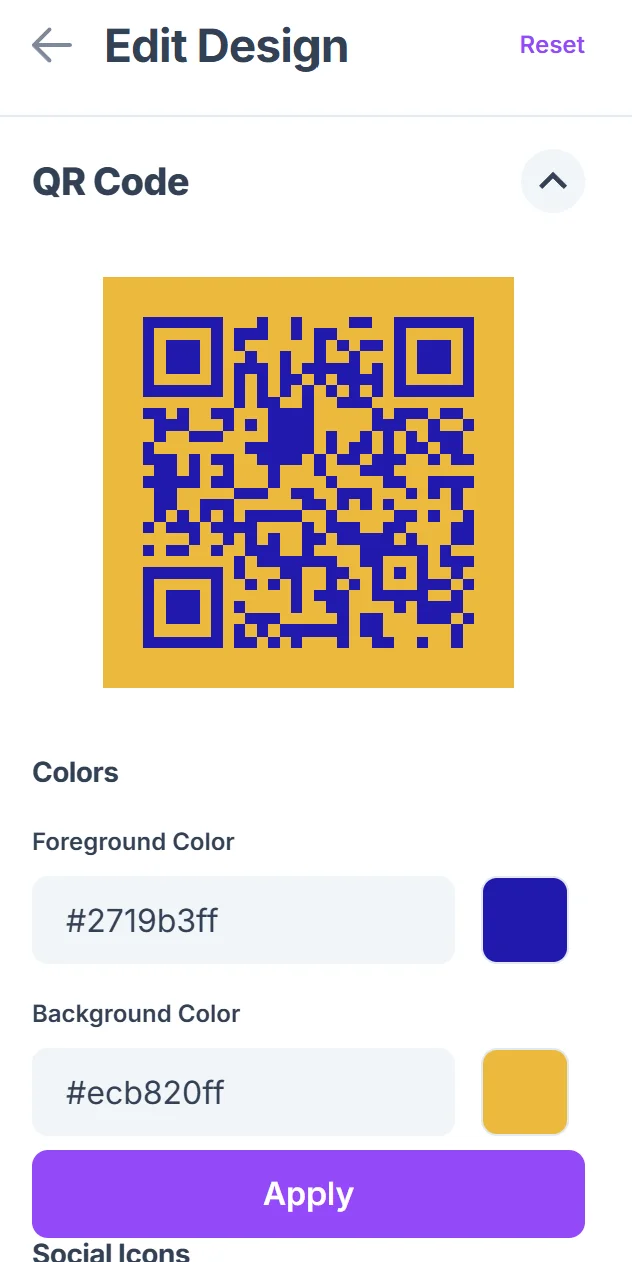
Design for display visibility
Click on the pencil icon in the Preview window to further customize your code. Choose high-contrast colors and sufficient size for your intended display location. Consider your brand colors while maintaining scannability in various lighting conditions. For more guidance, check our QR code design tips.

Test across display environments
Scan your QR code in the actual environment where it will be displayed, checking for lighting issues, viewing angles, and mobile loading speed.
Implement tracking and updates
Set up analytics to monitor scan rates and ensure your catalog URL remains current as you update product information or pricing.
Maximizing catalog engagement through QR design
Effective catalog QR codes require thoughtful placement and clear value communication to encourage customer scanning and engagement.
Add clear call-to-action text like 'Scan for complete catalog' or 'View all available options' near your QR code to communicate the value customers will receive. This approach works well when combined with QR code stickers for permanent display installations.
Position QR codes at eye level and ensure they're large enough to scan from a comfortable distance - typically at least 1 inch square for arm's length scanning
Create mobile-optimized catalog pages that load quickly and display well on phone screens, with easy navigation between products and clear pricing information
Use separate QR codes for different product categories rather than linking everything to your homepage, allowing customers to jump directly to relevant sections
Frequently Asked Questions
Can I link to PDF catalogs or does it need to be a website?
You can link to PDF catalogs, but ensure they're optimized for mobile viewing. Website catalogs typically provide better user experience on phones with easier navigation and faster loading.
How do I track which products customers are most interested in?
Use different QR codes for different product sections or individual products, then monitor scan analytics to see which codes get the most engagement.
What's the best size for QR codes on product displays?
Aim for at least 1 inch square for close-up scanning, but larger is better for displays where customers might scan from several feet away. Test scanning distance in your actual environment.
Should I include pricing in my catalog or keep it separate?
Including current pricing increases conversion rates, but ensure you can update it easily. Consider linking to live pricing if your catalog pricing changes frequently.
Do I need different QR codes for each product or one for the entire catalog?
Both approaches work depending on your setup. Individual product codes provide more targeted analytics, while a single catalog code is simpler to manage and can include search functionality.
Related Guides
Ready to create your QR code?
Generate custom QR codes in seconds - free and easy to use.
Create Free QR Code →