Webex QR code generator - Create meeting codes instantly

Generate instant QR codes for Webex meetings, room bookings, and contact sharing that eliminate manual entry and connection delays.
QR codes for Webex meetings and collaboration
Scheduling a Webex meetings can be a hassle and involve copying long meeting URLs, sending calendar invites, and watching participants struggle with meeting IDs and passwords. However, a single QR code can instantly connects attendees to their Webex session all with one quick scan.
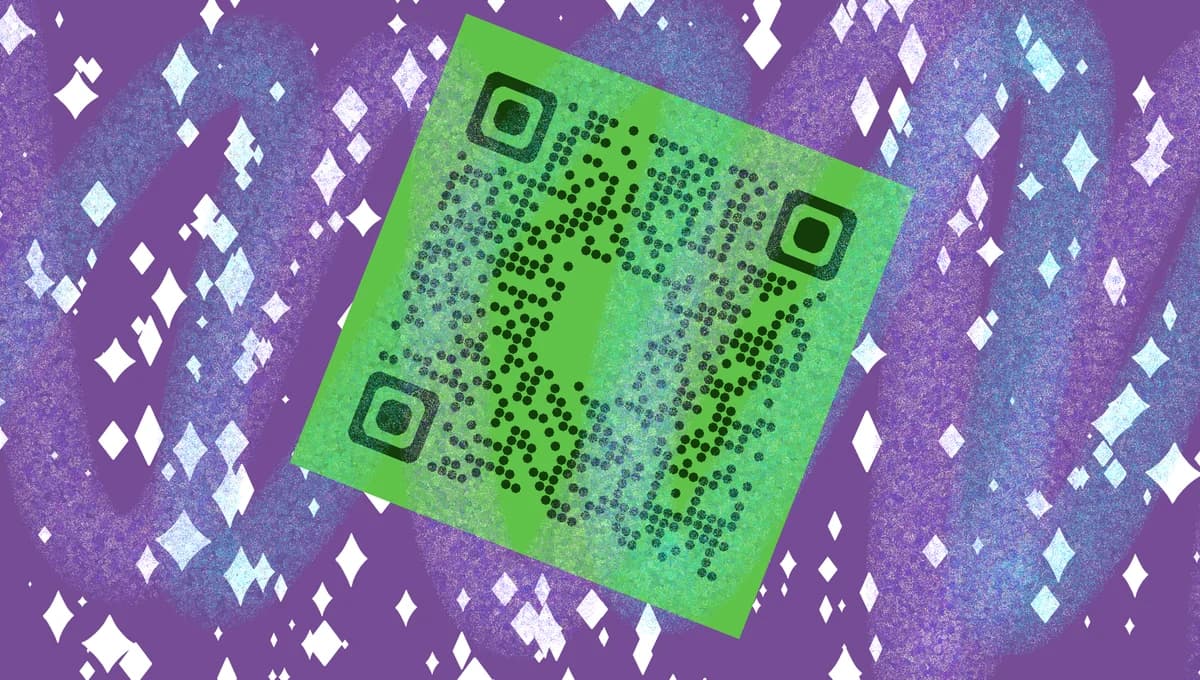
A Webex QR code contains your meeting link, room booking information, or contact details in a scannable format. When someone scans the code with their smartphone camera, they'll be immediately taken to join your meeting, book your conference room, or connect with your professional profile without typing complex URLs or searching through email threads.
In this guide I will cover everything you need to know about creating QR codes for your Webex meetings and professional communications. You can generate these codes using QR Code Developer to make your virtual meetings more accessible and professional. So let's dive right in!
Practical applications for Webex QR codes
Webex QR codes solve common meeting access problems across different professional scenarios. Understanding the different types of QR codes helps you choose the right format for each situation.
Conference room booking displays
Place QR codes outside meeting rooms that link to booking systems or room schedules. Employees scan to check availability or reserve the space instantly.
Event registration and check-in
Add QR codes to event materials that connect directly to Webex sessions. Attendees join webinars or virtual sessions without hunting for meeting links in confirmation emails. This approach works particularly well when you create event QR codes for conferences and professional gatherings.
Business card networking
Include QR codes on digital or printed business cards that link to your Webex Personal Room. New contacts can schedule meetings or join calls immediately. Learn more about integrating QR codes into business cards for professional networking.
Training and educational sessions
Instructors share QR codes for recurring Webex training sessions. Students scan to join classes without remembering multiple meeting IDs or passwords.
Creating Webex meeting QR codes
Building QR codes for your Webex meetings takes just a few minutes and works with any meeting type or room setup.
Open the QR code generator
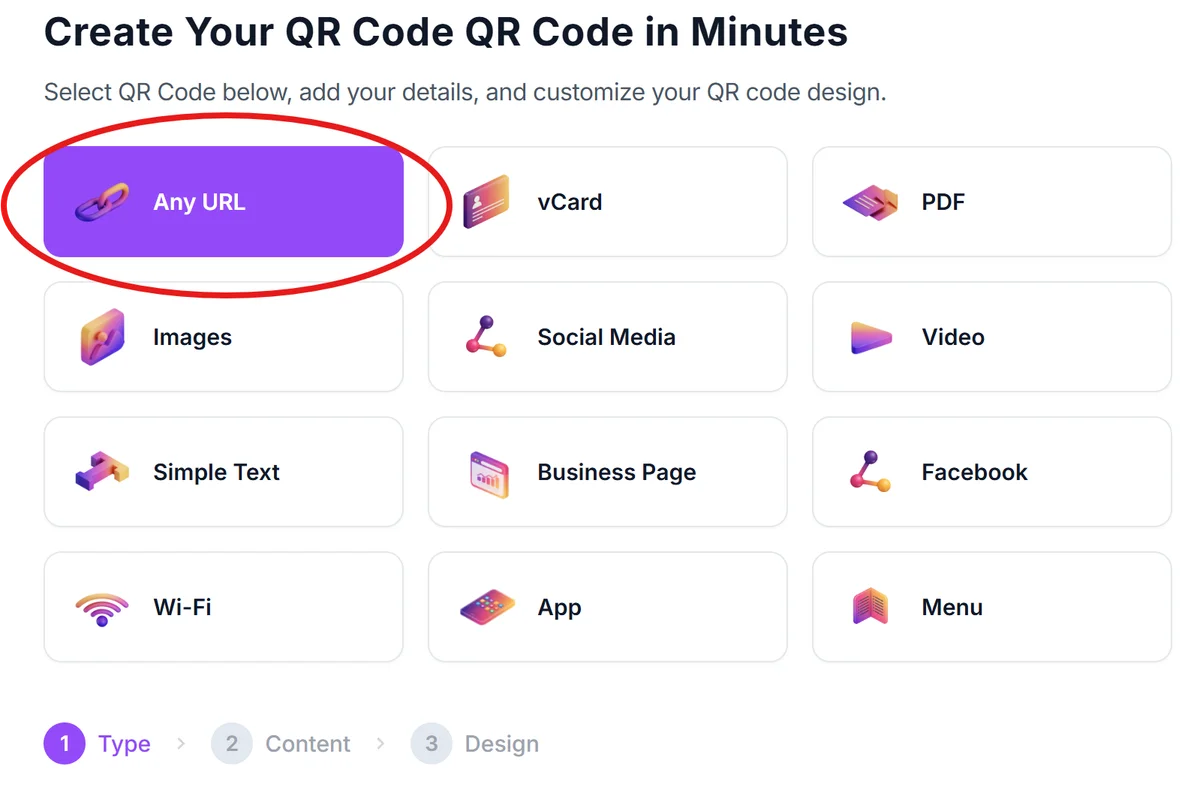
Navigate to qrcodeveloper.com and select the URL QR code option to create codes for your Webex links.
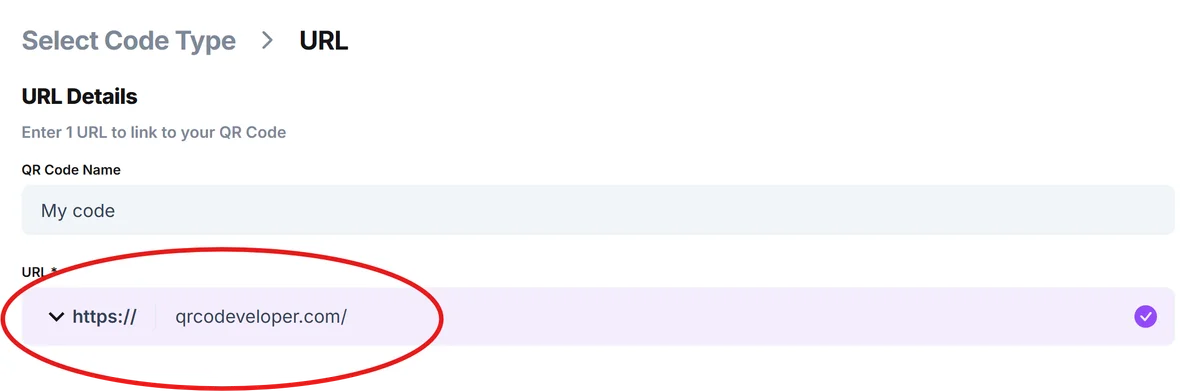
Copy your Webex meeting information
From your Webex account, copy the meeting URL, Personal Room link, or room booking page URL that you want people to access when they scan your code.
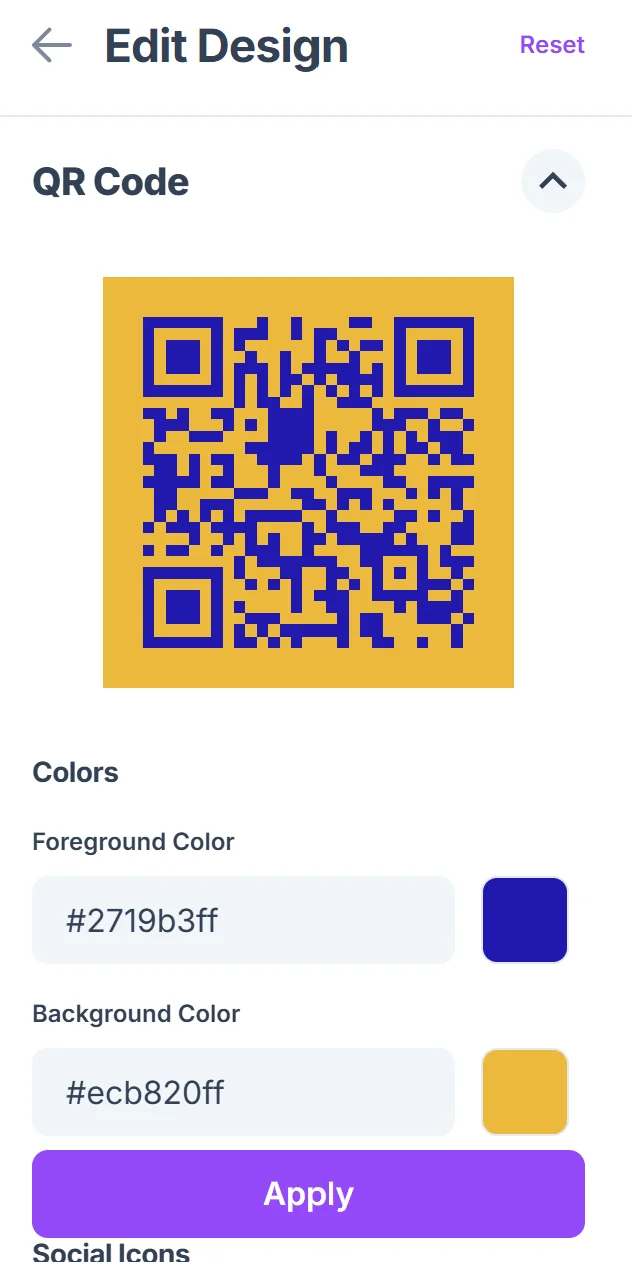
Customize for professional appearance
Add your company colors, logo, or meeting title to the QR code design. Keep text readable and ensure the code maintains good contrast for reliable scanning. Follow our QR code design tips to create professional-looking codes.

Test with different devices
Scan your QR code using various smartphones and tablets to verify it opens correctly in the Webex app or web browser across different platforms.
Deploy across meeting materials
Add your QR code to email signatures, presentation slides, room displays, or printed materials where participants will need quick meeting access. You can also add QR codes to flyers for marketing events that include Webex sessions.
Best practices for professional meeting codes
Follow these guidelines to create QR codes that work reliably in professional meeting environments.
Create separate QR codes for different meeting types - use one for your Personal Room, another for recurring team meetings, and unique codes for special events to track usage patterns
Include meeting context in your QR code placement - add text like 'Scan to join weekly standup' or 'Conference Room B booking' so people know what they're accessing
Test codes in the actual environment where they'll be used - verify that conference room lighting doesn't interfere with scanning and that codes work from typical viewing distances
Update recurring meeting codes when details change - if you modify passwords, waiting rooms, or access permissions, generate new QR codes to prevent connection issues
Frequently Asked Questions
Do QR codes work with Webex Personal Rooms?
Yes, you can create QR codes for your Webex Personal Room URL. This gives people instant access to schedule meetings with you or join when you're available.
Can I create QR codes for password-protected Webex meetings?
QR codes can link to meeting URLs, but participants may still need to enter passwords manually. Consider using Webex's waiting room feature instead of passwords for better user experience.
How do I update QR codes when meeting details change?
Generate a new QR code with the updated meeting URL. Static QR codes can't be changed after creation, so you'll need to replace the old codes with new ones.
Will QR codes work if people don't have the Webex app installed?
Yes, QR codes linking to Webex meetings will open in the device's web browser if the app isn't installed. Webex supports browser-based participation on most devices.
Can I track how many people use my Webex QR codes?
Basic QR code generators don't provide tracking, but you can monitor meeting attendance through Webex's built-in analytics to see participation patterns.
Related Guides
Ready to create your QR code?
Generate custom QR codes in seconds - free and easy to use.
Create Free QR Code →