User guide QR codes for product support and documentation

Bridge the gap between physical products and digital support resources with scannable codes that deliver instant access to documentation.
Connecting products to digital documentation with QR codes
Searching through drawers for that crumpled instruction manual can be frustrating, especially when you also have to deal with a malfunctioning appliance or device. However, QR codes make these struggles a thing of the past! Now customers simply scan a QR code on the product itself and instantly access the latest user guide, troubleshooting tips, and video tutorials right on their phone.

User guide QR codes transform how customers interact with product documentation by creating a direct link between physical items and their digital support resources. Instead of relying on printed manuals that get lost or become outdated, these codes provide access to current information that can be updated in real-time. Understanding the difference between static and dynamic QR codes is crucial for documentation that needs regular updates.
In this guide I will cover everything from creating your first user guide QR code to implementing them across different product lines. I'' also go over how to track usage and improve your support experience based on real customer behavior data from QR Code Developer. So let's get started!
Where user guide QR codes make the biggest impact
These codes work best when they solve real problems customers face when trying to use your products. Companies across industries are using them to reduce support calls and improve customer satisfaction. Learn more about creating effective QR code landing pages for your documentation.
Electronics and appliances
Manufacturers place QR codes on device labels to provide instant access to setup guides, warranty information, and troubleshooting resources specific to each model.
Furniture assembly
Furniture companies include QR codes on packaging and hardware bags that link to step-by-step assembly videos and downloadable instruction PDFs. Many companies also convert their PDF manuals into QR codes for easier mobile access.
Software and SaaS products
Tech companies use QR codes in welcome emails and on physical materials to connect users to onboarding tutorials and feature documentation.
Medical devices and equipment
Healthcare equipment manufacturers provide QR codes for quick access to operation manuals, safety protocols, and maintenance schedules.
Building QR codes for your product documentation
Creating user guide QR codes requires planning your documentation structure before generating the codes themselves.
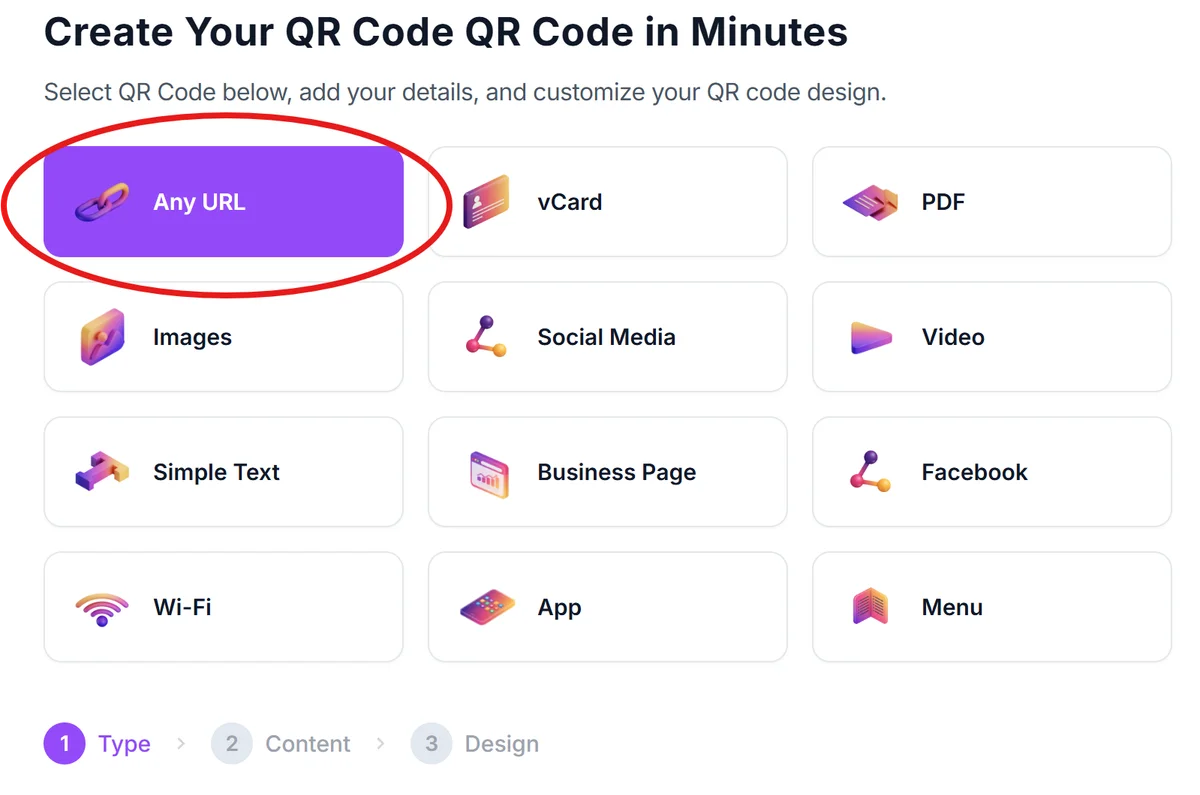
Visit the QR code generator
Go to qrcodeveloper.com and select 'URL' as your QR code type to link directly to your user guide or documentation page.
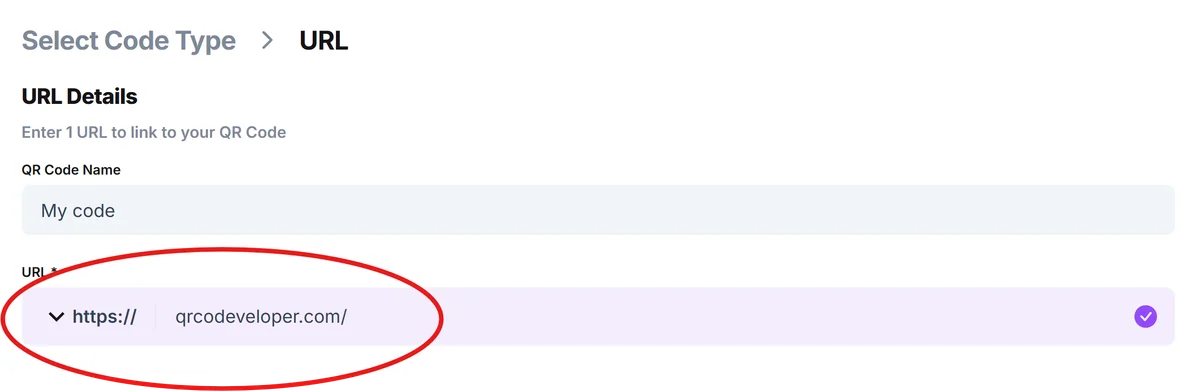
Enter your documentation URL
Paste the link to your user guide, manual, or support page. Make sure this page is mobile-optimized since most users will scan with their phones. Consider the design principles for effective QR codes to ensure optimal scanning performance.
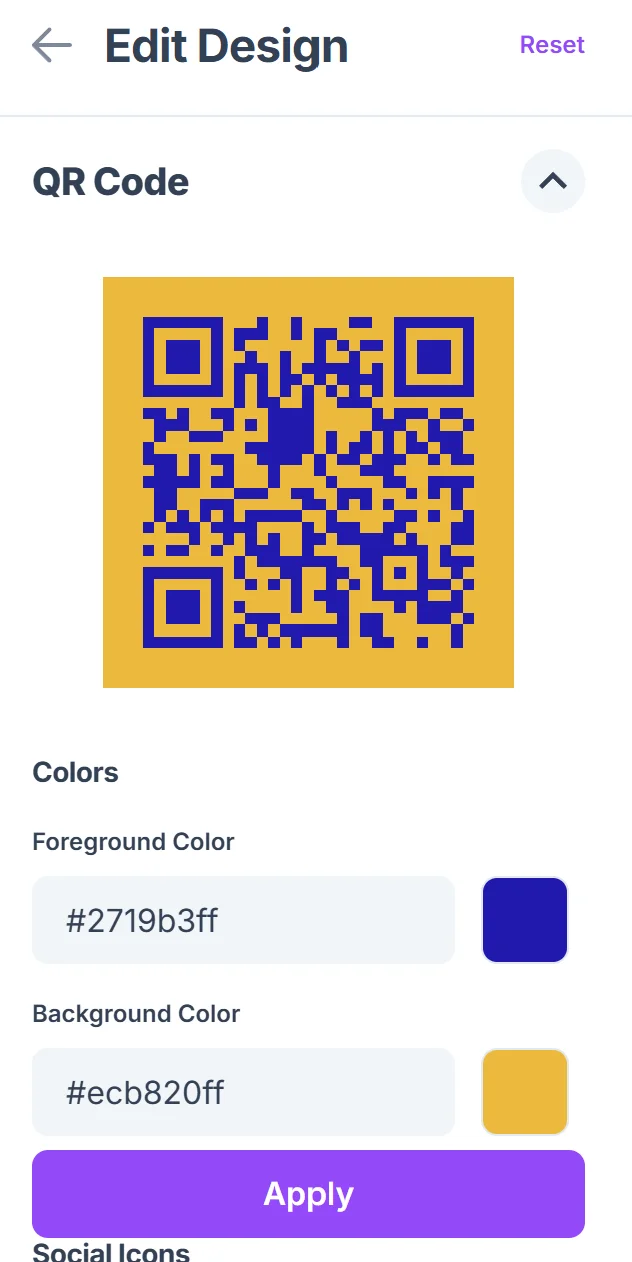
Customize for brand recognition
Click on the pencil icon in the Preview window to further customize your code. Add your company colors and logo to the QR code so customers recognize it as official documentation from your brand.

Test the scanning experience
Scan your QR code with different devices to ensure the documentation loads quickly and displays properly on mobile screens.
Plan your placement strategy
Decide where to place the QR code on your product, packaging, or marketing materials for maximum visibility and convenience.
Best practices for user guide QR code implementation
Successful user guide QR codes require thoughtful placement and clear context to encourage scanning and improve the customer experience. It's also important to educate users about QR code safety practices to build trust in your documentation system.
Position QR codes where customers naturally look when they need help - on product labels, inside packaging, or near power buttons on electronic devices.
Create product-specific landing pages rather than linking to your general help center, so customers immediately see information relevant to their specific model or version. Consider creating dedicated QR code landing pages optimized for mobile viewing and quick access to support resources.
Include both quick reference information and comprehensive guides on your linked page, accommodating customers who need immediate answers and those requiring detailed instructions.
Track which products generate the most QR code scans to identify common support needs and improve your documentation for those specific items.
Frequently Asked Questions
Can I update the user guide without changing the QR code?
Yes, as long as you keep the same URL, you can update the content on your documentation page without needing to reprint QR codes.
What's the best size for QR codes on product packaging?
Make QR codes at least 1 inch (2.5 cm) square for reliable scanning. Larger codes work better when placed on bigger products or packaging.
Should I include text instructions with the QR code?
Yes, add a brief description like 'Scan for user guide' or 'Setup instructions' so customers know what to expect when they scan.
Do QR codes work without internet connection?
No, QR codes linking to online documentation require an internet connection. Consider including basic offline instructions alongside the QR code.
Can I track how many people scan my user guide QR codes?
Yes, you can use analytics tools on your documentation website or URL shorteners with tracking features to monitor QR code usage and popular content.
Related Guides
Ready to create your QR code?
Generate custom QR codes in seconds - free and easy to use.
Create Free QR Code →