SlideShare QR codes for presentation sharing

Share presentation slides instantly with audiences through scannable codes that connect directly to your SlideShare content.
Connecting presentations with QR codes on SlideShare
Sharing presentation slides can mean emailing attachments, passing around USB drives, or frantically typing long URLs on a whiteboard, but this method is quite old fashioned and unreliable. Now, presenters can simply display a QR code that instantly connects audiences to their SlideShare content, whether it's during the presentation or for later reference, similar to how PDF QR codes make document sharing effortless.

A SlideShare QR code transforms any presentation URL into a scannable square that opens directly to your slides on any smartphone or tablet. Audiences can access your content immediately without typing complex links, bookmark presentations for later review, or share them with colleagues who missed the session.
In this guide I will cover everything from creating your first SlideShare QR code to strategic placement that maximizes engagement. I'll also share insights from QR code business cards that complement presentation sharing and help you build stronger professional connections. So let's get the presentation started!
Professional applications for SlideShare QR codes
SlideShare QR codes solve the common problem of lost presentation links and help audiences engage with your content beyond the live session. These codes work particularly well for event presentations where attendees want immediate access to slides.
Conference presentations
Speakers display QR codes on their final slide, allowing attendees to access the full presentation immediately after the session ends.
Sales pitch materials
Sales teams include QR codes in their pitch decks, giving prospects instant access to detailed product information and case studies. These codes can also be integrated into marketing flyers for comprehensive campaign materials.
Training workshops
Corporate trainers share QR codes for reference materials, allowing participants to review slides and resources at their own pace.
Academic lectures
Professors provide QR codes for lecture slides, helping students access materials for study sessions and assignment preparation.
Building your SlideShare QR code
Creating a SlideShare QR code takes just a few minutes and connects your audience directly to your presentation content.
Upload your presentation to SlideShare
First, upload your presentation to SlideShare and make sure it's set to public visibility. Copy the full URL from your browser's address bar once the upload is complete.
Generate your QR code
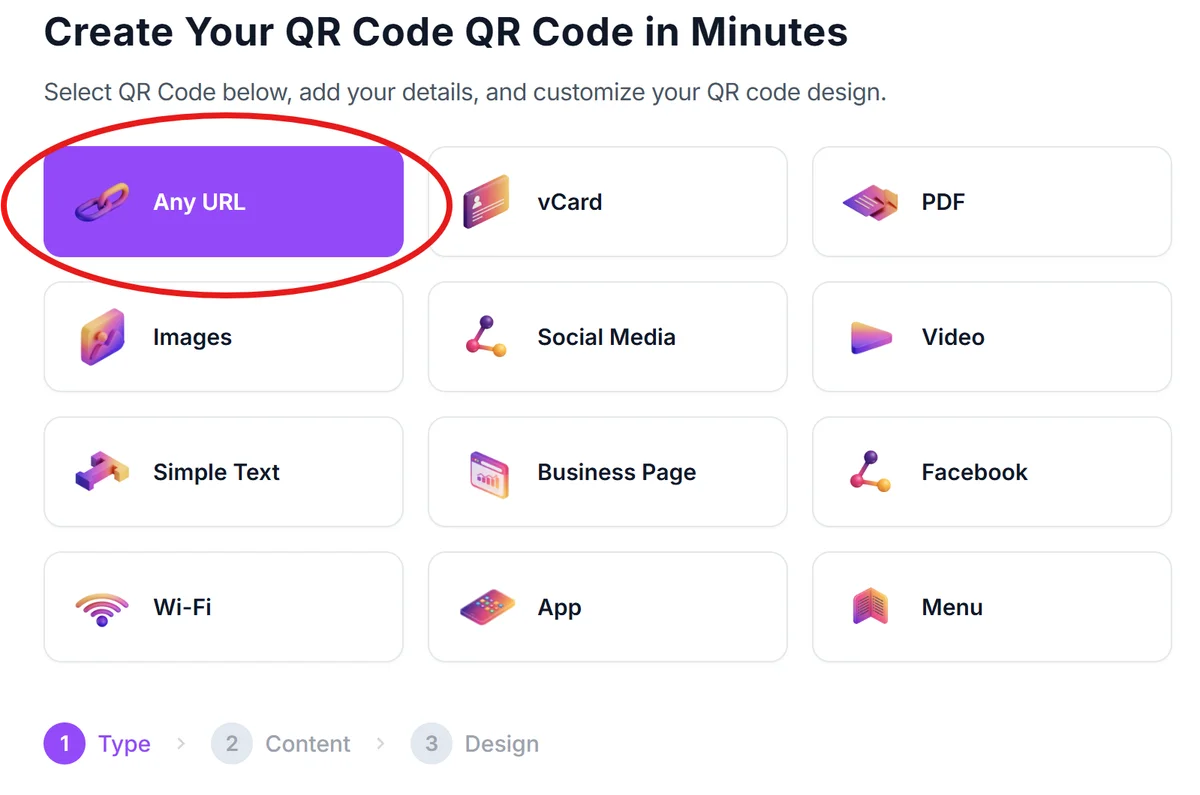
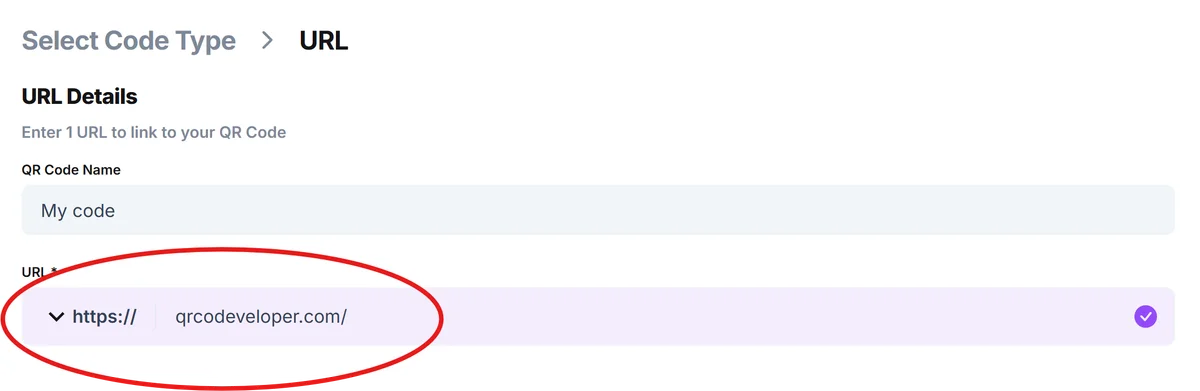
Visit qrcodeveloper.com and select the URL option. Paste your SlideShare link into the URL field to create your scannable code.
Customize for your brand
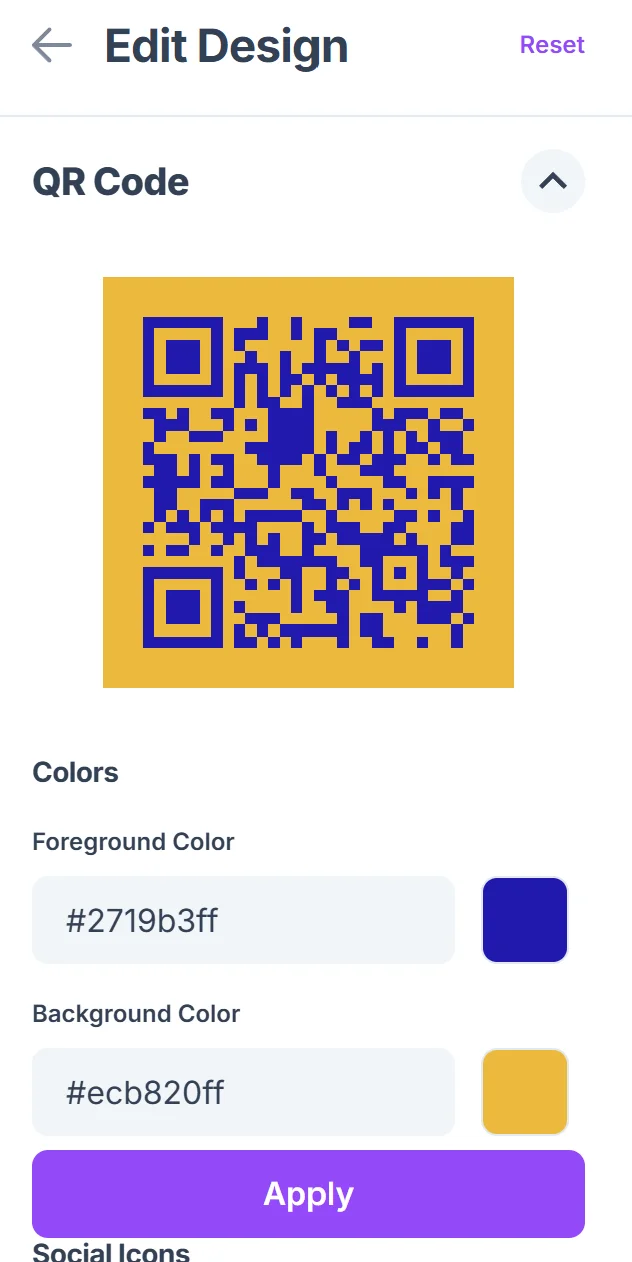
Click on the pencil icon in the Preview window to further customize your code. Add your company colors, logo, or custom design elements to match your presentation theme. This helps maintain brand consistency across all your materials, following proven QR code design principles for maximum impact.

Test the scanning experience
Scan your QR code with multiple devices to ensure it opens correctly and loads quickly. Test on both iOS and Android phones to verify compatibility.
Add to your presentation
Insert the QR code into your final slide or handout materials. Include brief instructions like "Scan for slides" to encourage audience engagement.
Best practices for presentation sharing
Strategic QR code placement and design choices can significantly improve how audiences interact with your SlideShare content.
Place QR codes on your title slide and final slide - this gives audiences two opportunities to access your content without interrupting your presentation flow
Make QR codes large enough to scan from the back of the room - at least 2 inches square for printed materials and proportionally sized for projected slides. For physical handouts, consider creating QR code stickers that attendees can take with them.
Include a short URL as backup text below your QR code in case someone has trouble scanning or prefers to type the link manually
Test your SlideShare link before presenting to ensure the presentation loads quickly and displays properly on mobile devices where most scanning occurs
Frequently Asked Questions
Can I create QR codes for private SlideShare presentations?
QR codes work with private SlideShare links, but viewers will need appropriate permissions to access the content. Public presentations offer the smoothest scanning experience.
How do I track who scans my SlideShare QR codes?
SlideShare provides basic analytics for presentation views, but QR code generators with tracking features give you more detailed scan data and timing information.
What's the best size for QR codes in presentations?
For projected slides, QR codes should take up at least 10% of the slide area. For printed handouts, minimum 2x2 inches ensures reliable scanning from arm's length.
Do SlideShare QR codes work offline?
QR codes themselves don't require internet to scan, but accessing SlideShare content requires an active internet connection on the viewer's device.
Can I use the same QR code for multiple presentations?
Each SlideShare presentation has its own unique URL, so you'll need separate QR codes for different presentations. However, you can create codes linking to your SlideShare profile page.
Related Guides
Ready to create your QR code?
Generate custom QR codes in seconds - free and easy to use.
Create Free QR Code →