QR codes for presentation slides and sharing

Transform presentation sharing from complicated file transfers to instant QR code access for any audience.
Making presentations accessible with QR codes
Passing around USB drives or sending massive email attachments is often the standard way to share presentations after meetings, but this can be quite unreliable. Now presenters create QR codes that let audiences access slides instantly on their phones, tablets, or laptops without any file transfers or compatibility issues.
A slides QR code connects directly to your presentation files - whether they're hosted on Google Drive, Dropbox, SlideShare, or any cloud platform. When someone scans the code, they're taken straight to your slides where they can view, download, or bookmark them for later reference.
This approach works particularly well for conferences, workshops, and business meetings where attendees want to reference your content afterward. In this guide I'll show you how to create QR codes for different presentation formats and share strategies that make your slides more accessible to any audience. You can also explore our PDF QR code guide for document-specific sharing tips. So let's get this presentation started!
When to use QR codes for slide sharing
QR codes solve the common problem of getting presentation materials into attendees' hands quickly and reliably. They're especially valuable when you need to share content with large groups or when file sizes make email sharing impractical. Consider how event QR codes can complement your presentation strategy.
Conference presentations and keynotes
Speakers display QR codes on their final slides so hundreds of attendees can access presentation materials without overwhelming email servers or file-sharing limits. This approach works especially well when combined with event QR codes for comprehensive attendee engagement.
Training sessions and workshops
Trainers provide QR codes for reference materials, exercises, and follow-up resources that participants can access during and after sessions.
Sales presentations and client meetings
Sales teams share detailed product information, case studies, and proposals through QR codes that clients can scan for immediate access to supporting materials. Many also integrate these with QR code business cards for seamless networking.
Educational lectures and seminars
Professors and instructors use QR codes to distribute lecture slides, reading materials, and assignment details that students can access from any device.
Creating QR codes for your presentations
The process starts with uploading your presentation to a cloud platform where others can access it, then generating a QR code that links directly to that location.
Upload your presentation to a sharing platform
Save your slides to Google Drive, Dropbox, OneDrive, or SlideShare. Make sure the sharing permissions allow anyone with the link to view the content. Then visit qrcodeveloper.com to create your QR code.
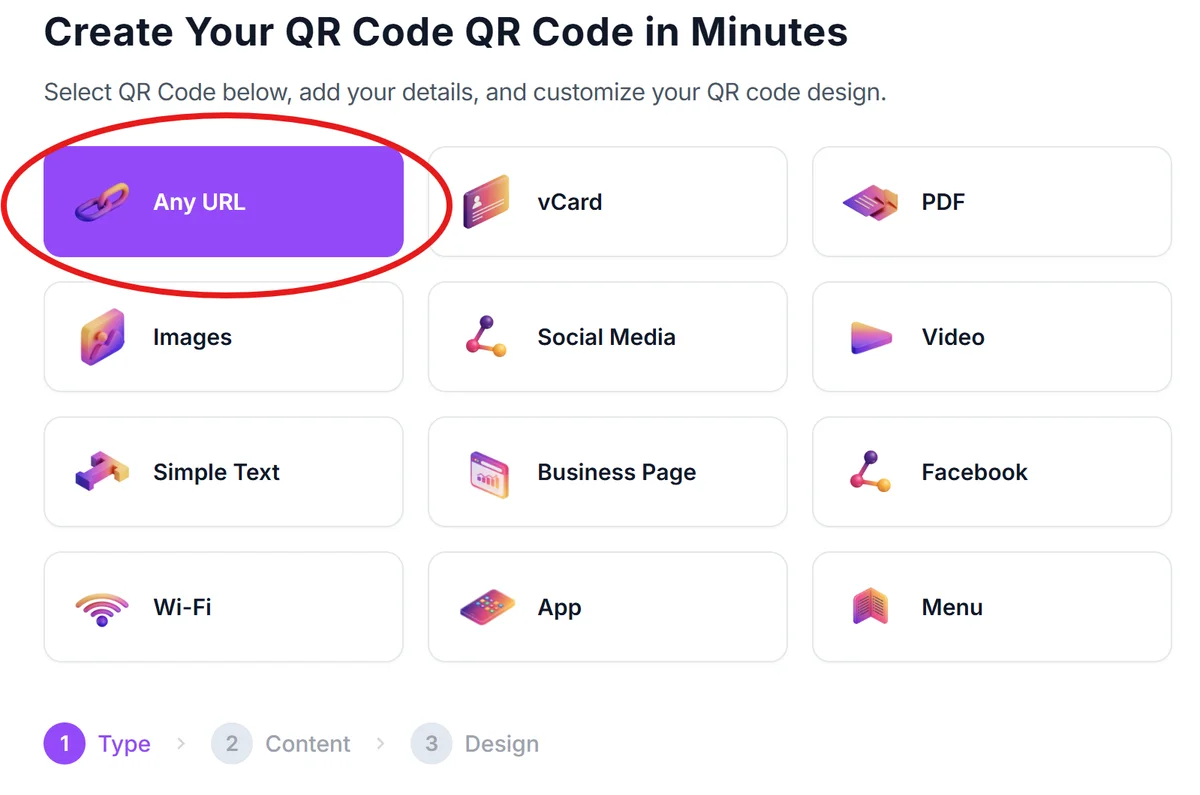
Copy the shareable link from your platform
Get the direct sharing link from your chosen platform. For Google Slides, click 'Share' and copy the link. For Dropbox, right-click your file and select 'Copy Dropbox link.' Ensure the link opens directly to your presentation.
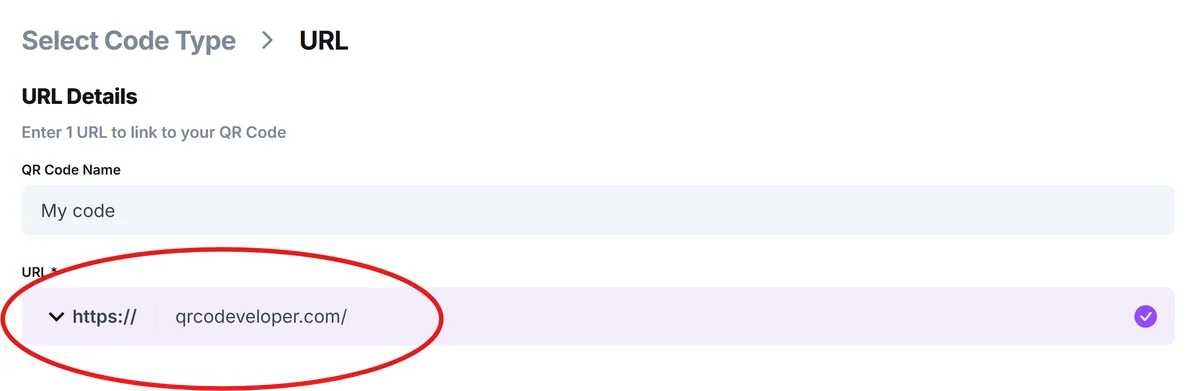
Configure QR code appearance for visibility
Click on the pencil icon in the Preview window to further customize your code. Choose high contrast colors that will show clearly when projected or printed. Add a frame with text like 'Access Slides' or 'Download Presentation' so people understand what they're scanning.
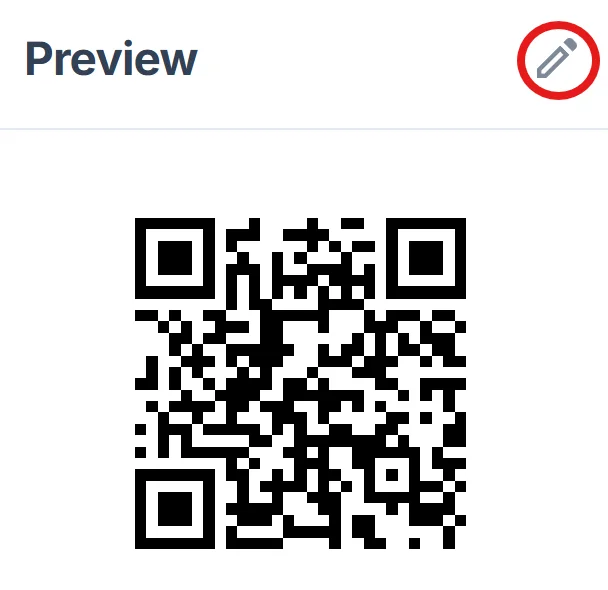
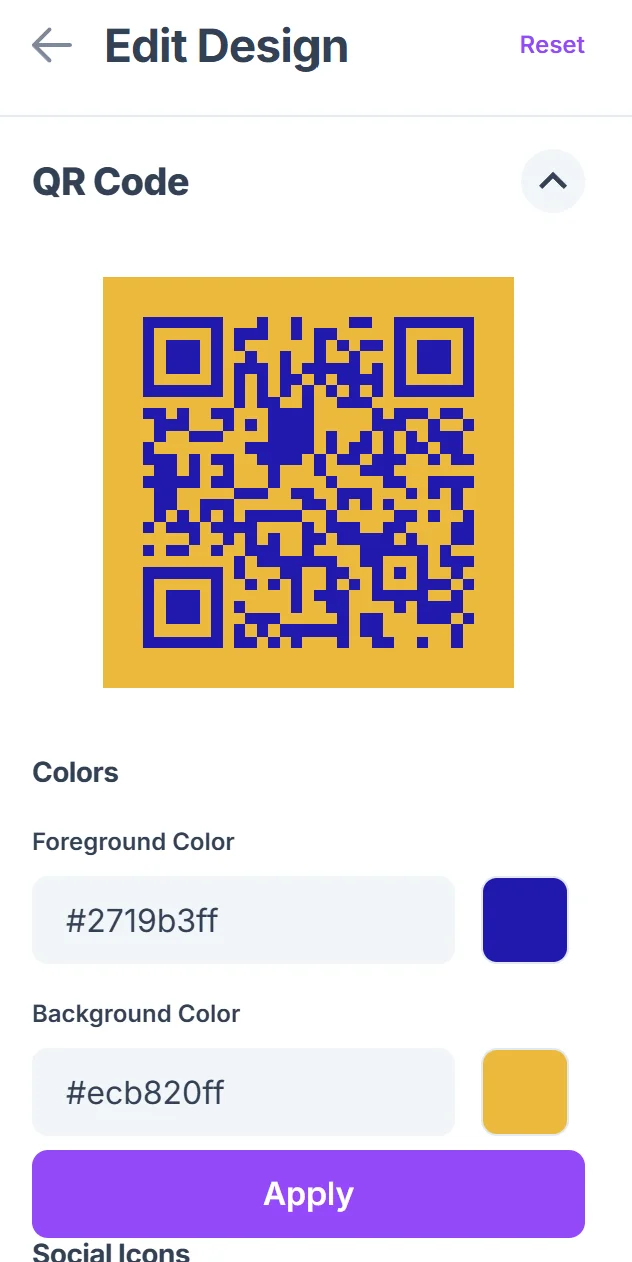
Test scanning from multiple devices
Scan your QR code using different smartphones and tablets to verify it opens correctly across various platforms and browsers. Test both the mobile and desktop viewing experience.
Integrate into your presentation workflow
Add the QR code to your final slide, handout materials, or display it prominently during Q&A sessions. Consider printing business cards or creating QR code stickers with the code for networking events.
Best practices for presentation QR codes
These strategies help ensure your audience can access and use your presentation materials effectively:
Display QR codes large enough to scan from the back row - aim for at least 2 inches square when printed and ensure high contrast against your slide background
Include clear instructions like 'Scan for slides' or 'Get presentation materials' so people know exactly what they'll access when scanning
Test your sharing links in incognito mode to make sure they work for people who aren't signed into your accounts, and verify mobile compatibility across different devices. For additional security considerations, review our guide on QR code safety.
Keep QR codes visible for several minutes during presentations rather than flashing them briefly - people need time to open their camera apps and focus properly
Frequently Asked Questions
Can I create QR codes for PowerPoint presentations stored locally?
You'll need to upload your PowerPoint file to a cloud service like OneDrive, Google Drive, or Dropbox first. QR codes require web-accessible links to function properly across different devices.
What's the best file format for sharing presentations via QR code?
PDF format offers the most reliable cross-platform compatibility. However, keeping files in their original format (PPTX, Google Slides) allows recipients to edit and reuse your content if that's your intention.
How do I prevent unauthorized access to my presentation materials?
Use platforms that offer password protection or expiring links. Google Drive allows you to set view-only permissions and track who accesses your files. Some platforms also let you set expiration dates for shared links.
Will QR codes work if attendees don't have internet access?
No, QR codes for presentations require internet connectivity to access cloud-hosted files. For offline scenarios, consider distributing materials on USB drives or providing printed handouts as backup options.
Can I track how many people accessed my presentation through the QR code?
Most cloud platforms provide basic analytics showing view counts and access times. Google Drive, Dropbox, and OneDrive all offer insights into file activity, though they don't specifically track QR code scans.
Related Guides
Ready to create your QR code?
Generate custom QR codes in seconds - free and easy to use.
Create Free QR Code →