Paper QR codes simplified: How to create and print QR codes

Print professional QR codes on paper with proper sizing, resolution, and materials for reliable scanning across any physical application.
Understanding paper QR codes and their applications
Over 2.3 billion smartphone users scanned QR codes in 2023, with most being found on paper materials, like posters and flyers. Unlike digital QR codes displayed on screens, paper QR codes like these require specific printing considerations to ensure reliable scanning across different devices and lighting conditions.
Paper QR codes serve as physical bridges between offline materials and digital content. When printed correctly, they maintain the same functionality as their digital counterparts while offering physical, tangible access points that don't depend on electricity or internet connectivity at the point of interaction.
In this guide I will cover everything from selecting the right paper stock to determining optimal sizes for your specific application. Whether you're printing QR code business cards or creating large-format signage, understanding these fundamentals ensures your codes scan reliably every time. So let's get this paper journey started!
Real-world applications for printed QR codes
Paper QR codes excel in situations where permanent, accessible information sharing is essential. From retail environments to educational settings, printed codes solve the challenge of connecting physical spaces with digital resources. Explore our types of QR codes guide to understand which format works best for your specific application.
Product packaging and labels
Manufacturers print QR codes on packaging to provide instant access to user manuals, warranty information, and product registration without requiring additional printed materials.
Event signage and promotional materials
Conference organizers and event planners use printed QR codes on banners, programs, and handouts to share schedules, speaker information, and networking opportunities. Learn more about creating event QR codes for your next gathering.
Educational worksheets and textbooks
Teachers and publishers integrate QR codes into printed materials to link students to supplementary videos, interactive exercises, and additional resources that enhance learning. For document-based resources, consider how to turn your PDF into a QR code.
Real estate and property marketing
Real estate agents print QR codes on yard signs, brochures, and listing sheets to instantly connect potential buyers with virtual tours, detailed property information, and contact forms.
Creating and printing your paper QR codes
Successful paper QR codes start with proper generation and require attention to resolution, sizing, and file formats during the printing process.
Generate your high-resolution QR code
Visit qrcodeveloper.com and create your QR code, ensuring you download it in PNG or SVG format at the highest available resolution for crisp printing results.
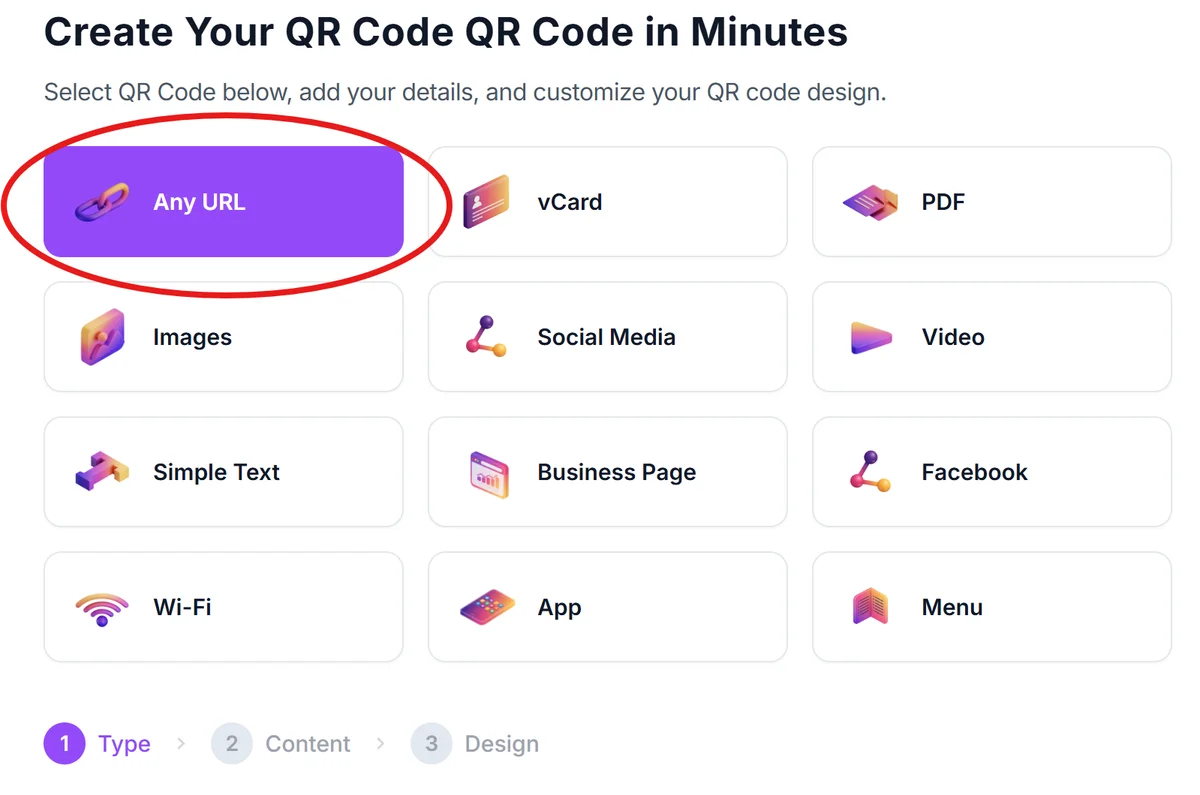
Enter your target content or destination
Input the specific URL, contact information, or text you want users to access when they scan your printed code, keeping URLs short to maintain code simplicity.
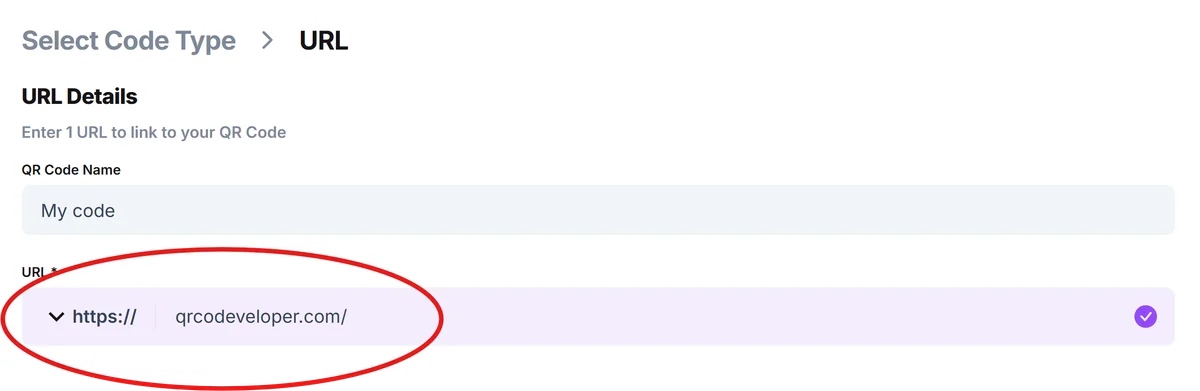
Set dimensions for your printing needs
Size your QR code appropriately for its intended use - minimum 1 inch square for close-up scanning, 2-3 inches for arm's length viewing, and larger for distance scanning applications. For marketing materials, check our guide on adding QR codes to flyers.
Choose appropriate paper and printer settings
Select matte or semi-gloss paper to reduce glare, set your printer to highest quality mode, and ensure black ink levels are sufficient for solid, dark squares.
Test scan before mass printing
Print a single test copy and scan it with multiple devices under various lighting conditions to verify readability before producing your full print run.
Essential printing and design best practices
Successful paper QR codes require attention to technical details that digital versions can ignore. These practices ensure consistent scanning performance across different environments and devices.
Maintain a minimum 300 DPI resolution when printing to preserve the sharp edges and clear contrast needed for reliable scanning, especially on smaller QR codes. For additional design considerations, explore our QR code design tips.
Include a white border around your QR code that's at least four squares wide to provide the quiet zone required for proper scanner recognition and focus
Choose paper stocks carefully - avoid glossy finishes that create glare and opt for matte or uncoated papers that provide consistent contrast under various lighting conditions
Test your printed codes with older smartphone cameras and different QR code scanner apps to ensure compatibility across the widest range of devices your audience might use
Frequently Asked Questions
What's the minimum size for a paper QR code to scan reliably?
The minimum recommended size is 1 inch (2.5 cm) square for close-up scanning. For scanning at arm's length, use 2-3 inches square, and for viewing from several feet away, go larger than 4 inches square.
Can I print QR codes on colored paper or with colored ink?
Yes, but maintain high contrast between the code and background. Dark codes on light backgrounds work best. Avoid red ink or paper, as some older cameras have difficulty reading red wavelengths.
What file format should I use for printing QR codes?
Use PNG files at 300 DPI or higher for most applications. For professional printing or large formats, SVG files provide infinite scalability without quality loss.
How do I prevent my printed QR codes from fading over time?
Use UV-resistant inks when possible, laminate codes exposed to sunlight, and choose acid-free paper for long-term applications. Indoor codes on quality paper typically last several years without fading.
Do I need special software to create printable QR codes?
No special software is required. Most online QR code generators provide high-resolution downloads suitable for printing. Just ensure you select the highest quality option available.
Related Guides
Ready to create your QR code?
Generate custom QR codes in seconds - free and easy to use.
Create Free QR Code →