OneDrive QR code generator: Share files instantly with scannable codes

Generate QR codes for OneDrive files and folders to share documents, photos, and presentations instantly without typing long URLs.
How OneDrive QR codes work for file sharing
Microsoft OneDrive users upload over 4 billion files daily, yet sharing these files can be difficult and involve copying and pasting long URLs that are prone to errors when typed manually. QR codes can solve this problem by converting your file sharing links into scannable codes that anyone can access instantly!
QR codes allow people to gain access to OneDrive content all with one simple scan The person scanning the code gets immediate access to your document, photo album, presentation, or entire folder without needing to type anything. Learn more about how QR codes work in our comprehensive guide.
In this guide I will go over everything you need to know about creating OneDrive QR codes, from basic file sharing to advanced folder organization. I'll also show you how to use QR Code Developer to generate professional-looking codes that match your branding needs. So let's dive right in!
Practical applications for OneDrive QR codes
OneDrive QR codes work particularly well in situations where people need quick access to files but typing URLs isn't practical. These codes bridge the gap between digital storage and physical sharing scenarios. Check out our PDF QR code guide for related document sharing strategies.
Conference presentations and handouts
Speakers can print QR codes on business cards or slides, giving attendees instant access to presentation files, supplementary materials, or resource folders. Consider adding these codes to your QR code business cards for maximum networking impact.
Real estate property portfolios
Agents can create QR codes linking to OneDrive folders containing floor plans, inspection reports, and property photos for each listing.
Educational resource sharing
Teachers and professors can share QR codes that link to OneDrive folders containing course materials, assignment templates, and reading lists.
Event photo collections
Wedding photographers, event planners, and families can share QR codes that provide access to entire photo albums stored in OneDrive folders. This approach works especially well for wedding photo sharing where guests want easy access to memories.
Creating OneDrive QR codes step-by-step
The process involves getting your OneDrive sharing link first, then converting it into a QR code that others can scan.
Get your OneDrive sharing link
Open OneDrive in your browser or app, right-click on the file or folder you want to share, and select 'Share' or 'Copy link'. Make sure the link permissions are set correctly for your intended audience.
Open the QR code generator
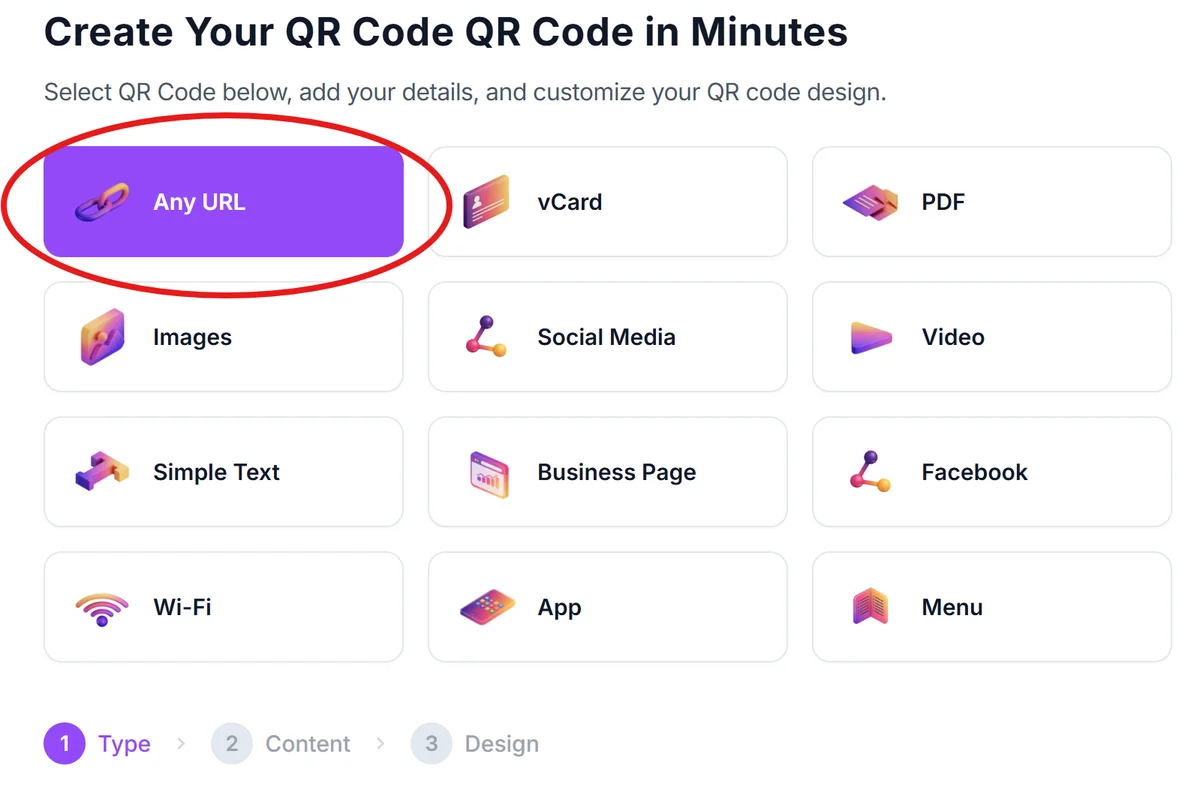
Navigate to qrcodeveloper.com and select the URL option, since OneDrive sharing links are web URLs that direct people to your files.
Paste your OneDrive link
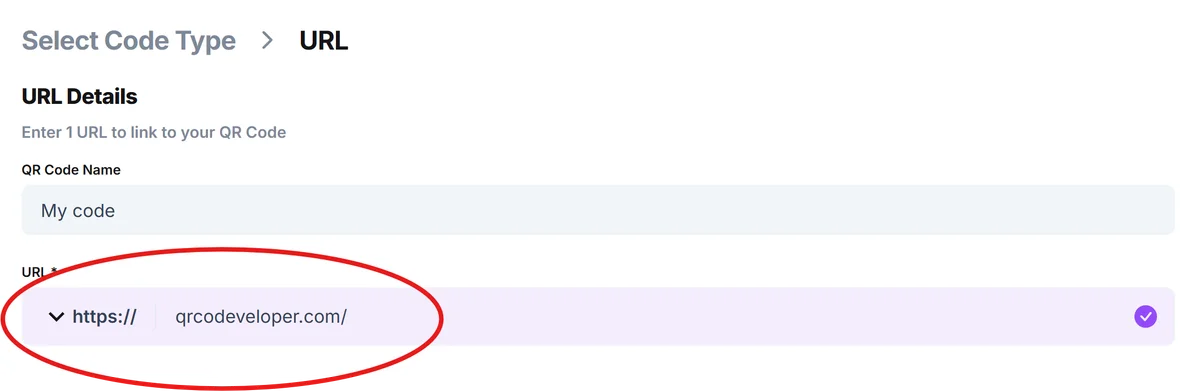
Copy your OneDrive sharing URL and paste it into the URL field. The generator will automatically create a QR code that links directly to your file or folder.
Customize the QR code appearance
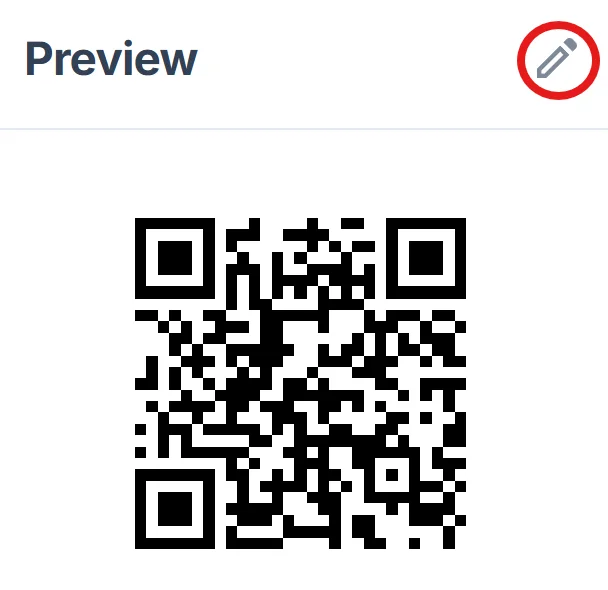
Click on the pencil icon in the Preview window to further customize your code. Adjust colors, add a logo, or modify the design to match your branding. For professional presentations, consider using your company colors or adding a small OneDrive icon for clarity. Check out our QR code design tips for creating visually appealing codes.
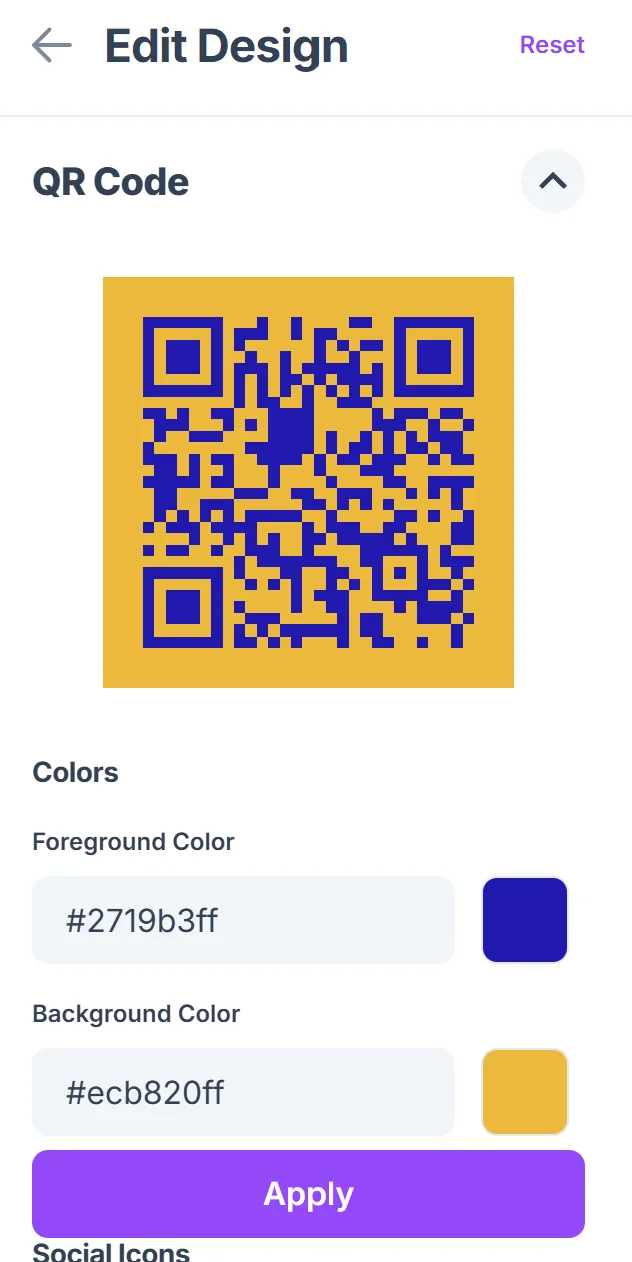
Test and download your code
Scan the QR code with your phone to verify it opens the correct OneDrive file or folder, then download it in your preferred format for printing or digital use.
Best practices for OneDrive file sharing
Getting the most out of OneDrive QR codes requires attention to both the technical setup and user experience considerations.
Set appropriate sharing permissions before creating your QR code - decide whether people need view-only access or editing rights, and whether they need to sign in with a Microsoft account
Test your QR codes on different devices and with people who don't have OneDrive accounts to ensure the sharing experience works smoothly for your intended audience. Always verify QR code safety by testing with trusted contacts first
Include context near your QR code explaining what files people will access - 'Scan for presentation slides' or 'Access event photos' helps set expectations
For large file collections, organize your OneDrive folders logically before sharing, as people scanning your code will see your folder structure exactly as you've set it up
Frequently Asked Questions
Do people need OneDrive accounts to access files through QR codes?
It depends on your sharing settings. You can configure OneDrive links to allow access for anyone with the link, or restrict access to people with Microsoft accounts. The QR code will work the same way as the original sharing link.
Can I create QR codes for OneDrive folders containing multiple files?
Yes, OneDrive QR codes work perfectly for entire folders. When someone scans the code, they'll see all the files in that folder and can browse or download what they need.
Will my OneDrive QR code stop working if I move or rename files?
OneDrive sharing links typically remain stable even if you rename files, but moving files to different folders or changing sharing permissions can break the link. Always test your QR codes after making changes to your OneDrive organization.
How do I track who accesses my OneDrive files through QR codes?
OneDrive provides basic sharing analytics showing when files were accessed, but it doesn't specifically track QR code scans. You'll see the same access data as you would for any OneDrive sharing link.
Is there a limit to how many people can access OneDrive files through QR codes?
OneDrive sharing limits depend on your account type and the specific sharing settings you choose. Personal accounts have different limits than business accounts, but QR codes don't add any additional restrictions beyond what OneDrive already enforces.
Related Guides
Ready to create your QR code?
Generate custom QR codes in seconds - free and easy to use.
Create Free QR Code →