QR code generator for Notion workspace sharing

Share Notion pages and databases instantly with scannable codes that connect teams to your workspace content.
Connecting QR codes with Notion workspaces
It can be so frustrating looking through Slack messages and emails for the right Notion project. However, a simple QR code can make it so someone can easily access projects and pages all from one simple scan on their smartphones.
A Notion QR code makes any page, database, or template easily accessible from a small code. When someone scans the code with their phone, they'll be taken directly to your Notion content—whether it's a project tracker, team directory, or resource library. These codes work with both public pages and private workspace content from Notion, similar to how PDF QR codes provide instant access to documents.
In this guide I'll go over how to create QR codes for your Notion workspace. I'll also show some practical ways teams can use these codes, from office environments to remote collaboration, plus tips for making them work smoothly with your business cards and team workflows. So let's get this work started!
Smart ways to share Notion content with QR codes
Teams are finding creative ways to bridge the gap between physical spaces and digital Notion workspaces. These codes solve the common problem of getting the right people to the right information quickly. Check-in QR codes work similarly for physical locations, while Notion codes connect people to digital workspaces.
Meeting room dashboards
Display QR codes in conference rooms that link to meeting agendas, project databases, or team calendars. Participants scan to access shared notes and resources instantly.
Employee onboarding stations
HR teams place QR codes at new hire workstations linking to onboarding checklists, company handbooks, and training databases stored in Notion. These codes can also be integrated into business cards for new employees to access their digital workspace instantly.
Project handoff documentation
Consultants and freelancers include QR codes in final deliverables that link to Notion workspaces containing project documentation, asset libraries, and maintenance guides.
Event resource sharing
Conference organizers and workshop leaders use QR codes on slides or handouts to share Notion databases with attendee resources, schedules, and follow-up materials. This approach works similarly to event QR codes that streamline information sharing at gatherings.
Building QR codes for your Notion pages
Creating a QR code for your Notion content takes just a few minutes once you have your page URL ready:
Get your Notion page URL
Open the Notion page you want to share and copy the URL from your browser's address bar. Make sure the page permissions are set correctly—either public or accessible to your intended audience.
Visit the QR code generator
Go to qrcodeveloper.com and select 'URL' as your QR code type. This works for any Notion page link, including databases, templates, and individual pages.
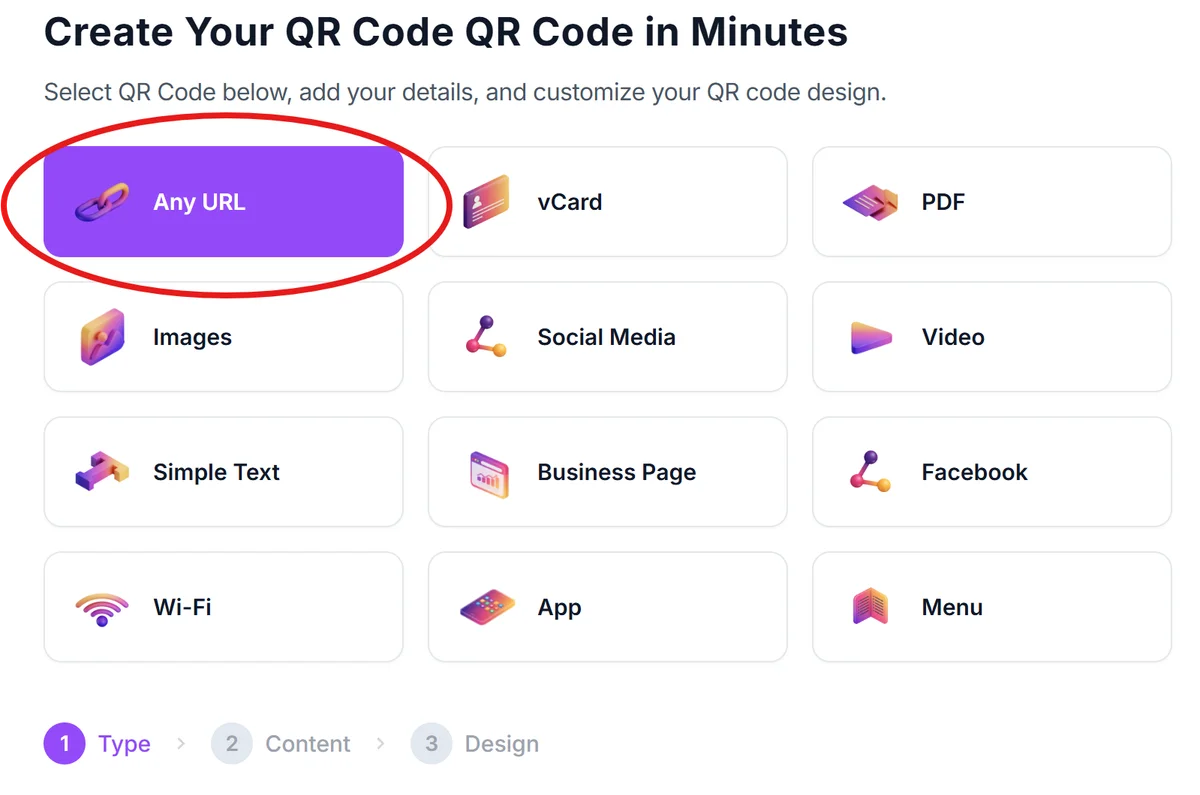
Paste your Notion URL
Enter your copied Notion URL into the generator. The tool will automatically create a QR code that links directly to your page.
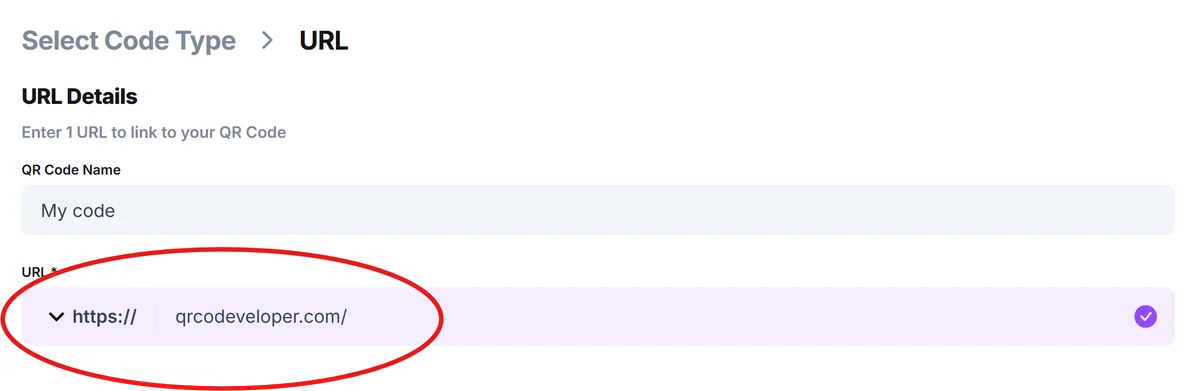
Customize for your workspace
Add your team colors or company logo to match your Notion workspace branding. Consider the environment where people will scan—use high contrast for office settings or larger codes for conference rooms. For design guidance, check out our QR code design tips to ensure optimal scanning performance.
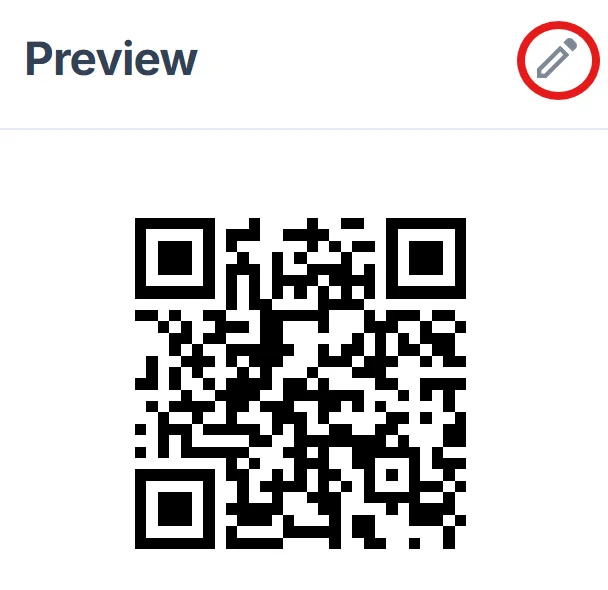
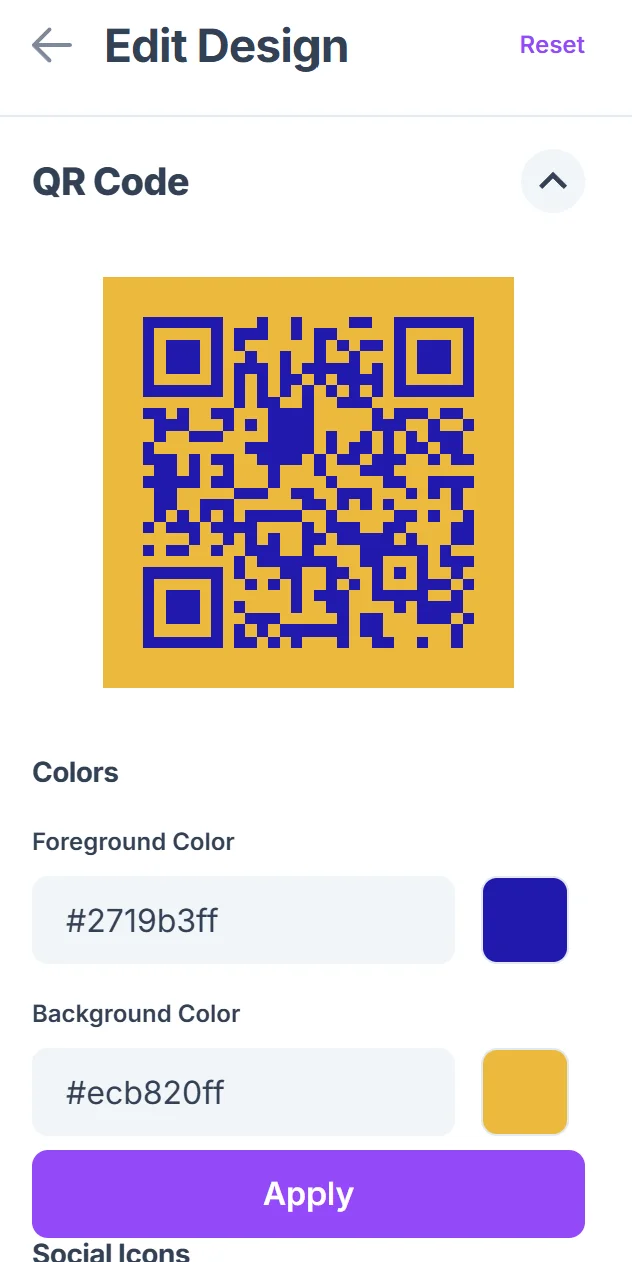
Test with team members
Before printing or sharing widely, test the QR code with colleagues who have the appropriate Notion access. Verify it works on both mobile devices and that users land on the correct page.
Making your Notion QR codes work better
These practical tips help ensure your Notion QR codes work smoothly for your team and external collaborators:
Set page permissions before creating codes—decide whether you need public access or if users should log into Notion first, then test the experience from both perspectives. Understanding static vs dynamic QR codes can help you choose the right approach for your workspace needs.
Include context near your QR codes explaining what Notion content people will access, especially for external users who might not be familiar with your workspace structure
Create separate QR codes for different access levels—one for public pages like company information, another for team-specific databases that require workspace membership
Place codes strategically in your physical workspace where people naturally look for information, such as near workstations, in meeting rooms, or on project boards rather than hidden corners
Frequently Asked Questions
Can I create QR codes for private Notion pages?
Yes, but users will need appropriate access to your Notion workspace. They'll be prompted to log in if they don't have permission to view the page.
Do QR codes work with Notion databases and templates?
Absolutely. Any Notion URL can become a QR code, including databases, templates, and individual pages. Just copy the URL and paste it into the generator.
How do I share Notion content with people outside my organization?
Set your Notion page to public sharing first, then create the QR code. External users can scan and access the content without needing a Notion account.
Will the QR code still work if I move or rename my Notion page?
Notion URLs typically remain stable even when you rename pages, but moving pages to different locations may break the link. Test your codes after making structural changes.
Can I track how many people scan my Notion QR codes?
Basic QR code generators don't provide analytics, but you can use Notion's page analytics or create intermediate landing pages with tracking if you need detailed usage data.
Related Guides
Ready to create your QR code?
Generate custom QR codes in seconds - free and easy to use.
Create Free QR Code →