QR code generator for Microsoft Teams collaboration

Share Teams meeting links, channel invites, and collaboration resources through scannable codes that eliminate typing errors.
How QR codes simplify Teams collaboration
Typing long meeting URLs into mobile devices while rushing between conference rooms can create unnecessary friction. Complex invitation links that are difficult to share verbally or write down accurately often result in delayed meeting starts and frustrated participants trying to join from their phones. This challenge is similar to what many organizations face when implementing WiFi QR codes to simplify network access.

Teams QR codes can simplify this process by making meeting links, channel invitations, and team resources accessible via scannable codes. Instead of dictating a 50-character URL, you can display a QR code that instantly connects people to the right Teams meeting or workspace. This works particularly well for hybrid meetings where some participants are joining remotely while others are in physical meeting rooms.
In this guide I will go over practical ways to implement Teams QR codes in your organization, from meeting room displays to printed materials. You'll also learn about dynamic QR codes that let you update meeting links without reprinting codes, making them perfect for recurring team meetings. So let's dive right in!
Teams QR code applications for modern workplaces
Teams QR codes solve common workplace collaboration challenges, from conference room setups to remote onboarding processes. These applications work especially well when combined with contact information QR codes for comprehensive team resource sharing.
Conference room meeting access
Display QR codes on meeting room screens or table tents so attendees can quickly join the Teams call from their mobile devices without typing complex URLs. For enhanced professional presentation, consider using QR code stickers on permanent meeting room fixtures.
Team channel onboarding
Include QR codes in welcome packets or training materials that directly add new employees to relevant Teams channels and workspaces.
Event and webinar registration
Print QR codes on conference badges, flyers, or booth displays that instantly connect attendees to Teams meetings or live events.
Cross-department collaboration
Share QR codes via email or Slack that allow external teams to join specific project channels without manual invitation processes.
Building Teams QR codes that work
Creating effective Teams QR codes requires the right meeting link format and strategic placement considerations for your specific use case.
Access the QR generator platform
Open qrcodeveloper.com and select the URL QR code option, which works perfectly for Teams meeting links and channel invitations.
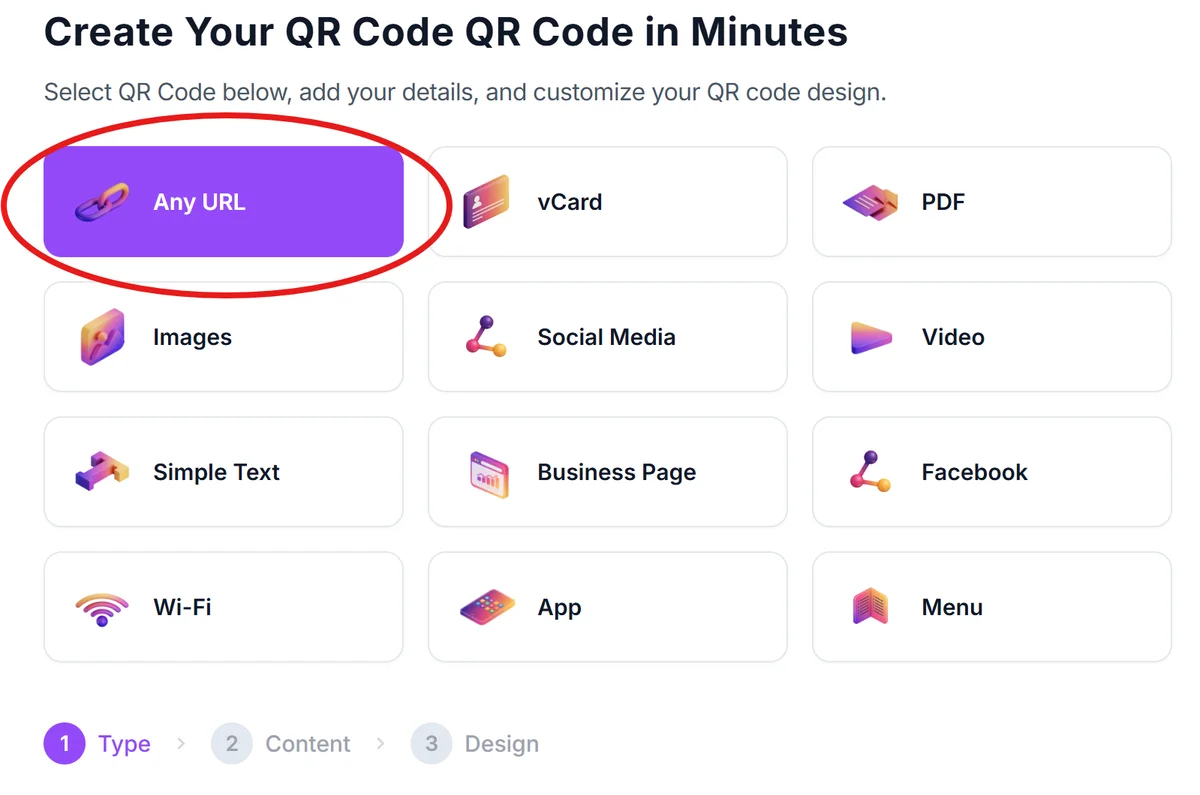
Copy your Teams meeting link
From your Teams meeting invitation, copy the full meeting URL. For recurring meetings, use the permanent meeting room link rather than single-use meeting IDs to ensure the QR code works for future sessions.
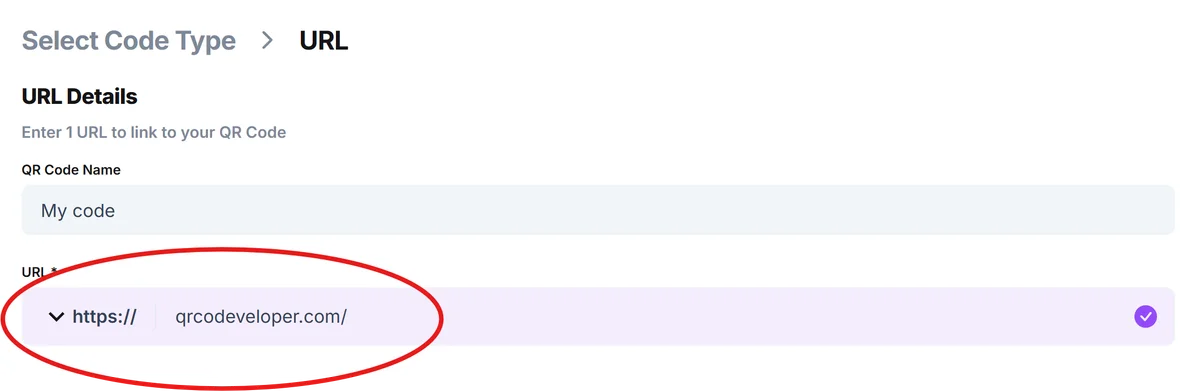
Configure for mobile optimization
Paste the Teams link and choose a size appropriate for your display medium. Meeting room displays need larger codes, while business cards or name tags can use smaller versions.
Brand with team colors
Click on the pencil icon in the Preview window to further customize your code. Customize the QR code colors to match your organization's branding while maintaining high contrast for reliable scanning. Add your company logo to reinforce trust and recognition.

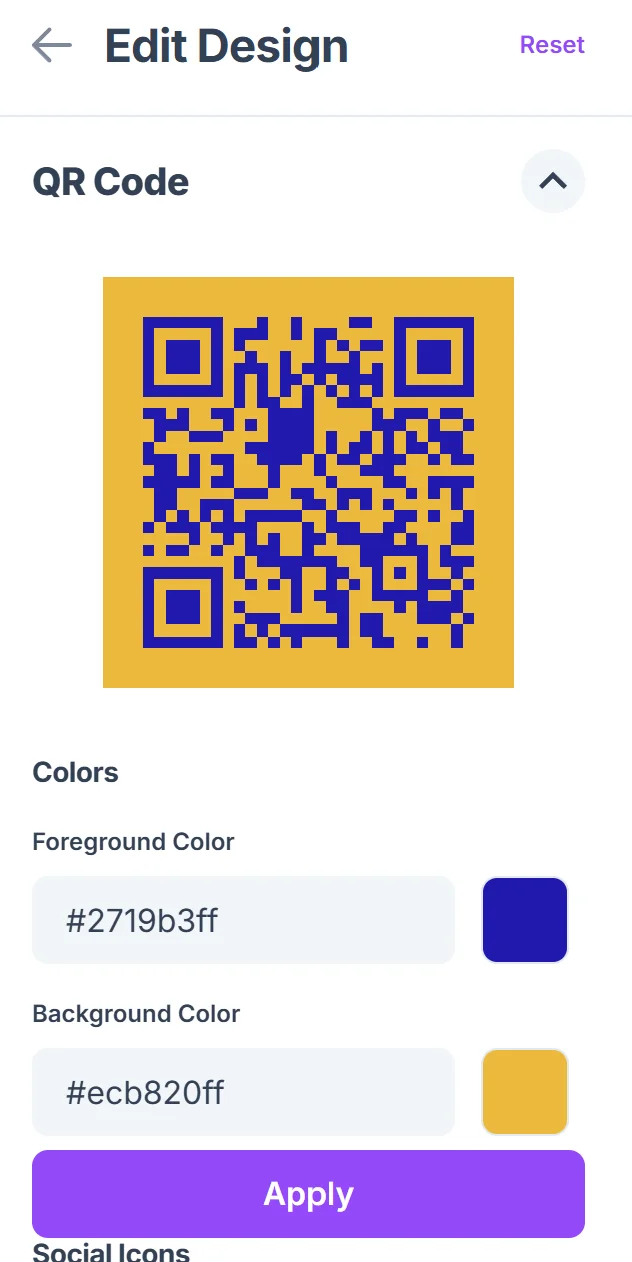
Test across device types
Verify the QR code works on both iOS and Android devices, and ensure it properly launches the Teams app when installed or opens the web version when the app isn't available.
Maximizing Teams QR code effectiveness
Strategic implementation of Teams QR codes requires considering both technical functionality and user experience factors that impact adoption rates.
Use dynamic QR codes for recurring meetings so you can update the Teams link without reprinting physical materials - this is especially valuable for weekly team meetings or ongoing project calls
Include clear instructions near the QR code explaining that it connects to a Teams meeting, as not all users immediately understand QR code functionality in professional settings. For organizations concerned about security, review our guide on QR code safety to ensure proper implementation.
Position QR codes at eye level in meeting rooms and ensure adequate lighting for reliable scanning - poor placement reduces scan success rates and creates user frustration
Test QR codes with team members who have different devices and Teams app configurations to identify potential access issues before rolling out organization-wide
Frequently Asked Questions
Do Teams QR codes work if someone doesn't have the Teams app installed?
Yes, Teams QR codes will open the web version of Teams in the device's browser when the mobile app isn't installed, ensuring universal access to meetings.
Can I create QR codes for private Teams channels?
You can create QR codes for channel invitation links, but users will still need appropriate permissions to access private channels even after scanning the code.
How do I update a Teams QR code for recurring meetings?
Use dynamic QR codes that allow you to change the destination URL without reprinting the code, or use Teams' permanent meeting room feature for consistent links.
What size should Teams QR codes be for different uses?
Business cards need at least 0.5 inches square, meeting room displays work best at 2-3 inches, and conference banners can use larger 4-6 inch codes for distance scanning.
Are Teams QR codes secure for sensitive meetings?
QR codes are as secure as the Teams meeting links they contain. Use Teams' built-in security features like waiting rooms and meeting locks for sensitive discussions.
Related Guides
Ready to create your QR code?
Generate custom QR codes in seconds - free and easy to use.
Create Free QR Code →