iCloud QR code generator - Share files and folders instantly

Transform iCloud sharing links into scannable QR codes for instant access to your files and folders.
Converting iCloud links into scannable QR codes
Sharing an iCloud folder can often mean copying a long, messy link and hoping the recipient could type it correctly. But there's a better way! Now you can convert any iCloud sharing link into a QR code that people can scan with their phone camera to access your files instantly.
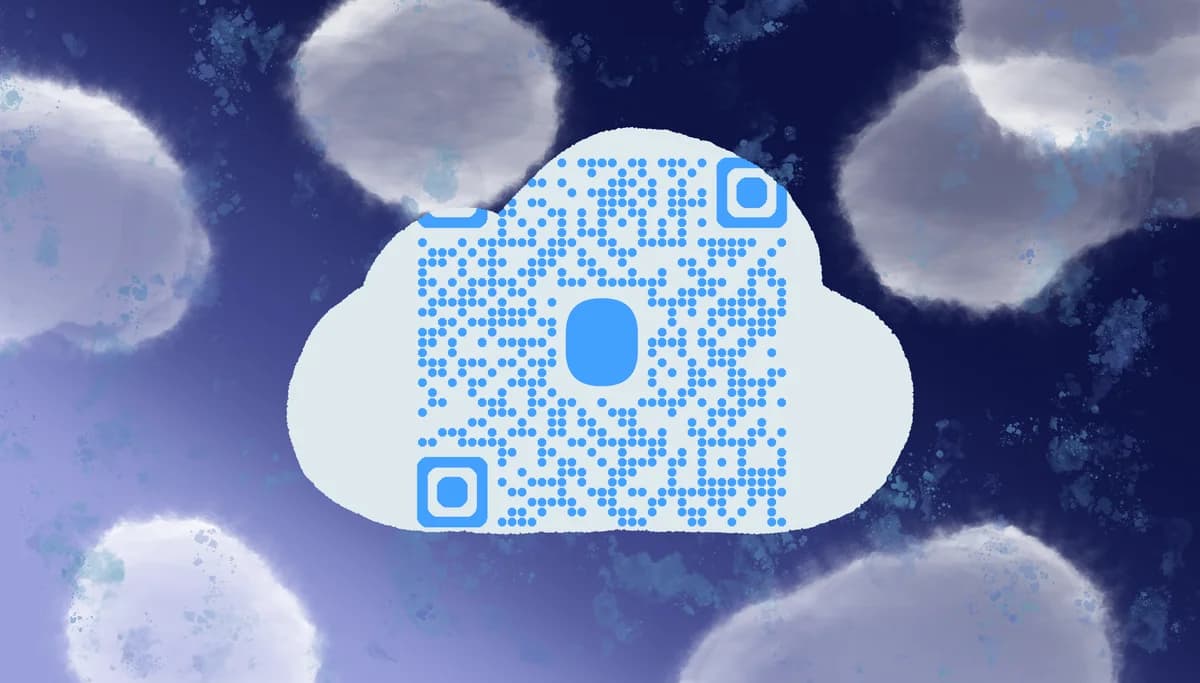
An iCloud QR code contains the sharing URL for your iCloud Drive files, folders, or photo albums. When someone scans the code, their device opens the iCloud link directly in their browser or the Files app, giving them immediate access to whatever you've shared. This works for documents, presentations, photo collections, or entire project folders.
In this guide I will go over everything you need to know about creating QR codes for iCloud sharing. You'll also find our PDF QR code guide helpful if you're sharing documents that don't need live collaboration features. So let's get started!
Practical ways to share iCloud content with QR codes
iCloud QR codes solve the frustration of sharing complex links across different devices and platforms. Whether you're collaborating on projects or sharing memories, these codes make access instant. Check out our QR code business cards guide for professional networking applications.
Project collaboration in offices
Teams can scan QR codes on whiteboards or printed materials to access shared project folders, keeping everyone synchronized on the latest files.
Event photo sharing
Wedding photographers and event organizers place QR codes on cards or displays so guests can instantly access photo albums without typing long URLs. This approach is particularly effective when combined with QR codes for wedding photos strategies.
Educational resource distribution
Teachers add QR codes to handouts or classroom displays, letting students quickly access course materials, assignments, or supplementary resources stored in iCloud. For physical materials, consider creating QR code stickers that can be easily applied to textbooks or classroom posters.
Client file delivery
Freelancers and consultants include QR codes in emails or printed materials to give clients immediate access to deliverables, drafts, or project assets.
Creating QR codes for your iCloud links
Converting your iCloud sharing link into a QR code takes just a few minutes and works with any type of iCloud content.
Set up iCloud sharing for your content
Open the Files app or iCloud.com, select your file or folder, and tap the share icon. Choose 'Add People' and set your sharing permissions. Copy the generated iCloud sharing link.
Generate your QR code
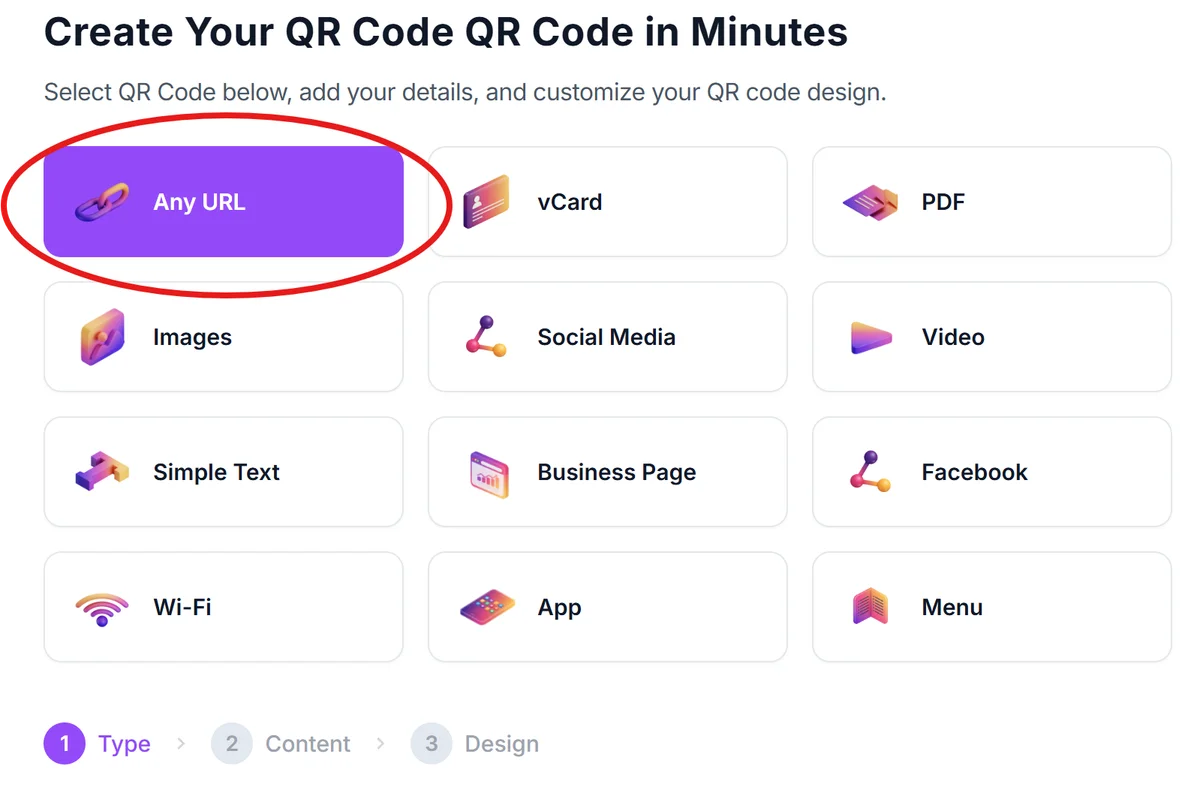
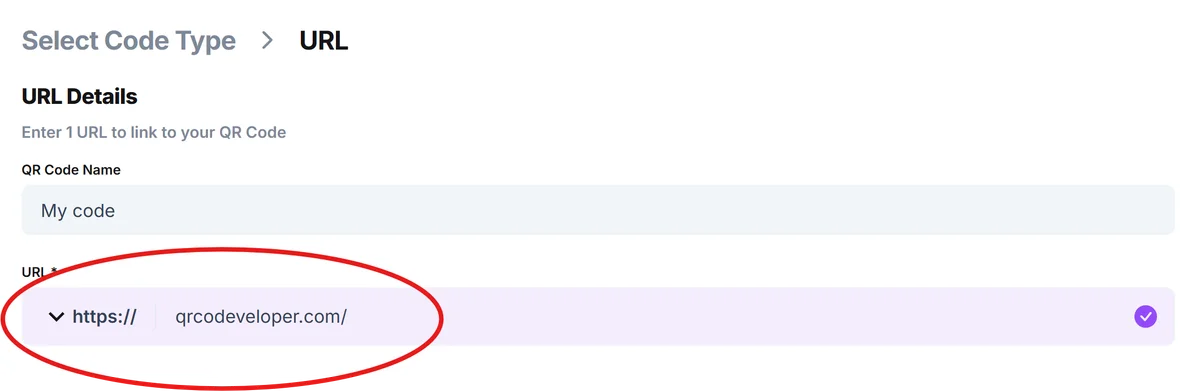
Visit qrcodeveloper.com and select the URL option. Paste your iCloud sharing link into the URL field.
Customize for your brand or purpose
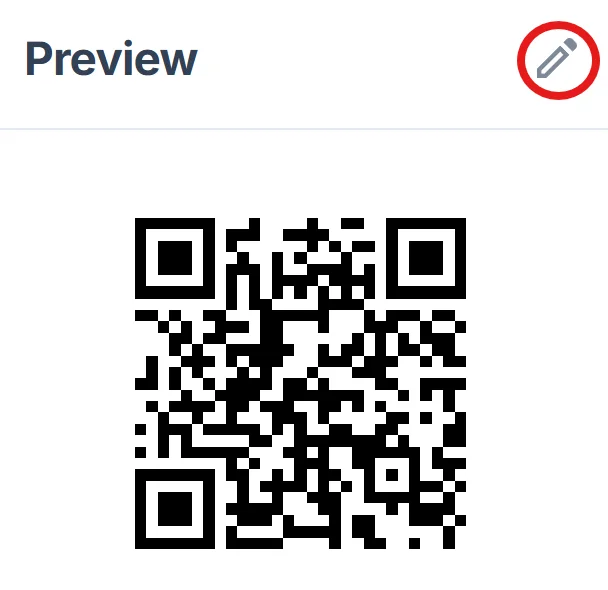
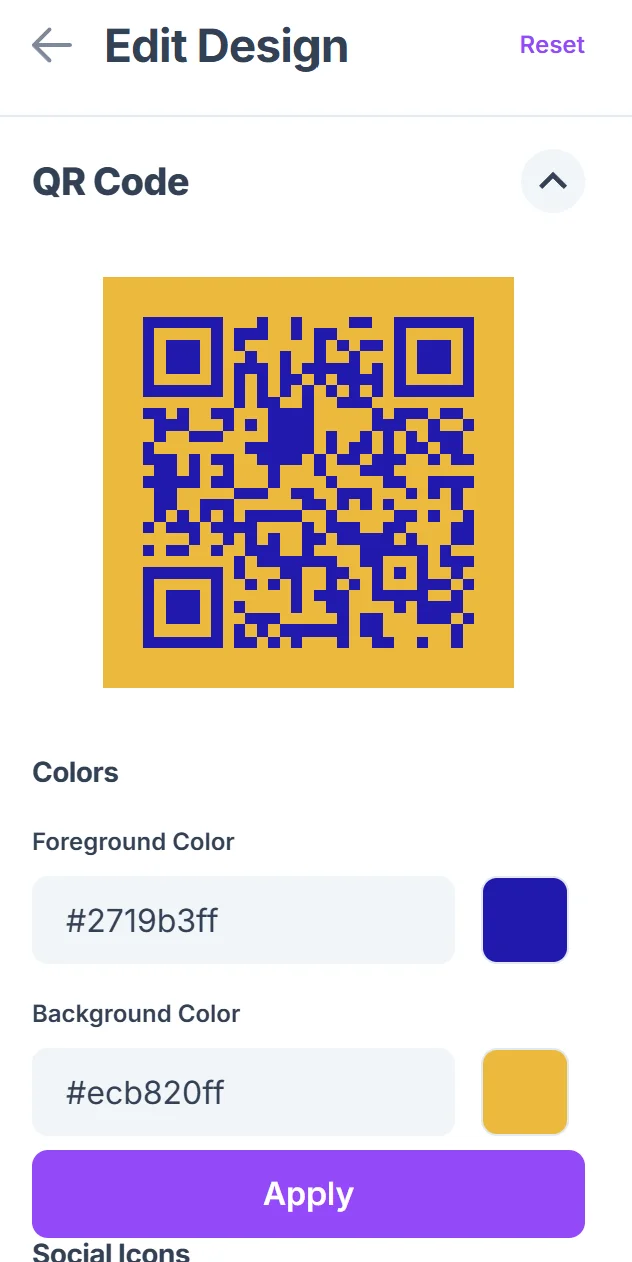
Click on the pencil icon in the Preview window to further customize your code. Add a logo, choose colors that match your brand, and include a clear frame text like 'Scan for Project Files' or 'Access Photo Album' so people know what they're scanning. Learn more about effective visual elements in our QR code design tips guide.
Test across different devices
Scan your QR code with both iPhone and Android devices to ensure the iCloud link opens properly. Test that the sharing permissions work as expected for your intended audience.
Deploy in your preferred format
Download your QR code and add it to business cards, flyers, presentations, or digital displays. Include brief instructions like 'Point camera to scan' for users unfamiliar with QR codes. If you're adding codes to printed materials, check out our guide on how to add QR codes to flyers for best practices.
Best practices for iCloud QR code sharing
These tips help ensure your iCloud QR codes work smoothly and provide the best experience for people accessing your shared content.
Set appropriate sharing permissions before creating your QR code. Consider whether recipients need view-only access or editing rights, and remember that anyone with the QR code can access the content.
Include context about what people will find when they scan. Add descriptive frame text like 'Wedding Photos' or 'Q3 Reports' so people know what to expect before scanning.
Test your iCloud sharing link in an incognito browser window to ensure it works for people who aren't signed into your Apple ID. Some sharing settings require recipients to have their own Apple ID.
Monitor your shared folder activity if you're using it for business purposes. iCloud provides basic analytics about who accessed your shared content and when.
Frequently Asked Questions
Do people need an Apple ID to access my iCloud QR code?
It depends on your sharing settings. Public links work for anyone, but some iCloud sharing options require recipients to sign in with an Apple ID. Test your link in an incognito browser to see what experience others will have.
Can I track who scans my iCloud QR code?
iCloud provides basic sharing analytics showing when your content was accessed, but QR codes themselves don't track scans. For detailed analytics, consider using a URL shortener with tracking before creating your QR code.
What happens if I change the iCloud sharing settings later?
Your QR code will reflect the current sharing settings since it links directly to your iCloud content. If you disable sharing or change permissions, the QR code will stop working or show different access levels.
Will my iCloud QR code work on Android devices?
Yes, iCloud sharing links work in any web browser, so Android users can scan the QR code and access your content through their browser. They don't need Apple devices or apps.
Is there a limit to how many people can access my shared iCloud content?
iCloud doesn't specify exact limits for public sharing links, but performance may slow with very high traffic. For large-scale sharing, consider breaking content into smaller folders or using alternative hosting.
Related Guides
Ready to create your QR code?
Generate custom QR codes in seconds - free and easy to use.
Create Free QR Code →