Build a mini knowledge base using Google Drive + QR codes

Small teams and entrepreneurs can create professional documentation systems without expensive software by combining Google Drive's organization features with instant QR code access.
Key Takeaways
- Google Drive's folder structure becomes your knowledge base foundation when paired with QR code shortcuts
- Document sharing settings must be configured properly before creating QR codes to ensure universal access
- Physical QR code placement in workspaces creates instant bridges between problems and solutions
- Version control through Google Drive keeps your QR codes working even when documents are updated
What if your team could access any procedure, guide, or reference document in seconds, without searching through folders or remembering complex file paths? Traditional knowledge management systems often create barriers between people and the information they need, leading to frustrated employees and inconsistent processes.
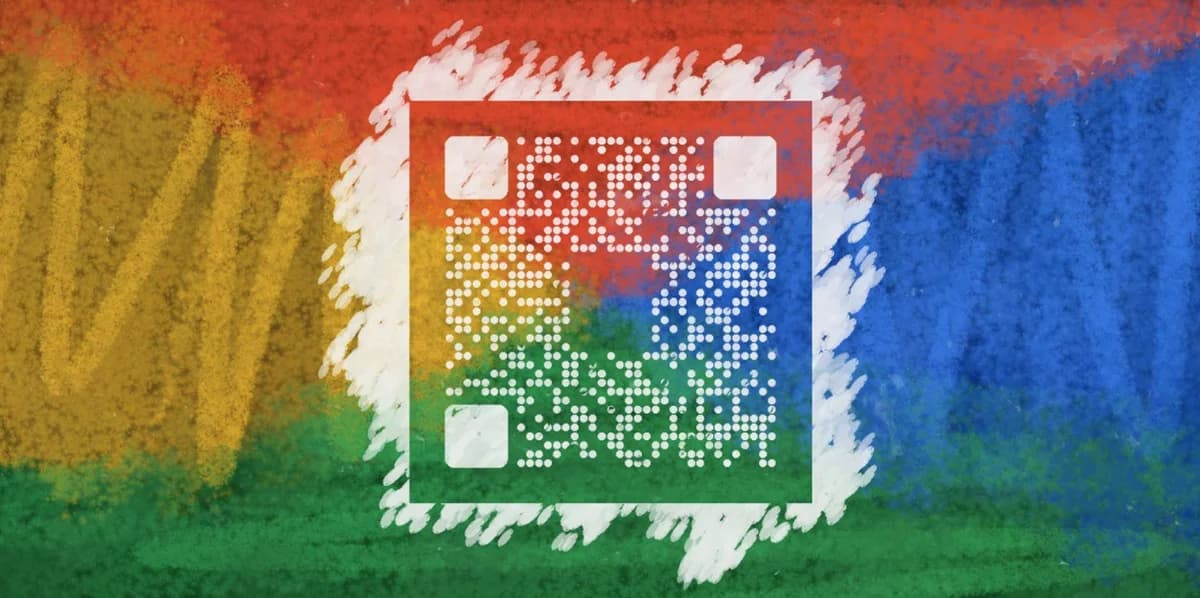
Small businesses and teams face a unique challenge: they need organized, accessible documentation but lack the budget for expensive knowledge management platforms. Google Drive offers powerful organization features, but finding specific documents quickly remains a challenge, especially for field workers or employees without constant computer access.
This guide shows you how to build a mini knowledge base that combines Google Drive's free storage and sharing capabilities with QR codes for instant document access. You'll learn to create a system where anyone can scan a code and immediately view the exact document they need. I'll also show you how to use QR Code Developer to generate professional codes that integrate seamlessly with your documentation workflow.
Setting up your Google Drive structure
Your knowledge base effectiveness depends entirely on how well you organize your Google Drive folders. I recommend creating a dedicated folder called 'Knowledge Base' as your main container, then building logical sub-folders that match how your team actually thinks about information.
Start with broad categories that reflect your business operations. For example, a restaurant might use folders like 'Food Safety Procedures,' 'Equipment Manuals,' and 'Staff Training,' while a retail store might organize around 'Customer Service Scripts,' 'Product Information,' and 'Inventory Procedures.' Consider how restaurants use QR codes for menus as inspiration for organizing customer-facing documentation.
Create your folder hierarchy
Build your folder structure three levels deep maximum. Your main Knowledge Base folder contains department or function folders, which contain specific topic folders. For example: Knowledge Base > Customer Service > Returns and Exchanges. This prevents the overwhelming folder trees that make information hard to find.
Establish naming conventions
Use consistent naming that includes version numbers and dates. I suggest formats like 'Safety Protocol v2.1 - Updated March 2024' or 'New Employee Checklist - Current.' This clarity becomes crucial when multiple team members contribute documents and when you're generating QR codes that need to point to the most current versions.
Configure sharing permissions
Set each knowledge base folder to 'Anyone with the link can view' if your documents don't contain sensitive information. For internal-only content, use 'Anyone in your organization with the link can view.' These settings ensure your QR codes work for their intended audience without requiring individual permission requests. Understanding QR code security considerations helps you make informed decisions about sharing permissions.
Creating QR codes for your documents
Once your Google Drive structure is established, you'll generate QR codes that provide direct access to specific documents or folders. The key is obtaining the correct shareable links from Google Drive and converting them into scannable codes that work reliably across different devices. Learning about different types of QR codes will help you choose the right approach for your knowledge base system.
Google Drive provides several link types, but you'll want the direct sharing link for each document or folder. This ensures people land exactly where they need to be, whether that's a specific procedure document or a folder containing multiple related files.
Gather your document links
Right-click each document or folder in Google Drive and select 'Get link.' Copy the full URL that appears. For documents, this link opens the file directly in Google Drive's viewer. For folders, it opens the folder view where users can see all contained files. Test each link in an incognito browser window to confirm it works without requiring sign-in.
Generate QR codes for each link
Visit a reliable QR code generator and paste your Google Drive link into the URL field. I recommend using QR Code Developer because it creates high-quality codes that scan reliably and offers customization options for branding. Generate one QR code per document or folder, and download each as a high-resolution PNG file.
Test your QR codes thoroughly
Before implementing your system, test each QR code with multiple devices and QR code scanning apps. Scan from different distances and lighting conditions to ensure reliability. This testing phase prevents frustrating experiences when team members try to access information quickly during actual work situations.
Implementing your knowledge base system
The final step involves strategically placing your QR codes where people need information most. This might mean printing codes on laminated cards, adding them to equipment labels, or incorporating them into physical workspaces where specific procedures are performed. For durable placement options, explore QR code stickers that can withstand workplace conditions and provide long-lasting access to your documentation.
Consider the context where each piece of information becomes necessary. Safety procedures belong near relevant equipment, customer service scripts work well at service counters, and training materials should be accessible in break rooms or training areas.
Design professional QR code labels
Create labels that include the QR code, a descriptive title, and brief instructions like 'Scan for complete procedure.' Use weather-resistant materials for codes that will be exposed to moisture or cleaning chemicals. Size your codes appropriately - smaller codes work for desktop reference, while larger codes suit wall-mounted applications where people scan from a distance.
Establish update procedures
Document who can update each type of information and how often reviews occur. When you update a Google Drive document, the QR code continues working because it points to the same file location. However, you'll need procedures for notifying team members about significant changes and ensuring everyone knows how to suggest improvements to the knowledge base.
Train your team on the system
Introduce the knowledge base gradually, starting with one or two frequently-needed documents. Show team members how to scan codes and what to expect when they do. Consider creating a master reference sheet that lists all available QR codes and their purposes, similar to how QR code business cards provide quick access to contact information.
Expert organization strategies
These practical strategies will help you build a knowledge base that actually gets used and stays current over time.
Create a 'Quick Start' folder with your most essential documents and generate a master QR code that team members can bookmark on their phones
Use Google Drive's comment feature to collect feedback directly on documents, then review comments monthly to identify needed updates or clarifications
Include creation dates and review schedules in document headers so anyone accessing information knows how current it is
Generate backup QR codes for critical procedures and store them in multiple locations to prevent workflow disruption if primary codes become damaged
Track which QR codes get scanned most frequently by monitoring Google Drive view analytics, then prioritize updates for your most-used documents
Frequently Asked Questions
What happens to my QR codes if I move or rename files in Google Drive?
Moving files within Google Drive doesn't break QR codes because Google maintains the same sharing link. However, if you delete and recreate a file, you'll need to generate a new QR code. This is why I recommend updating existing files rather than replacing them entirely.
Can I track who accesses documents through QR codes?
Google Drive provides basic view analytics that show when files were accessed, but it doesn't specifically identify QR code scans versus other access methods. For detailed analytics, consider using URL shortening services that provide scan tracking before redirecting to your Google Drive links.
How do I handle sensitive information that shouldn't be publicly accessible?
For sensitive documents, set sharing permissions to 'Restricted' and add specific email addresses for authorized users. The QR code will still work, but users will need to sign in with an authorized Google account. Alternatively, create sanitized versions of sensitive procedures that remove confidential details.
What's the best size for printing QR codes?
For desktop reference, 1-inch squares work well. For wall-mounted codes that people scan from 3-4 feet away, use 2-3 inch squares. The key is maintaining good contrast and ensuring the code doesn't get pixelated when printed. Always test printed codes before mass production.
How often should I update my knowledge base documents?
Review your most critical documents quarterly and less critical ones annually. Set calendar reminders for reviews, and encourage team members to suggest updates when they notice outdated information. The beauty of this system is that updates automatically flow through existing QR codes without requiring new codes.
Related Guides
Ready to create your QR code?
Generate custom QR codes in seconds - free and easy to use.
Create Free QR Code →