QR Code Generator for Microsoft Excel

Transform Excel spreadsheets into interactive databases with built-in QR codes for instant data access and sharing.
How Excel QR codes transform spreadsheet data sharing
Copying cell data from Excel spreadsheets can be frustrating and involve highlighting text, hitting Ctrl+C, then pasting it elsewhere. However, there's a better way! Excel users can now generate QR codes directly within cells, letting anyone scan and instantly access URLs, contact information, or any text data stored in their spreadsheets.

Excel QR codes turn static spreadsheet data into scannable, shareable content. Whether you're managing inventory lists, contact databases, or product catalogs, QR codes in Excel cells create instant bridges between your digital data and the physical world. Users can scan codes to visit websites, add contacts to their phones, or access detailed information without typing anything.
In this guide I will show you multiple methods for generating QR codes in Excel, from simple web service formulas to advanced automation techniques. I'll also cover how QR Code Developer integrates with Excel workflows for bulk QR code generation and management. So let's get started!
Practical applications for Excel QR codes
Excel QR codes solve real business problems by making spreadsheet data instantly accessible through mobile devices. From inventory tracking to customer databases, QR codes eliminate manual data entry and reduce errors. For complex data sharing workflows, explore our contact information QR codes guide.
Inventory management systems
Generate QR codes for product SKUs, part numbers, or asset tags. Warehouse staff scan codes to access detailed product information, pricing, or reorder data stored in Excel.
Event attendee lists
Create QR codes containing attendee contact information or ticket details. Event organizers scan codes for quick check-ins or to access participant data during networking events. Learn more about creating event QR codes for comprehensive event management.
Real estate property databases
Generate QR codes linking to property listing URLs, virtual tours, or detailed specifications. Agents print codes on flyers or signs for instant property information access. Discover how to effectively add QR codes to your flyers for maximum impact.
Employee directory systems
Create vCard QR codes from employee contact data in Excel. Staff members scan codes to quickly add colleagues' contact information to their phones without manual typing.
Creating QR codes in Excel spreadsheets
Excel offers several approaches for QR code generation, from built-in web service functions to external generator integration. The method you choose depends on your data volume and customization needs.
Set up your data structure
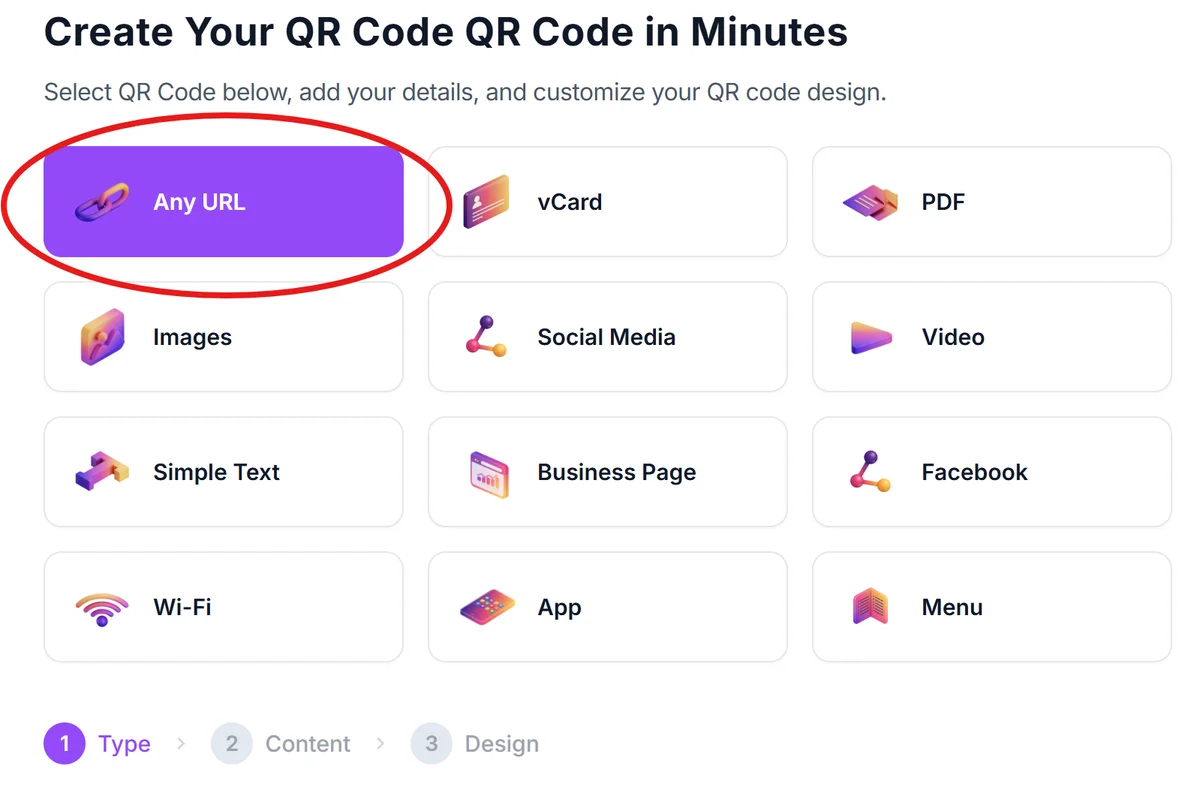
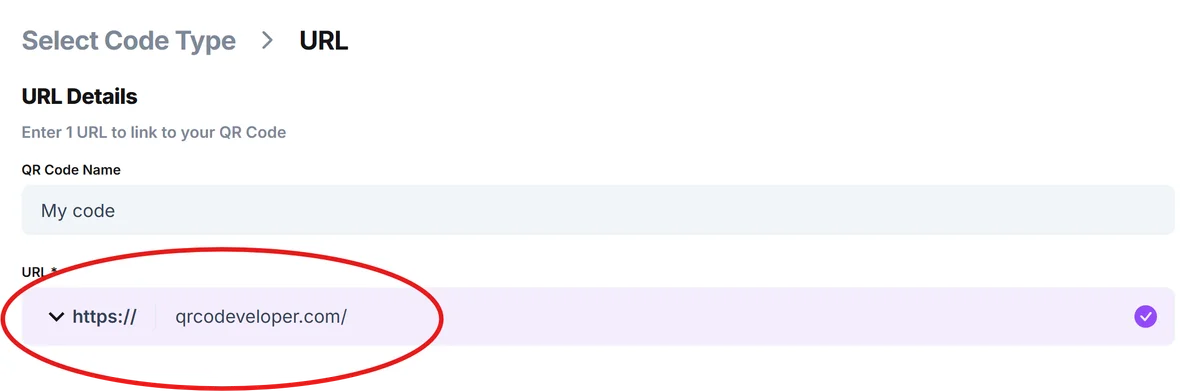
Organize your Excel data with the content you want to encode in QR codes. This could be URLs in column A, contact information in multiple columns, or any text data. Visit qrcodeveloper.com to test your data format before implementing in Excel.
Choose your QR generation method
For simple URL QR codes, use Excel's WEBSERVICE function with a QR API. For bulk generation or advanced customization, export your data and use an external QR generator, then import the results back into Excel.
Implement the QR formula or import process
If using formulas, enter =WEBSERVICE("https://api.qrserver.com/v1/create-qr-code/?size=200x200&data="&ENCODEURL(A1)) in your QR code column. For bulk generation, paste generated QR code images into Excel cells or use hyperlinks to QR code files.
Test QR code functionality
Scan generated QR codes with your phone to verify they contain the correct data and function properly. Check that URLs open correctly, contact information imports accurately, and text displays as expected. If you need to scan QR codes from images, check out our guide on how to scan QR codes from photos.
Format and distribute your Excel file
Adjust cell sizes to display QR codes clearly, typically 1-2 inches square for optimal scanning. Save your Excel file or export specific data ranges for printing, sharing, or integration with other systems.
Excel QR code best practices and formulas
Successful Excel QR code implementation requires attention to data formatting, cell sizing, and formula optimization. These practices ensure reliable scanning and efficient spreadsheet performance.
Size QR code cells appropriately - aim for at least 1 inch square (72x72 pixels) for reliable scanning. Larger codes work better for printing, while smaller codes suffice for on-screen viewing.
Use ENCODEURL function when creating QR codes with formulas to properly handle special characters, spaces, and symbols in your data. This prevents broken QR codes from formatting issues. For better understanding of QR code fundamentals, explore our comprehensive guide to understanding QR codes.
Test QR codes with multiple devices and scanning apps before distributing your Excel file. Different scanners may interpret certain data types differently, especially contact information or WiFi credentials.
Consider using dynamic QR codes for data that changes frequently. Instead of encoding direct information, use QR codes that link to web pages or databases that you can update without regenerating codes.
Frequently Asked Questions
Can I generate QR codes directly in Excel without external services?
Excel doesn't have built-in QR code generation, but you can use WEBSERVICE formulas with QR APIs or install QR code add-ins from the Microsoft Office Store for direct generation within Excel.
What's the best way to create QR codes for large Excel datasets?
For bulk generation, export your Excel data as CSV, use a dedicated QR generator for batch processing, then import the QR code images or links back into Excel. This approach handles thousands of codes efficiently.
How do I make QR codes in Excel cells print clearly?
Set your QR code cells to at least 1 inch square, use high-resolution QR code images (300+ DPI), and ensure your printer settings are optimized for graphics. Test print a sample page before printing large batches.
Can Excel QR codes contain formulas or calculated values?
Yes, you can create QR codes from calculated cell values using formulas. For example, concatenate multiple cells to create URLs or combine data fields to generate contact information QR codes.
Are there free options for generating QR codes in Excel?
Yes, you can use free web service APIs with Excel formulas, free online QR generators for bulk processing, or free Excel add-ins from the Microsoft Store. Many solutions offer basic QR generation at no cost.
Related Guides
Ready to create your QR code?
Generate custom QR codes in seconds - free and easy to use.
Create Free QR Code →