Introducing enhanced QR code customization features

New styling controls let flat black-and-white codes match brand colors, logos, and frame shapes in a few clicks, without touching error correction or scan reliability.
Key Takeaways
- Custom colors and logos are applied through the same editor as your destination link, so styling and setup happen in one pass instead of two separate tools.
- Frame styles add a call-to-action border around the code (like "Scan Me") without shrinking the scannable module area, which keeps read rates steady.
- Branded codes with logos and color see meaningfully higher scan rates than plain black-and-white ones, according to QR-Verse's 2024 research, which found a 50-80% lift.
Restaurant owners used to print the same black square on every table tent, every menu insert, and every window sticker because that's what the generator spit out. No color match to the tablecloths, no logo, nothing that said "this is our brand" instead of "this is a generic QR code." Customers scanned it fine, but it looked like an afterthought bolted onto an otherwise nice piece of print design.
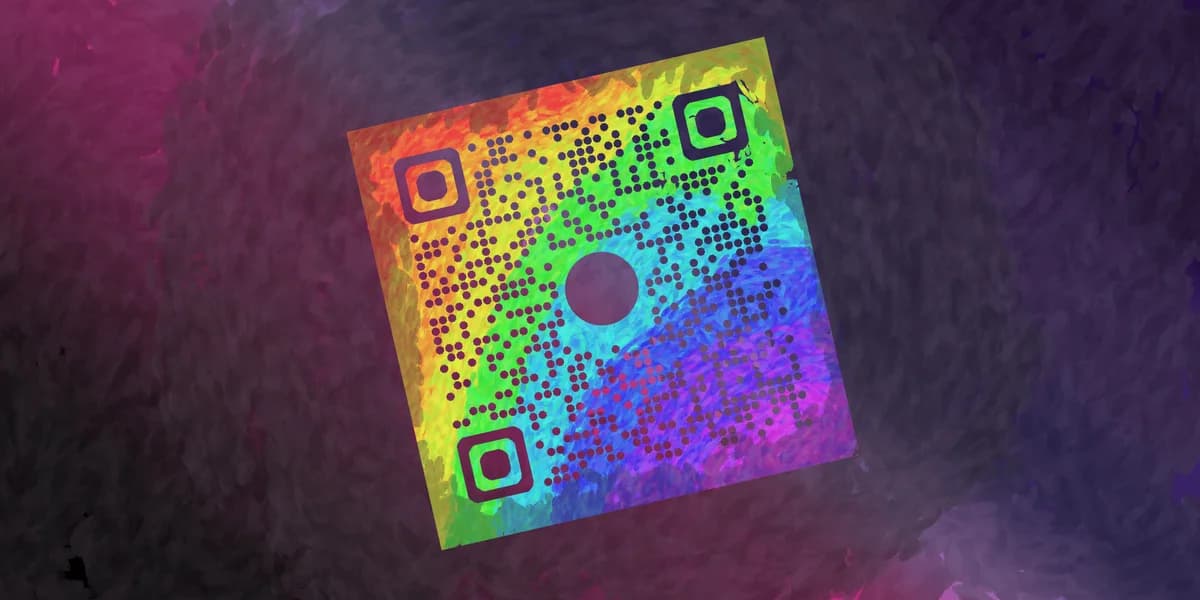
That gap between "functional" and "on-brand" is exactly what the new customization tools close. You can now set foreground and background colors, drop in a logo, and pick from several frame styles directly in the editor, and the code still reads correctly because the error correction math is applied automatically underneath whatever you design. For teams building anything from a restaurant menu QR code to a business card QR code, this is the difference between a code that works and a code that looks intentional.
What's new and how to use it
The customization panel now sits right next to the content settings when you build a code, so you're not exporting a plain QR code and then trying to skin it in a separate design tool. Here's what changed and how each piece works.
Color and contrast controls
You can now set a custom foreground color instead of default black, along with a background fill, and the generator checks contrast automatically before you download. If your brand color is too light against white, the tool flags it so you don't end up with a code that fails to scan under normal lighting. This matters more than people expect: a scanner reads contrast between modules, not brand identity, so pastel-on-white combinations that look fine on screen can be unreadable in a dim restaurant or a sun-glared parking lot, which is one reason to review general QR code design tips before finalizing colors.
Logo embedding without breaking the scan
Adding a logo used to mean manually punching a hole in the code and hoping the error correction level was high enough to compensate. Now the editor reserves space for the logo automatically and bumps error correction up as needed, so you drop in a PNG and the surrounding modules adjust to keep the code readable. Bitly's research backs up why this matters: 49% of marketers say adding a logo is the single most valuable customization option available to them, more than color or frame style.
Frame styles and call-to-action text
Frames wrap the code in a border with a short instruction like "Scan for Menu" or "Scan to Order," which helps in settings where people might not immediately recognize a bare QR code as something to interact with. This has become common enough that it's now expected in categories like packaging: roughly 92% of CPG brands were already printing QR codes on food packaging as of 2022, and framed, labeled codes are quickly becoming the norm rather than the plain square. You can preview several frame shapes and swap the text without regenerating the underlying code.
Where this fits into existing workflows
None of this changes how you set up the destination itself. If you're linking to a PDF menu, a WiFi network, or an event page, you still configure that content first in the QR code generator and then layer styling on top. The customization step is additive, so codes you've already generated can be restyled without losing their destination link or scan history.
Tips for getting the most out of it
A few practical notes before you start swapping colors and dropping in logos.
Keep foreground color dark and background light rather than reversing it; inverted color schemes technically scan but fail more often on older phone cameras.
Size logos to roughly 20-25% of the code's total area; anything larger forces error correction so high that fine print details in the logo itself start to blur.
Test frame text at actual print size before running a full batch of QR code stickers, since a call-to-action that reads clearly on screen can get cramped once it's shrunk onto a 2-inch label.
Match your color choice to the printing method, since matte paper and glossy vinyl render the same hex code differently, and low contrast under glare is a common failure point outdoors.
Frequently Asked Questions
Will adding color or a logo make my QR code less reliable?
Not if you use the built-in customization tools rather than editing the image manually. The generator recalculates error correction based on what you add, so a logo or color change doesn't reduce scannability the way it would if you overlaid graphics on an existing code file after the fact.
Do I need to regenerate old QR codes to use the new styling options?
No. Existing dynamic codes can be restyled through the editor without changing the underlying URL or losing accumulated scan data. Static codes generated as plain images would need to be recreated if you want the new visual options applied.
Which customization option has the biggest impact on scan rates?
Logo placement tends to have the strongest effect on trust and recognition, which lines up with survey data showing marketers rate it as the most valuable customization feature available. Color and framing help too, but a recognizable logo is usually what convinces someone the code is legitimate.
Can I use these customization features on codes for things like event tickets or menus?
Yes, styling applies the same way regardless of what the code links to. Whether you're building an event QR code or a menu code, you set the destination content first and then apply color, logo, and frame options on top.
Related Guides
Ready to create your QR code?
Generate custom QR codes in seconds - free and easy to use.
Create Free QR Code →