QR code generator for Zoom meetings and events

Skip the meeting ID hassle. Generate scannable codes that connect attendees directly to your Zoom calls in seconds.
How QR codes simplify Zoom meeting access
What if you could eliminate the typical hassle involved when trying to join a Zoom meeting? Well, you can! With QR codes! QR codes can be made so that a person can join a Zoom meeting simply by scanning a picture with their phone, instead of fumbling with 11-digit meeting IDs or copying passcodes.
A Zoom QR code contains your complete meeting URL, including the meeting ID, password, and any additional parameters. When someone scans the code, their device automatically opens the Zoom app or web browser and connects them to your meeting. This works for one-time meetings, recurring sessions, webinars, and personal meeting rooms.
Creating these codes saves time for both hosts and participants while reducing the technical barriers that often delay meeting starts. With QR Code Developer, you can generate professional QR codes for any Zoom meeting in seconds, complete with custom colors and branding to match your organization.
When to use QR codes for your Zoom meetings
QR codes solve common Zoom access problems across different settings. Whether you're hosting corporate meetings or community events, these codes eliminate the friction of manual entry. Learn more about professional applications in our QR code business cards guide.
Conference presentations and workshops
Display QR codes on presentation slides so attendees can join breakout sessions or follow-up meetings without writing down meeting details.
Hybrid events and webinars
Print QR codes on event materials, badges, or signage to help in-person attendees quickly access virtual components or recordings.
Recurring team meetings
Share QR codes in team spaces or on office displays for regular meetings, eliminating the need to bookmark or remember meeting URLs.
Educational sessions and training
Include QR codes in course materials or handouts so students can easily join virtual classrooms, office hours, or study groups.
Creating QR codes for Zoom meeting links
Generating a QR code for your Zoom meeting takes just a few minutes and works with any type of Zoom session.
Copy your Zoom meeting URL
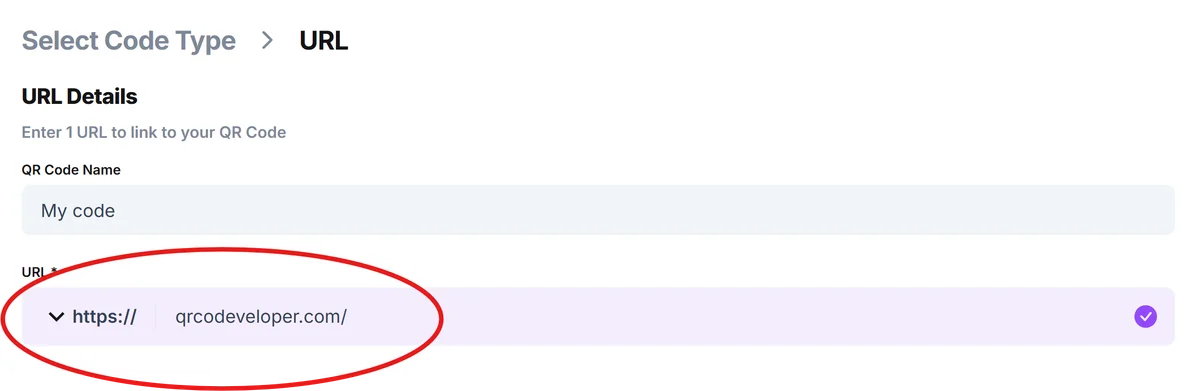
Open your Zoom meeting details and copy the complete join URL. This includes the meeting ID and password parameters. Visit qrcodeveloper.com to start creating your QR code.
Paste the meeting link
Select the URL option in the QR code generator and paste your complete Zoom meeting URL. Make sure to include the full link with password parameters for one-click access.
Customize for your brand
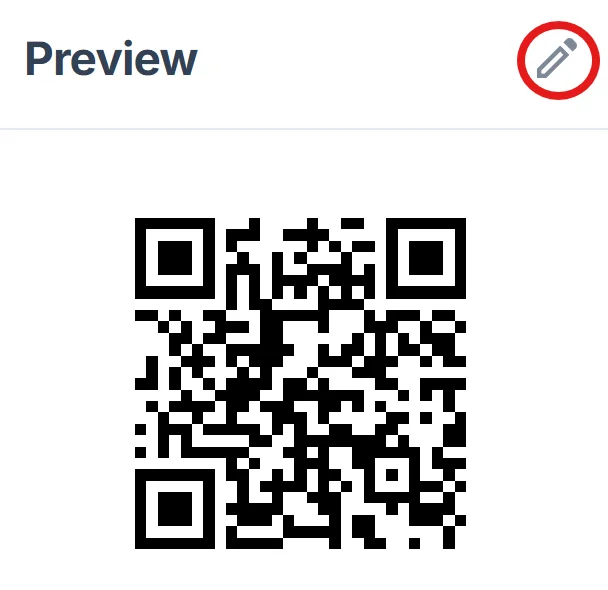
Choose colors that match your organization's branding. Add your logo to the center of the QR code to maintain brand consistency across meeting materials, following our QR code design tips.
Test the connection
Download your QR code and test it by scanning with different devices. Verify that it opens Zoom correctly and connects to the right meeting without requiring additional steps.
Distribute to participants
Share your QR code in meeting invitations, print on materials, or display on screens. Include brief instructions like 'Scan to join meeting' for clarity.
Best practices for Zoom meeting QR codes
Follow these guidelines to ensure your Zoom QR codes work reliably and provide the best user experience.
Always test your QR codes before distributing them to ensure they connect to the correct meeting and don't require additional authentication steps, and consider checking if your QR code is safe.
Use high contrast colors and maintain adequate size when printing QR codes on physical materials - aim for at least 1 inch square for reliable scanning.
Include clear instructions near your QR code such as 'Scan with camera app to join Zoom meeting' to help less tech-savvy participants.
For recurring meetings, create new QR codes when meeting details change rather than expecting participants to remember updated information.
Frequently Asked Questions
Do QR codes work with all types of Zoom meetings?
Yes, QR codes work with regular meetings, webinars, recurring meetings, and personal meeting rooms. Just use the complete meeting URL that Zoom provides.
Can I create QR codes for password-protected meetings?
Absolutely. When you copy the full Zoom meeting URL, it includes the password parameters, so participants won't need to enter the password separately after scanning.
Will the QR code work on both phones and computers?
Yes, scanning the QR code will open the appropriate Zoom app or web browser depending on the device, ensuring compatibility across platforms.
How long do Zoom meeting QR codes remain valid?
The QR code remains valid as long as your Zoom meeting link is active. For one-time meetings, it expires after the meeting ends. Recurring meeting QR codes work for all scheduled instances.
Is it free to create QR codes for Zoom meetings?
Yes, you can generate QR codes for Zoom meetings at no cost. Basic customization options like colors and logos are included in the free version.
Related Guides
Ready to create your QR code?
Generate custom QR codes in seconds - free and easy to use.
Create Free QR Code →