Waze Navigate QR codes for instant location sharing

Generate scannable codes that open Waze with your exact destination, eliminating the need to type addresses or search for locations.
How Waze Navigate QR codes simplify location sharing
Giving directions can be quite the hassle, and involve lengthy text messages with street names, landmarks, and hoping the other person doesn't make a wrong turn. Luckily, a single QR code scan can launch Waze with your exact destination already loaded, complete with real-time traffic updates and turn-by-turn navigation.
A Waze Navigate QR code can open the Waze app page directly to a specific location or address. When someone scans the code with their phone, Waze automatically launches and begins calculating the best route to your destination, taking into account current traffic conditions, road closures, and user-reported hazards.
Creating these navigation codes is straightforward with QR Code Developer. Whether you're hosting an event, running a business, or just trying to help friends find your new apartment, these codes eliminate the guesswork from getting people where they need to go.
Practical applications for Waze QR codes
Waze QR codes solve the common problem of location confusion and missed turns. From businesses directing customers to their door to event organizers guiding attendees, these codes work wherever precise navigation matters. Check out our event QR codes guide for more location-sharing ideas.
Business storefronts and service locations
Restaurants, retail stores, and service providers add Waze QR codes to their marketing materials, helping customers navigate directly to their location without confusion about similar business names or addresses. QR code business cards are particularly effective for service providers who meet clients at various locations.
Event venues and wedding locations
Wedding planners and event organizers include Waze QR codes on invitations and programs, ensuring guests arrive on time even at remote or hard-to-find venues. Learn more about creating wedding invite QR codes for a seamless guest experience.
Real estate showings and open houses
Real estate agents place Waze QR codes on listing flyers and yard signs, making it simple for potential buyers to navigate to properties without typing long addresses. Discover how to effectively add QR codes to your flyer for maximum impact.
Delivery and pickup coordination
Online sellers and service providers share Waze QR codes with customers for pickup locations, reducing confusion about meeting spots and delivery addresses.
Creating your Waze Navigate QR code
Building a Waze QR code takes just a few minutes and works with any address or location coordinates.
Open the QR code generator
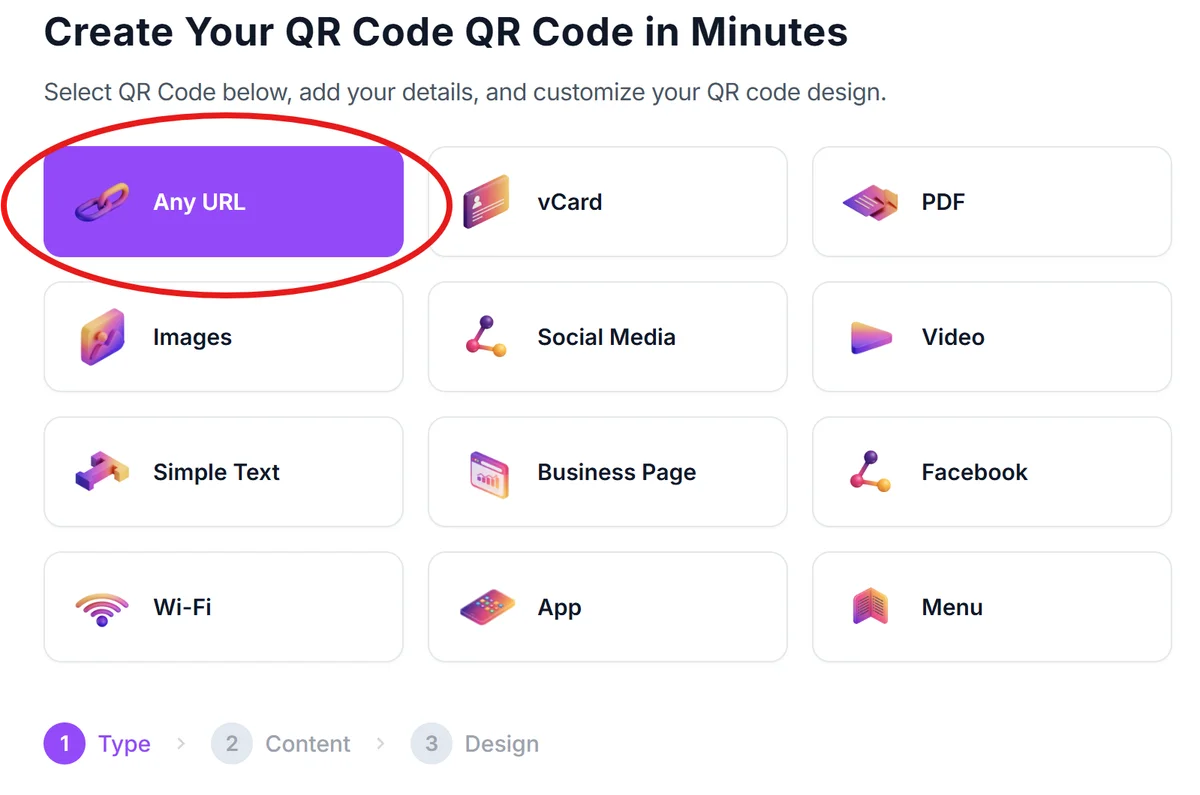
Visit qrcodeveloper.com and select the URL QR code option from the available types.
Format your Waze navigation URL
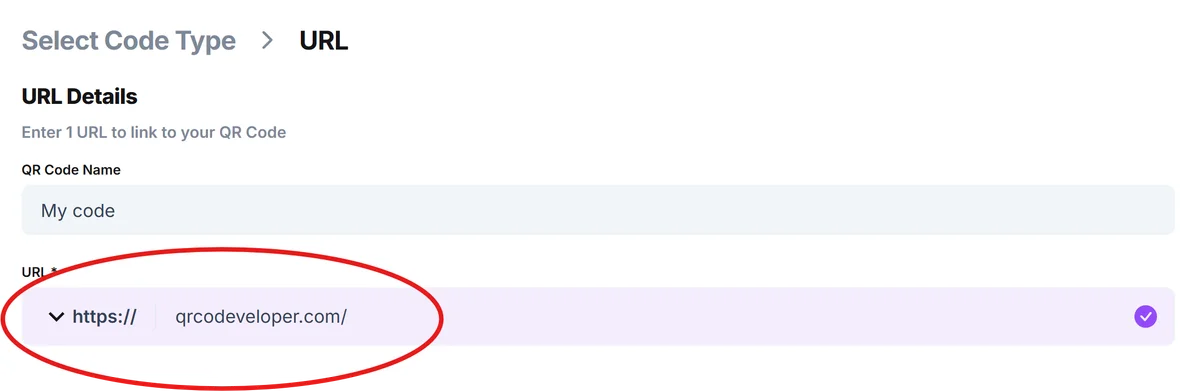
Enter your Waze URL in this format: waze://ul?q=[ADDRESS] - replace [ADDRESS] with your destination. For example: waze://ul?q=123%20Main%20Street%20New%20York%20NY or use coordinates like waze://ul?ll=40.7128,-74.0060
Customize your code design
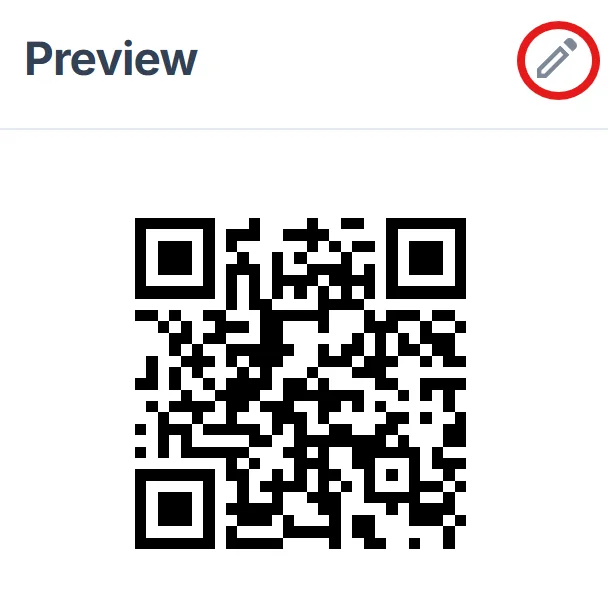
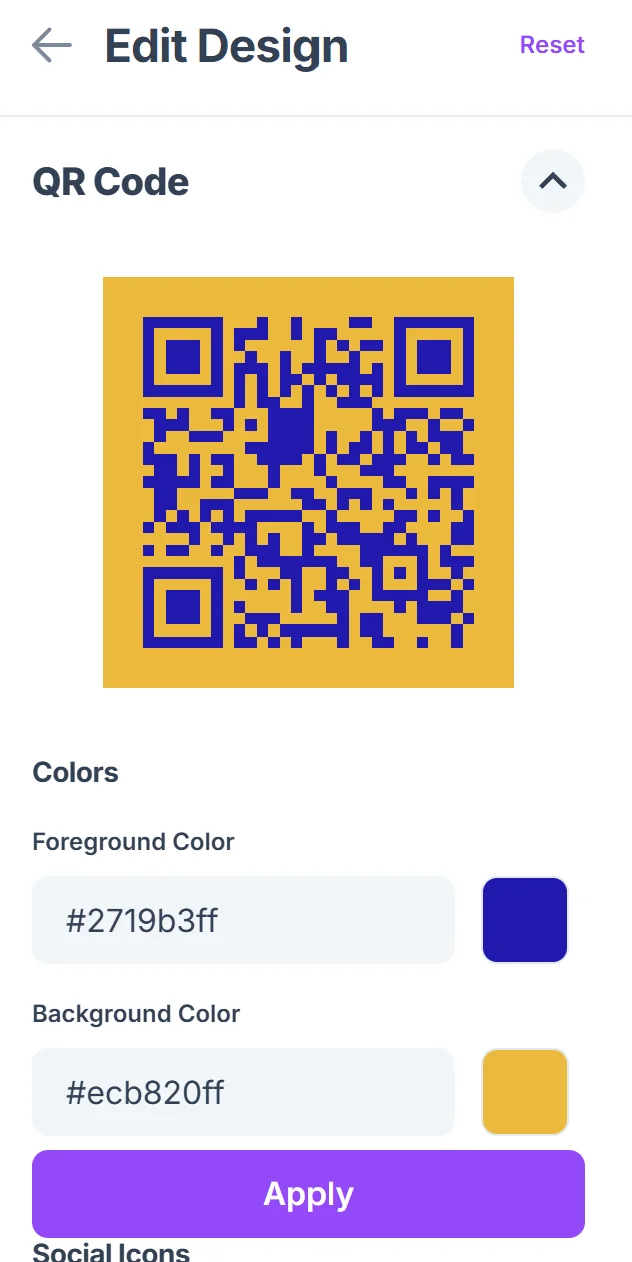
Choose colors that match your brand or event theme. Consider adding a logo or icon that relates to navigation, like a compass or location pin, to make the code's purpose immediately clear. Check out our QR code design tips for creating visually appealing codes.
Test the navigation link
Before sharing, scan your QR code with different devices to ensure Waze opens correctly and navigates to the right destination. Test on both iOS and Android if possible.
Add clear instructions for users
Include text near your QR code like "Scan for Waze directions" or "Get navigation to our location" so people understand what will happen when they scan.
Best practices for Waze QR codes
Following these guidelines ensures your Waze QR codes work reliably and provide the best user experience.
Test your destination address in Waze first to confirm it recognizes the location correctly and provides accurate directions from multiple starting points. For additional security considerations, review our guide on how to check if a QR code is safe before sharing.
Use URL encoding for addresses with spaces or special characters - replace spaces with %20 and encode symbols properly to prevent broken links
Include backup directions or a phone number near your QR code in case someone doesn't have Waze installed or encounters technical issues
Consider the scanning environment when sizing your code - outdoor signs need larger QR codes than indoor flyers, and ensure good contrast for reliable scanning in various lighting conditions
Frequently Asked Questions
What happens if someone doesn't have Waze installed?
If Waze isn't installed, most phones will prompt the user to download it from their app store. You can also create alternative QR codes that open Google Maps or Apple Maps as backup options.
Can I use coordinates instead of street addresses?
Yes, coordinates often work better for precise locations. Use the format waze://ul?ll=LATITUDE,LONGITUDE - for example: waze://ul?ll=40.7128,-74.0060
Do Waze QR codes work on both iPhone and Android?
Yes, the Waze URL format works on both platforms as long as the Waze app is installed. The QR code will open the native Waze app regardless of the phone type.
Can I track how many people scan my Waze QR code?
Basic QR code generators don't provide analytics, but you can create a shortened URL that redirects to your Waze link and track clicks through URL shortening services.
Is there a cost to create Waze Navigate QR codes?
Creating basic Waze QR codes is free. You only need a QR code generator and the proper Waze URL format - no special subscription or premium features required.
Related Guides
Ready to create your QR code?
Generate custom QR codes in seconds - free and easy to use.
Create Free QR Code →