QR code menus and service lists for small businesses

Small businesses save printing costs and update their menus instantly when customers scan QR codes to access current pricing and services.
How QR code menus work for small businesses
QR codes are becoming more and more popular with small businesses everyday. According to a report from ScanQueue, 64% of small businesses use QR codes for at least one purpose (menus, payments, marketing). This highlights the growing importance of QR codes in today's digital landscape.
A QR code can connect customers directly to your current menu, service list, or pricing information all through their own devices. When scanned, the code opens your digital menu in their browser - no app downloads required. You can update prices, add new items, or remove sold-out options instantly without reprinting anything. This approach is particularly effective for restaurant menu systems where frequent updates are essential.
This guide will cover everything from choosing the right format for your menu to placing QR codes where customers will actually use them. I'll also share specific tips I've learned from working with QR Code Developer to help small business owners create professional menu systems that customers love.
Business types that benefit from digital menus
QR code menus work for any business that regularly updates pricing or services. They're especially valuable when you need to make frequent changes or want to reduce physical contact points. Many businesses also use QR code business cards to complement their digital menu strategy.
Restaurants and cafes
Update daily specials, seasonal items, and prices without reprinting menus. Perfect for table tents, window displays, or takeout counters.
Hair salons and spas
Display current service menus with pricing that can be updated for promotions or new treatments. Clients can browse services while waiting.
Auto repair shops
Share service lists and current labor rates with customers. Easy to update when parts prices change or new services are added.
Fitness studios and gyms
Display class schedules, membership options, and personal training packages that change monthly or seasonally.
Setting up your QR code menu system
The key to a successful QR menu is choosing a format that's easy for you to update and simple for customers to read on their phones.
Create your digital menu file
Build your menu as a PDF, Google Doc, or simple webpage. PDFs work well for formatted menus, while Google Docs are perfect if you need to make frequent updates. Visit qrcodeveloper.com once your menu is ready to share.
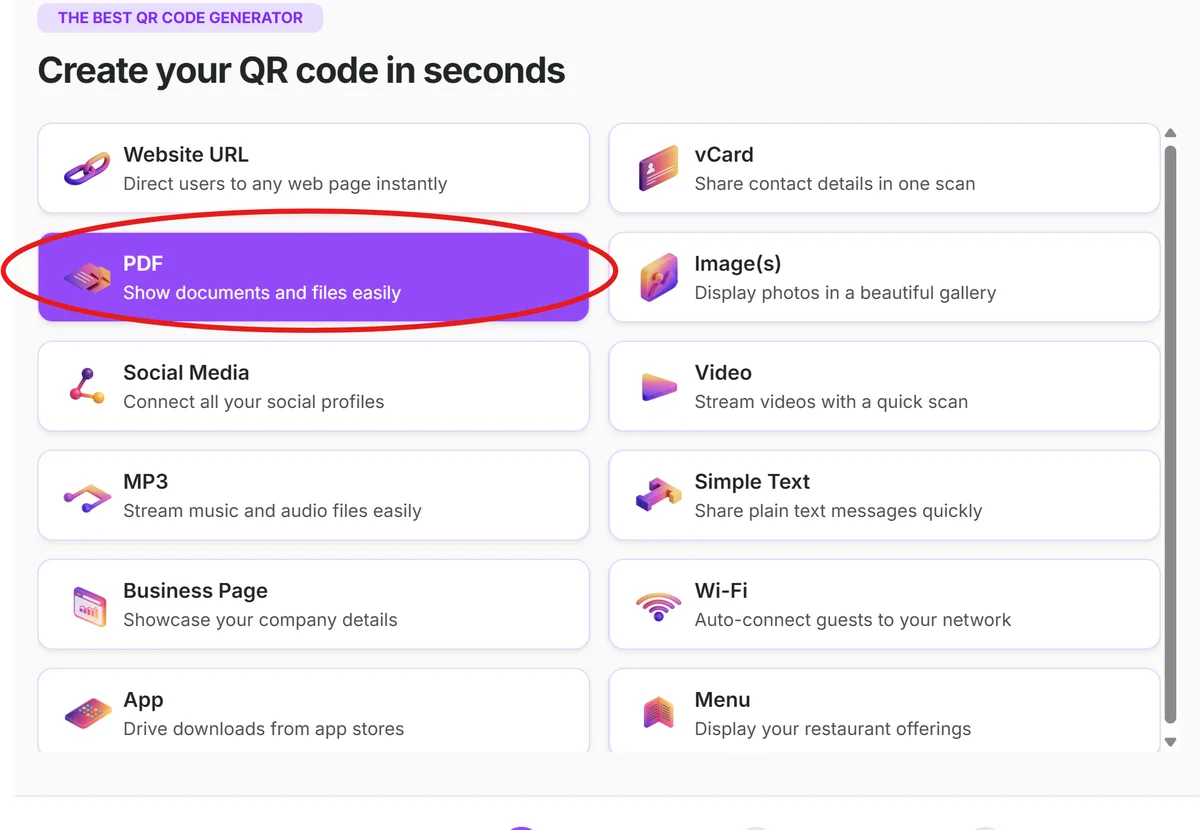
Get your shareable menu link
For PDFs, upload to Google Drive or Dropbox and copy the public sharing link. For Google Docs, click 'Share' and set permissions to 'Anyone with the link can view', then copy the link.
Generate your menu QR code
Paste your menu link into the URL field and customize your QR code with your business colors or logo. Make sure the design matches your brand but keeps the code easily scannable. For best results, follow proven QR code design principles to ensure both visual appeal and functionality.

Test on multiple devices
Scan your QR code with different phones to ensure your menu loads quickly and displays properly on various screen sizes. Check that text is readable without zooming.
Print and place strategically
Print QR codes at least 2x2 inches for easy scanning. Place them at eye level where customers naturally look - on tables, counters, or near your entrance. Consider creating QR code stickers for flexible placement options that can be easily moved or replaced.
Best practices for menu QR codes
I've seen QR menus succeed and fail based on a few key factors. Here's what makes the difference between customers loving your digital menu and asking for a printed version.
Include a short instruction like 'Scan for Menu' near your QR code. Not everyone knows what QR codes do, especially older customers who might need gentle guidance.
Keep a few printed menus available as backup. Some customers prefer physical menus or may have older phones that struggle with QR codes. You can also help customers by teaching them how to scan QR codes from photos if they're having difficulty with direct scanning.
Use high contrast colors for your QR code - black on white works best. Avoid placing QR codes on busy backgrounds or using colors that are too similar to each other.
Update your menu link rather than creating new QR codes when prices change. This lets you keep the same printed QR codes while updating the content behind them.
Frequently Asked Questions
What's the best format for a QR code menu?
PDF files work well for formatted menus with photos, while Google Docs are perfect for simple text menus you need to update frequently. Both load quickly on smartphones.
How do I update my menu without changing the QR code?
Use the same sharing link and just update the file behind it. For Google Docs, edit directly. For PDFs, replace the file in your Google Drive or Dropbox folder.
Should I include prices on my QR menu?
Yes, customers expect to see prices. QR menus are perfect for keeping prices current since you can update them instantly without reprinting anything.
What if customers can't scan QR codes?
Always have a backup option. Keep a few printed menus available, or include a short URL below your QR code that customers can type into their browser.
Are QR code menus free to create?
Yes, you can create QR codes for free. The only costs are printing the QR codes and potentially premium features if you choose a paid document hosting service.
Related Guides
Ready to create your QR code?
Generate custom QR codes in seconds - free and easy to use.
Create Free QR Code →