VCard QR code generator for instant contact sharing

Share your complete contact details with a single scan using VCard format QR codes.
Understanding VCard format for contact sharing
Business networking can often mean collecting stacks of paper business cards that cluttered your wallet and often got lost. However, modern technologies, like QR codes, have made it far easier to network with others. Now professionals can share their complete contact information with a single QR code scan, and recipients can save details directly to their phone's contact list without typing a single character. Modern QR code business cards have revolutionized this traditional exchange process.
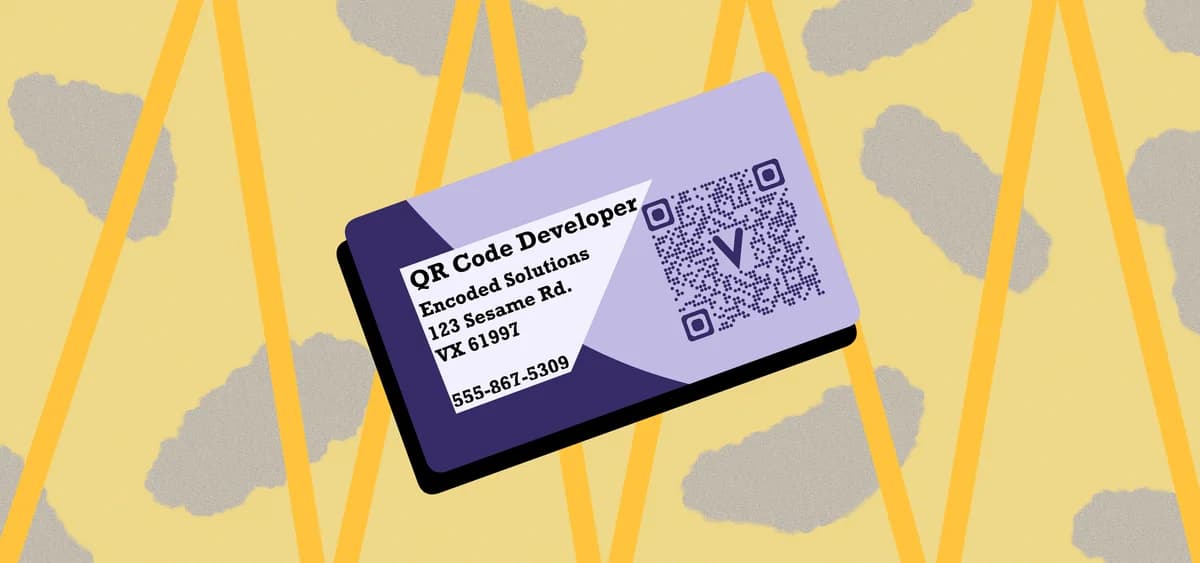
VCard is a specific QR code format designed exclusively for contact information. When someone scans your VCard QR code, their phone will instantly save your name, phone number, email, company, and website directly to their contacts. Unlike generic text QR codes, CCard codes trigger the native contact-saving interface on smartphones.
Creating professional VCard QR codes is straightforward with QR Code Developer. The platform handles the VCard formatting automatically, so you simply enter your contact details and generate a code that works perfectly across all smartphone operating systems.
Where VCard QR codes work best
VCard QR codes excel in professional situations where quick, accurate contact exchange matters most. They're particularly valuable when you need to share multiple contact details simultaneously. For broader contact sharing strategies, explore our guide on contact information QR codes.
Digital business cards
Replace traditional paper cards with QR codes on your phone screen, email signature, or printed materials. Recipients get your complete contact information instantly.
Conference and networking events
Share your details quickly during brief introductions without fumbling for business cards. Perfect for trade shows where you meet dozens of people.
Professional email signatures
Include a VCard QR code in your email signature so recipients can save your contact information directly from their mobile device. This approach works particularly well when combined with QR codes on promotional materials for consistent branding.
Office reception areas
Display VCard QR codes for key staff members so visitors can easily save contact information for future follow-up without asking reception.
Building your VCard QR code
Creating a MeCard QR code takes just a few minutes and ensures your contact information displays correctly on all devices.
Access the VCard generator
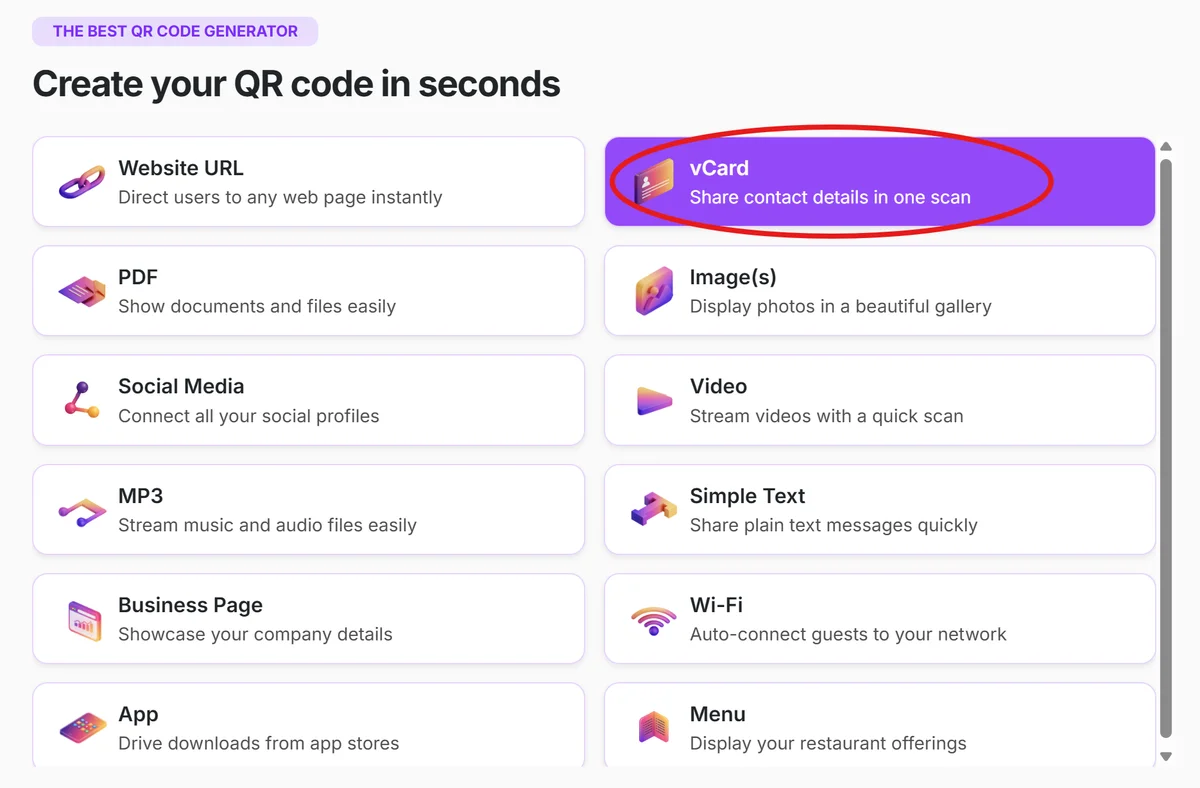
Visit qrcodeveloper.com and select the VCard option from the QR code type menu.
Enter your contact details
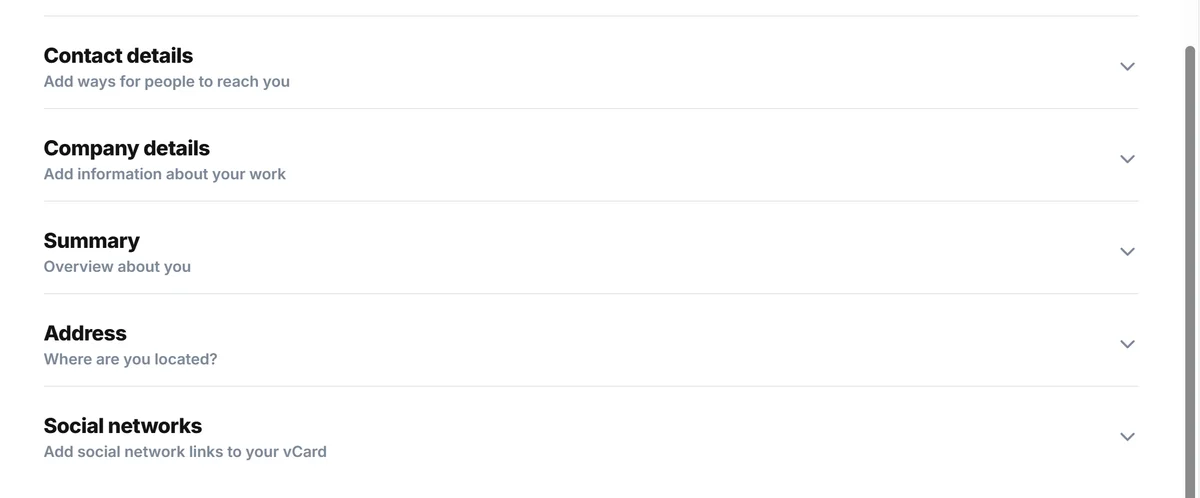
Fill in your name, phone number, email address, company name, and website URL. Include only the information you want to share professionally.
Customize the visual design
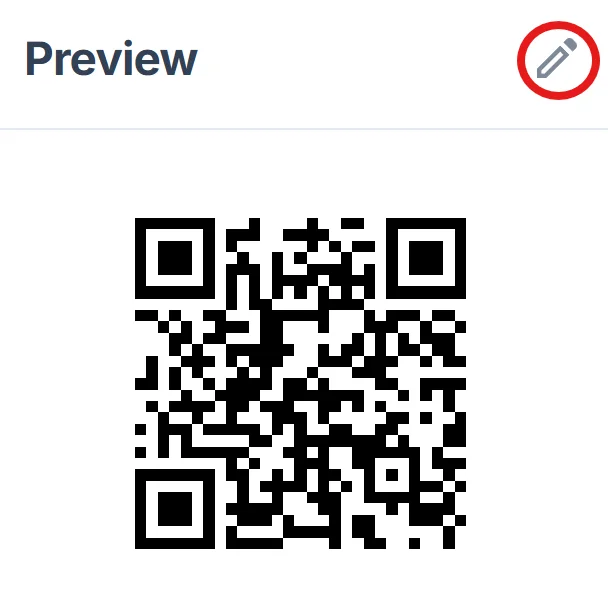
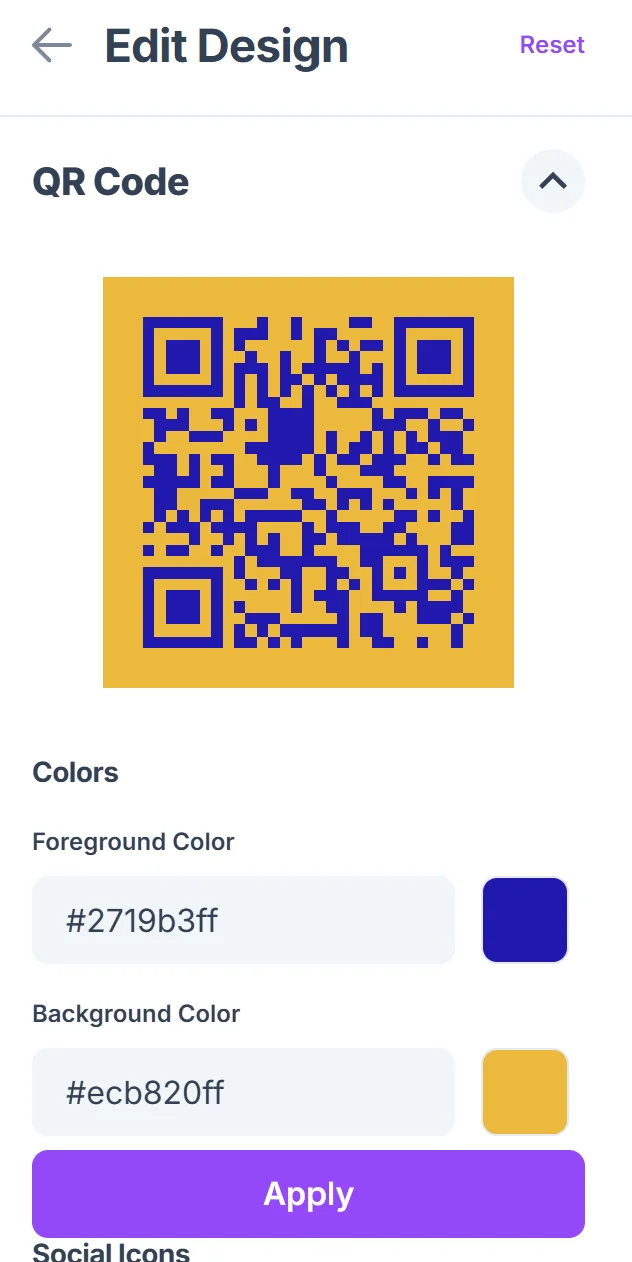
Choose colors that match your brand or personal style. Keep contrast high between the QR code and background for reliable scanning. For more guidance on visual appeal, check our QR code design tips.
Test across different devices
Scan your QR code with both iPhone and Android devices to verify the contact information appears correctly in each phone's native contact app.
Download and implement
Save your VCard QR code in high resolution and add it to business cards, email signatures, or display materials where networking occurs.
Professional VCard QR code practices
Following these best practices ensures your VCard QR codes create a smooth, professional experience for everyone who scans them.
Include only essential contact information. Too many fields can make the contact entry feel cluttered. Stick to name, primary phone number, email, and company. Understanding the different types of QR codes can help you choose the most appropriate format for your needs.
Use a professional email address and phone number. Your VCard QR code will be saved in business contacts, so avoid personal or casual contact details.
Test your website URL before generating the code. Make sure any website you include loads quickly on mobile devices since that's where people will likely visit it.
Keep your QR code at least 1 inch square when printed. Smaller codes can be difficult to scan, especially in networking situations where lighting isn't ideal.
Frequently Asked Questions
Do MeCard QR codes work on all smartphones?
Yes, both iPhone and Android devices recognize MeCard format QR codes and will prompt users to save the contact information to their phone's contact app.
Can I update my VCard QR code after creating it?
Static VCard QR codes cannot be updated once generated. If your contact information changes frequently, consider using a URL QR code that links to an online contact page you can update.
How much contact information can a VCard QR code store?
VCard codes can store name, phone number, email, company name, website URL, and address. However, including too much information makes the QR code more complex and harder to scan.
Are VCard QR codes free to create?
Yes, you can create VCard QR codes for free. Basic contact sharing functionality doesn't require premium features or ongoing subscriptions.
Related Guides
Ready to create your QR code?
Generate custom QR codes in seconds - free and easy to use.
Create Free QR Code →