Mastodon QR codes for federated social media sharing

Bridge the gap between physical and digital spaces by making your Mastodon profile instantly accessible through scannable codes.
Connecting decentralized social networks with QR codes
Explaining Mastodon to someone can be especially frustrating, and involve sending multiple link that may or may not even get seen, let alone understood. Luckily, there's a way to easily share and access Mastodon content with a simple QR code!
A Mastodon QR code encodes your full profile URL into a scannable format. When someone scans your code, they'll be taken directly to your Mastodon profile regardless of which instance you're on or which app they prefer to use. The QR code handles the technical details of federation automatically.
In this guide I'll show you how to create effective Mastodon QR codes that work across different instances and clients. You'll also discover how other federated platforms can benefit from similar QR code approaches for growing decentralized communities. So let's get started!
Real-world applications for Mastodon QR codes
Mastodon's federated nature creates unique opportunities for QR code implementation. These codes work particularly well for building communities across different instances and helping newcomers navigate the decentralized social landscape.
Conference networking and speaker promotion
Speakers include Mastodon QR codes on presentation slides, letting attendees connect without platform restrictions. Conference organizers use codes on badges to encourage federated social connections.
Local community building and meetups
Community organizers place QR codes on flyers and posters to grow their local Mastodon presence. Businesses use codes to connect with customers who prefer decentralized social platforms.
Creator and artist portfolio sharing
Artists include Mastodon QR codes on business cards and portfolio pieces, giving viewers direct access to their latest work and community discussions without algorithm interference.
Academic and research collaboration
Researchers share QR codes in papers and presentations to connect with peers on Mastodon, building scholarly networks outside traditional academic social platforms.
Building your Mastodon QR code step by step
Creating a Mastodon QR code requires your complete profile URL, including your instance domain. The process works the same whether you're on mastodon.social, fosstodon.org, or any other instance.
Open the QR code generator
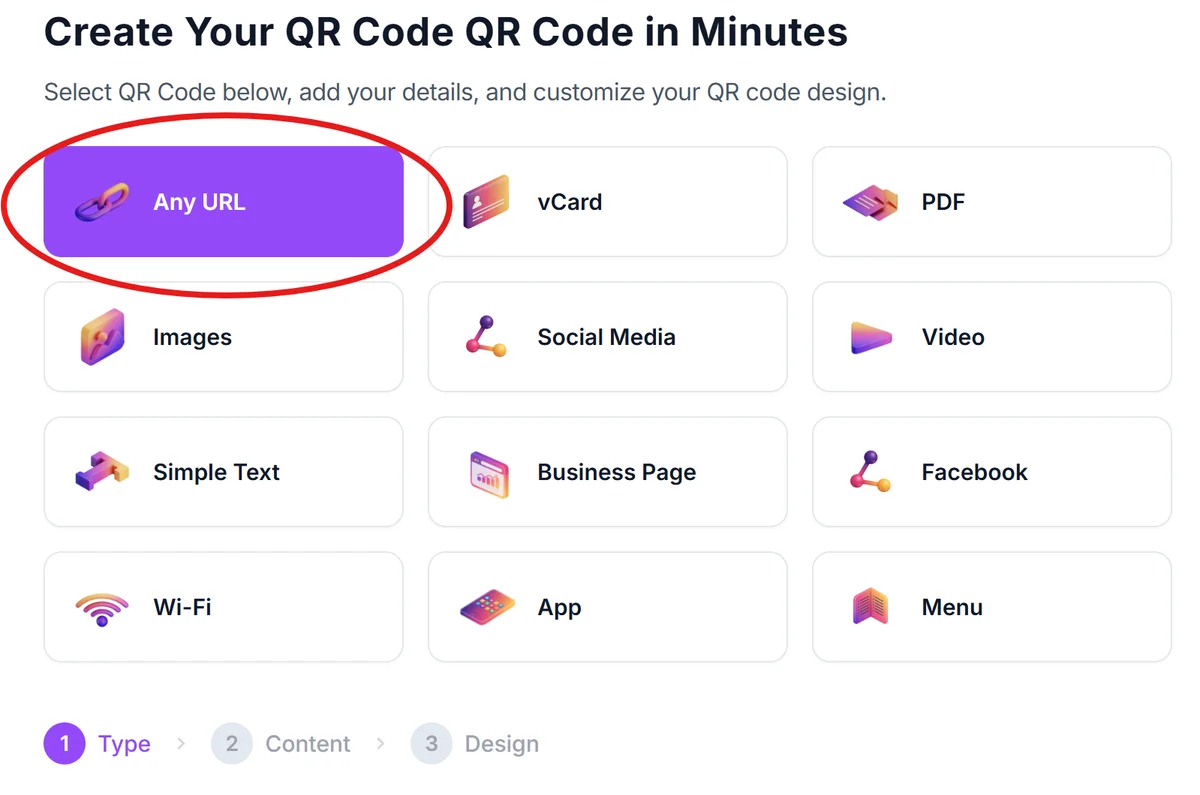
Visit qrcodeveloper.com and select the URL option from the available QR code types.
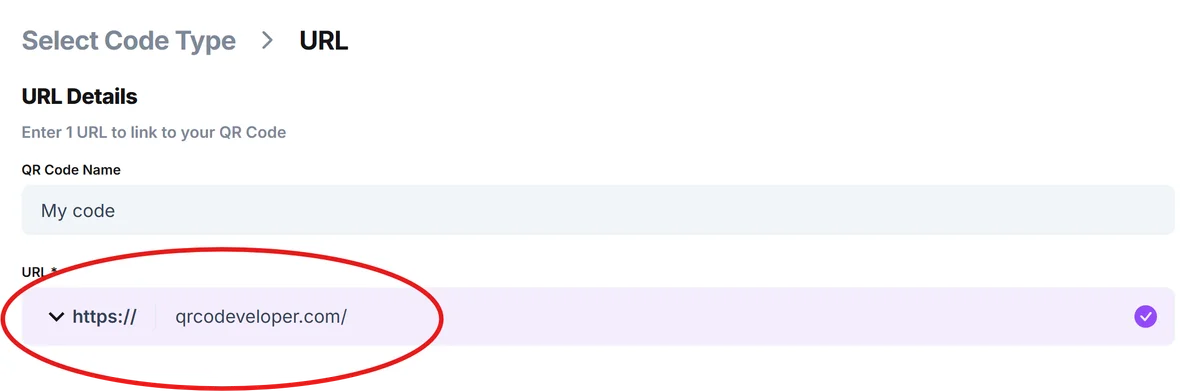
Copy your complete Mastodon profile URL
Navigate to your Mastodon profile and copy the full URL from your browser's address bar. It should look like https://mastodon.social/@yourusername or https://fosstodon.org/@yourusername depending on your instance.
Customize with Mastodon branding
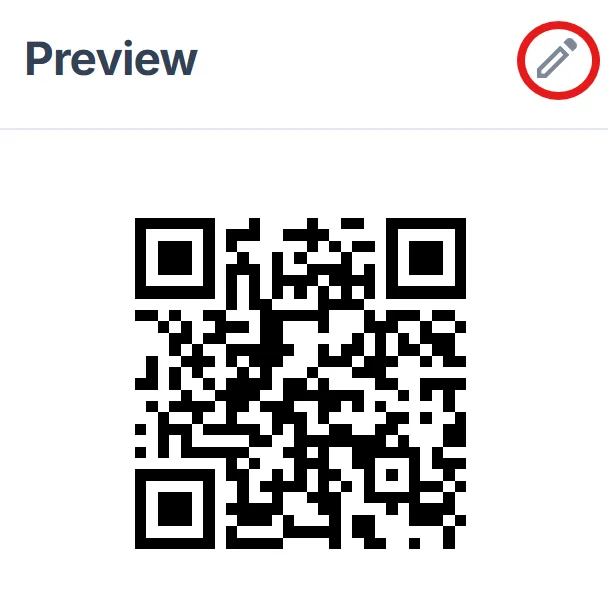
Click on the pencil icon in the Preview window to further customize your code. Choose colors that match Mastodon's purple theme or your instance's branding. Add your username or instance name as a label to help people understand what they're scanning, following good QR code design practices.
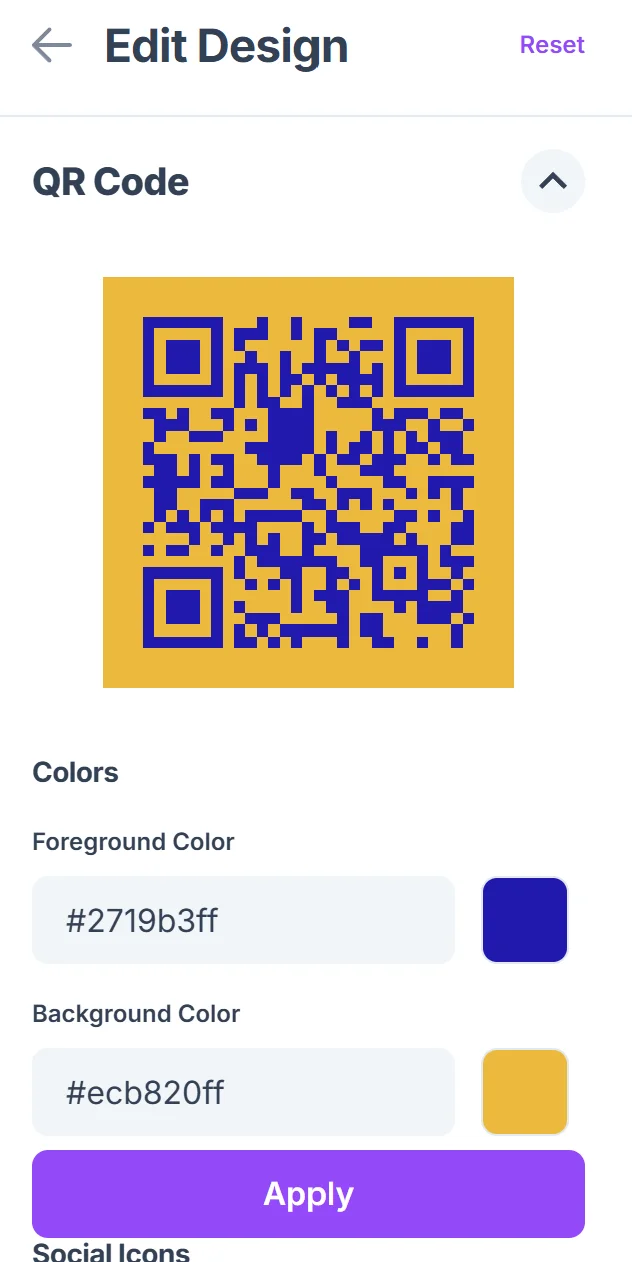
Test across different devices and apps
Scan your QR code with various smartphones to ensure it opens correctly in different Mastodon apps like Tusky, Fedilab, or the official web interface. Learn more about scanning QR codes from photos to test different scenarios.
Include context about federation
Add brief text near your QR code explaining that it leads to your Mastodon profile, helping people unfamiliar with federated social media understand what they'll find.
Best practices for federated social sharing
Mastodon QR codes work differently than traditional social media codes because of federation. These strategies help maximize their effectiveness across the fediverse.
Include your instance name visually near the QR code since many people are still learning about Mastodon's federated structure and may not recognize different instance domains
Test your QR codes with people new to Mastodon to ensure they can successfully follow you regardless of whether they have an account or which app they use to scan
Consider creating separate QR codes for specific posts or hashtags you want to promote, especially for community events or ongoing discussions within your instance
Place QR codes at events where tech-savvy audiences gather, as these communities are more likely to be familiar with Mastodon and federated social platforms
Frequently Asked Questions
Will my Mastodon QR code work if someone doesn't have a Mastodon account?
Yes, the QR code will take them to your profile on the web where they can read your posts and decide whether to create an account. They'll see your content even without logging in.
Do I need different QR codes for different Mastodon instances?
No, one QR code with your complete profile URL works across all instances. The federated nature of Mastodon means people can follow you regardless of which instance they're on.
Can I create QR codes for specific Mastodon posts or hashtags?
Absolutely. Copy the URL of any specific post or hashtag search and use that to create targeted QR codes for sharing particular content or joining conversations.
What happens if I change instances - will my QR code still work?
No, you'll need to create a new QR code with your new instance URL. However, Mastodon allows account migration, so your followers can find your new location.
Are Mastodon QR codes free to create and use?
Yes, you can create unlimited Mastodon QR codes at no cost. The basic features include customization options and high-resolution downloads for print and digital use.
Related Guides
Ready to create your QR code?
Generate custom QR codes in seconds - free and easy to use.
Create Free QR Code →