Jira QR code generator for instant issue tracking and project access

Generate scannable codes that link directly to Jira tickets, boards, and projects for instant team access.
How Jira teams use QR codes for project management
What if you could share a complex Jira issue URL with your team by simply scanning a code? Instead of copying lengthy URLs with ticket numbers, filters, and project IDs, teams are now using QR codes to provide instant access to specific Jira tickets, boards, and project dashboards. This approach eliminates the friction of sharing project information during meetings, standups, and collaborative work sessions, similar to how teams use event QR codes for seamless event coordination.

A Jira QR code contains a direct link to any element within your Jira workspace - whether that's a specific bug report, user story, sprint board, or project dashboard. When team members scan the code with their mobile device, they're immediately taken to the relevant Jira page without needing to navigate through multiple screens or search for ticket numbers.
This guide covers everything you need to know about creating and implementing QR codes for your Jira workflow. I'll show you how to generate codes for different Jira elements and share practical tips from teams already using this approach. You can also explore our types of QR codes guide to understand other ways QR codes can improve your project management workflow.
Practical applications for Jira QR codes in workflow management
Jira QR codes solve common collaboration challenges that development and project teams face daily. From sharing specific bug reports during meetings to providing quick access to sprint boards, these codes eliminate the need for manual URL sharing and navigation. Check out our QR code business cards guide for additional ways to share professional project information.
Sprint review presentations
Share QR codes during sprint reviews so stakeholders can instantly access user stories, completed tasks, and project boards on their devices while following along with the presentation. You can even incorporate these codes into presentation flyers for distributed access.
Bug report sharing
Include QR codes in bug report emails or slack messages that link directly to the Jira ticket, making it easier for developers and QA teams to access detailed issue information.
Client project updates
Provide clients with QR codes that link to filtered Jira views showing only their project's progress, completed features, and upcoming milestones without exposing internal development details. Consider creating PDF reports with embedded QR codes for comprehensive client documentation.
Meeting room displays
Display QR codes on meeting room screens that link to the current sprint board or project dashboard, allowing team members to quickly access relevant information during standup meetings.
Creating QR codes for your Jira tickets and boards
Creating Jira QR codes involves copying the specific URLs from your Jira workspace and converting them into scannable codes. The process works for any Jira element that has a shareable URL.
Navigate to your target Jira element
Open your Jira workspace and go to the specific ticket, board, filter, or dashboard you want to share. Copy the URL from your browser's address bar. Then visit qrcodeveloper.com to start creating your QR code.
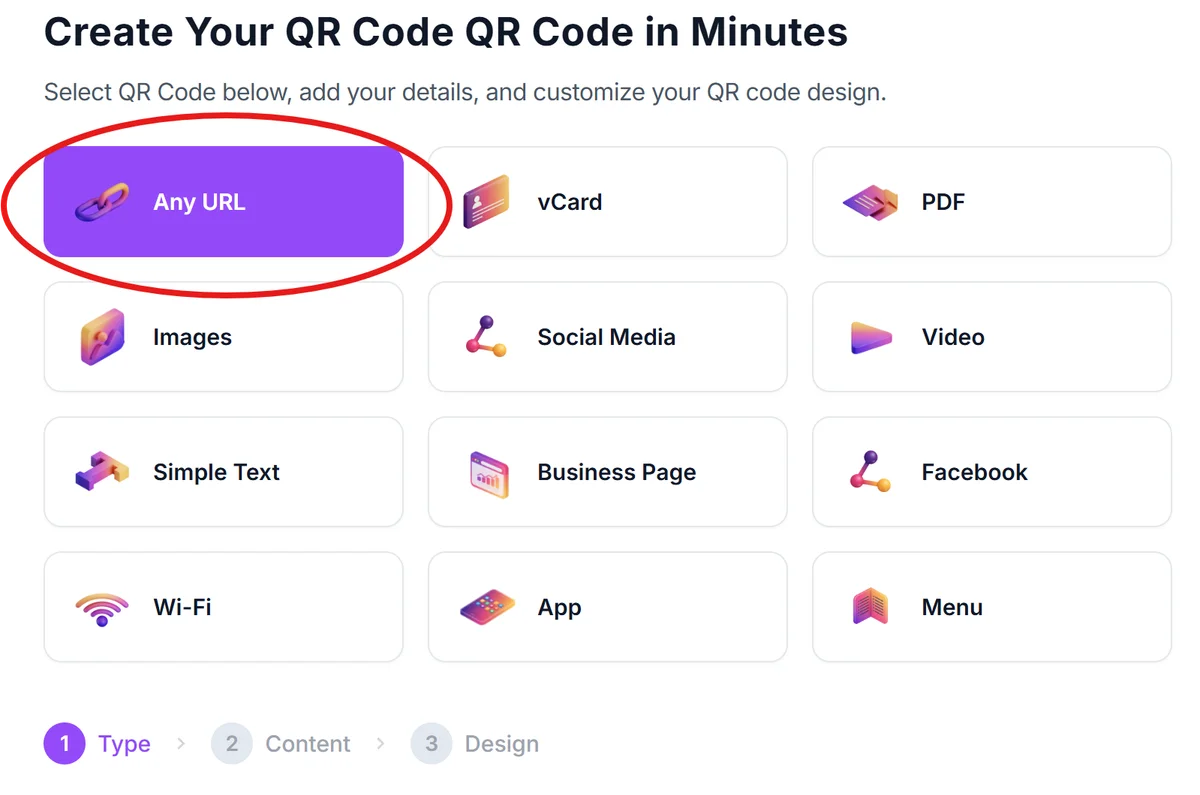
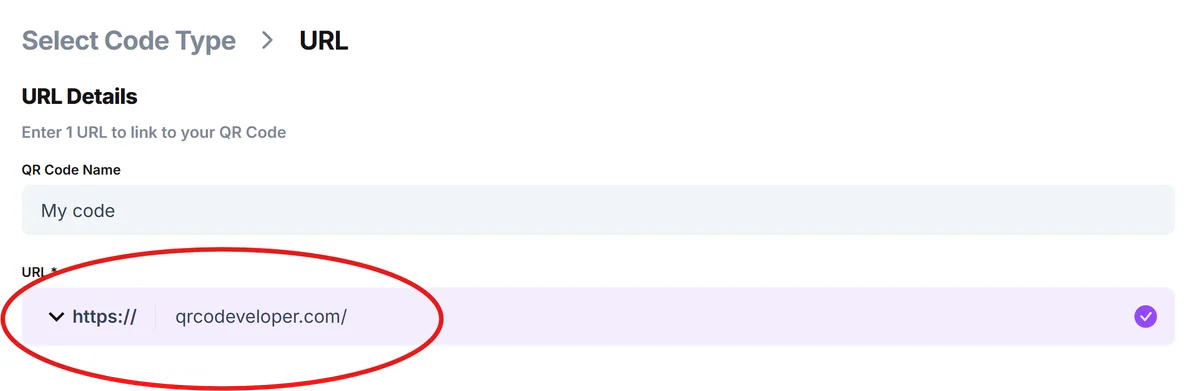
Paste your Jira URL
Select 'URL' as your QR code type and paste the complete Jira URL into the content field. Make sure to include any filters, project parameters, or specific view settings that are part of the URL.
Add context with custom design
Customize your QR code with colors that match your project or team branding. Consider adding a logo or changing the design to help team members identify what the code links to at a glance. Learn more about effective visual customization in our QR code design tips guide.

Test access permissions
Before sharing, scan the QR code yourself to ensure the link works correctly and that team members will have the necessary permissions to view the Jira content when they access it.
Distribute to your team
Download your QR code and share it through your preferred channels - whether that's embedding it in presentation slides, printing it for meeting rooms, or including it in project documentation.
Best practices for implementing Jira QR codes
Getting the most value from Jira QR codes requires thoughtful implementation and consideration of your team's workflow patterns.
Use descriptive labels near your QR codes like 'Current Sprint Board' or 'Bug Report #PROJ-123' so team members know what they're accessing before scanning. For enhanced security, review our QR code safety guide to ensure your team follows best practices when scanning codes.
Create QR codes for filtered views rather than entire projects when sharing with stakeholders - this prevents overwhelming external viewers with irrelevant development details
Test QR codes with team members who have different permission levels in Jira to ensure everyone can access the content appropriately
Consider using dynamic QR codes for frequently changing content like active sprint boards, so you can update the destination URL without regenerating the code
Frequently Asked Questions
Can I create QR codes for private Jira projects?
Yes, but users will need to be logged into Jira with appropriate permissions to view the content. The QR code will redirect to a login page if they don't have access.
Do Jira QR codes work with both cloud and server instances?
QR codes work with any Jira URL, including both Atlassian cloud instances and self-hosted Jira server installations. Just use the complete URL from your specific Jira environment.
Can I track who scans my Jira QR codes?
QR code generators with analytics features can track scan data, but this won't show you specific user information from Jira. For detailed user activity, you'll need to check Jira's built-in audit logs.
What happens if I change the Jira URL after creating the QR code?
Static QR codes become invalid if the URL changes. Use dynamic QR codes when possible, or create new QR codes when you modify filters, rename projects, or change board configurations.
Are there any security concerns with sharing Jira URLs via QR codes?
QR codes are as secure as the URLs they contain. Ensure your Jira permissions are properly configured and avoid sharing QR codes for sensitive projects through unsecured channels.
Related Guides
Ready to create your QR code?
Generate custom QR codes in seconds - free and easy to use.
Create Free QR Code →