Google Maps location QR codes for business and personal use

Share exact locations instantly by scanning a code - no more typing addresses or struggling with confusing directions.
How Google Maps QR codes work for location sharing
Google processes over 1 billion kilometers of roads daily to keep Maps accurate. Pretty impressive, however many people still struggle to find specific locations. A Google Maps location QR code can solve this issue by allowing users to get travel directions and location information directly in someone's Maps app, all with one simple scan.
When someone scans your location QR code, their phone automatically opens Google Maps and displays your precise location with navigation options. This works whether you're sharing your business address, a meeting spot, your home for deliveries, or even a hidden hiking trail. The person scanning doesn't need to type anything or search through different addresses, just scan and go!
Location QR codes work with any smartphone camera and open in the default maps app - usually Google Maps on Android or Apple Maps on iPhone. In this guide I'll show you how to create these codes using QR Code Developer and share practical ways businesses and individuals use them to make location sharing foolproof.
Smart ways to use location QR codes
Location QR codes solve the common problem of people getting lost or confused by address searches. They're particularly useful when your location is hard to find, has an unconventional entrance, or shares a name with other nearby places. Here's how different people put them to work, and you can learn more about related applications in our check-in QR codes guide.
Restaurant and retail storefronts
Display QR codes on windows, business cards, or social media so customers can navigate directly to your entrance, especially useful for businesses in shopping centers or hard-to-find locations.
Event venues and wedding locations
Include location QR codes on invitations, programs, or signage so guests arrive at the right entrance without calling for directions or getting lost in large venues.
Service businesses and contractors
Add location QR codes to work orders, invoices, or appointment confirmations so clients can find your office or job sites without lengthy address explanations.
Personal location sharing
Share your home address for deliveries, meet-up spots with friends, or vacation rental locations with guests through a simple scan instead of text messages with confusing directions.
Creating your Google Maps location QR code
Setting up a location QR code takes just a few minutes once you have your Google Maps link ready. The process works the same whether you're sharing a business address or personal location.
Get your Google Maps share link
Open Google Maps, search for your location, click the 'Share' button, and copy the link. This link contains your exact coordinates and location details.
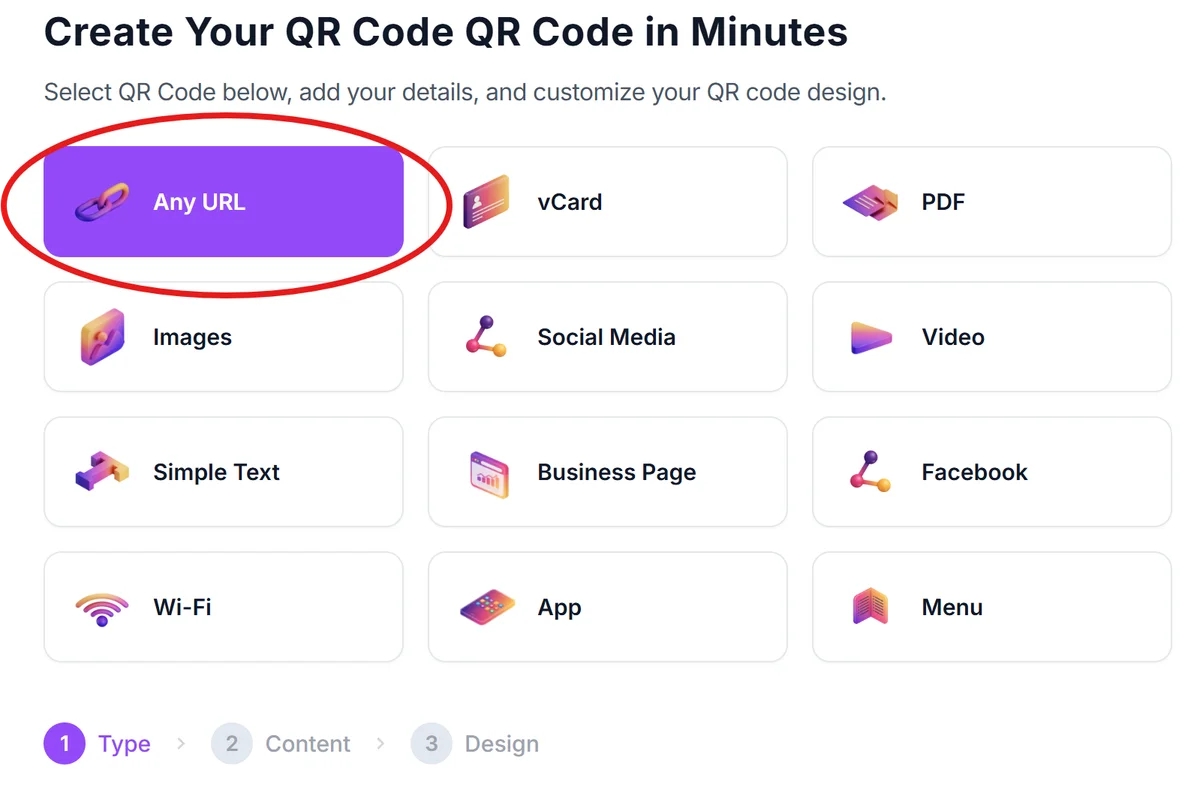
Visit the QR code generator
Go to qrcodeveloper.com and select the URL or Link option from the QR code types menu.
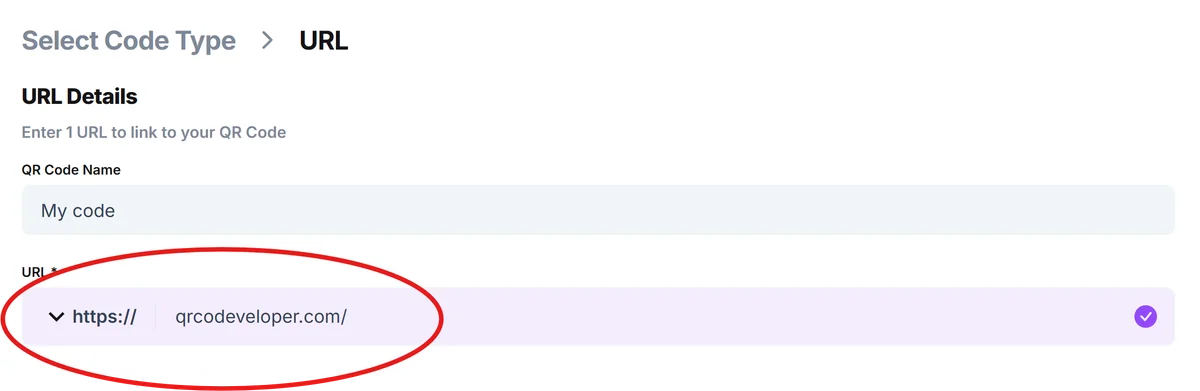
Paste your Maps link
Enter your Google Maps share link in the URL field. The generator will automatically create a QR code that opens this exact location when scanned.
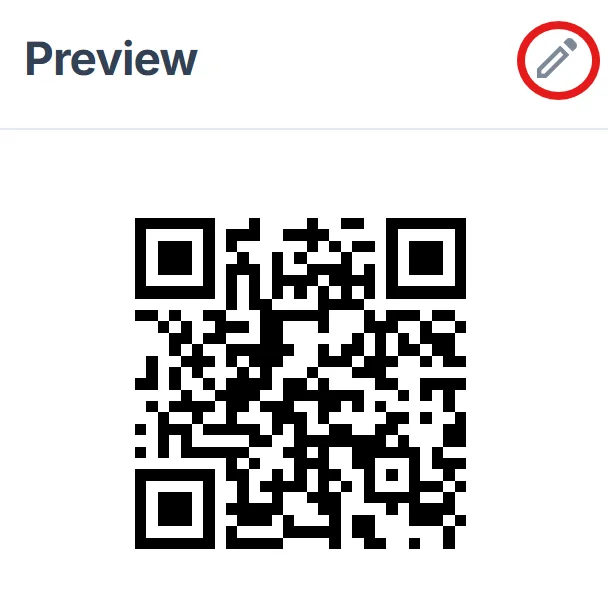
Customize your code design
Choose colors that match your brand or personal style, add a logo if desired, and adjust the size based on where you'll display the code. For more design guidance, check our QR code design tips.
Test and download your code
Scan the code with your phone to verify it opens the correct location, then download it in your preferred format for printing or digital use.
Best practices for location QR codes
A well-designed location QR code should be easy to scan and clearly indicate what will happen when someone uses it. These tips help ensure your code works reliably for everyone.
Add text like 'Scan for directions' or 'Get location' near your QR code so people understand what it does before scanning
Test your code with different phones and operating systems since some devices default to Apple Maps while others use Google Maps. For additional security considerations, review our guide on how to check if a QR code is safe
Place codes at eye level in well-lit areas, and make them large enough to scan from arm's length - at least 1 inch square for print materials
Include your address as backup text below the QR code in case someone prefers to type it manually or has scanning issues
Frequently Asked Questions
Will the QR code work if someone doesn't have Google Maps installed?
Yes, the code will open in whatever maps app is set as default on their phone - Google Maps on Android devices or Apple Maps on iPhones. Both will show your location and provide navigation.
Can I create a location QR code for an address that doesn't show up in Google Maps?
You can use coordinates instead of an address. Find your exact GPS coordinates using your phone's location services, then create a Google Maps link using those coordinates.
How do I make sure my business location QR code stays accurate?
Use your official Google My Business listing link when possible, as this stays current with any address changes you make. Regular QR codes using Maps share links remain static.
What's the best size for printing location QR codes on business materials?
Make them at least 1 inch (2.5 cm) square for business cards and flyers, or 2-3 inches for storefront windows and signs where people scan from further away.
Are location QR codes free to create and use?
Yes, you can create basic location QR codes for free. Premium features like custom designs, analytics tracking, and dynamic links that you can update later require a paid plan.
Related Guides
Ready to create your QR code?
Generate custom QR codes in seconds - free and easy to use.
Create Free QR Code →