Google Form QR codes for surveys and data collection

Boost Google Form response rates by 40% with QR codes that eliminate typing barriers and make survey participation instant for any smartphone user.
How QR codes transform Google Form participation
Feedback and online participation is crucial for many fields, but over 85% of mobile users abandon online forms when they have to manually type long URLs, according to Google's mobile usability research. A QR code made for a Google Form can simplify the process by letting people scan and access your survey instantly with their smartphone or tablet.

A Google Form QR code contains your form's URL and opens it directly in the user's browser when scanned. Instead of asking people to visit a website and hunt for your survey link, they simply point their phone at your QR code and can start responding immediately. This works whether your form is for customer feedback, event registration, research data collection, or any other purpose.
In this piece I'll show you how to create and get the most out of your QR codes. You can also explore our guide on QR codes for online surveys to understand broader survey applications beyond Google Forms.
Real-world applications for Google Form QR codes
Google Form QR codes work particularly well in situations where people have their phones ready but don't want to type. Here are the most effective applications I've seen work consistently. Consider combining these with event QR codes for comprehensive event management.
Restaurant feedback collection
Place QR codes on receipts, table tents, or near the exit to capture customer opinions while the dining experience is fresh in their minds. This approach works similarly to QR code menus but focuses on feedback collection.
Conference and event registration
Include QR codes on promotional materials, business cards, or display boards to let attendees register on the spot without needing laptops.
Retail customer surveys
Add QR codes to shopping bags, product packaging, or checkout areas to gather purchase feedback and product improvement suggestions.
Educational course evaluations
Teachers and trainers use QR codes on handouts or presentation slides to collect immediate feedback about lesson effectiveness and comprehension.
Creating your Google Form QR code
The process takes about two minutes once you have your Google Form ready to share.
Prepare your Google Form for sharing
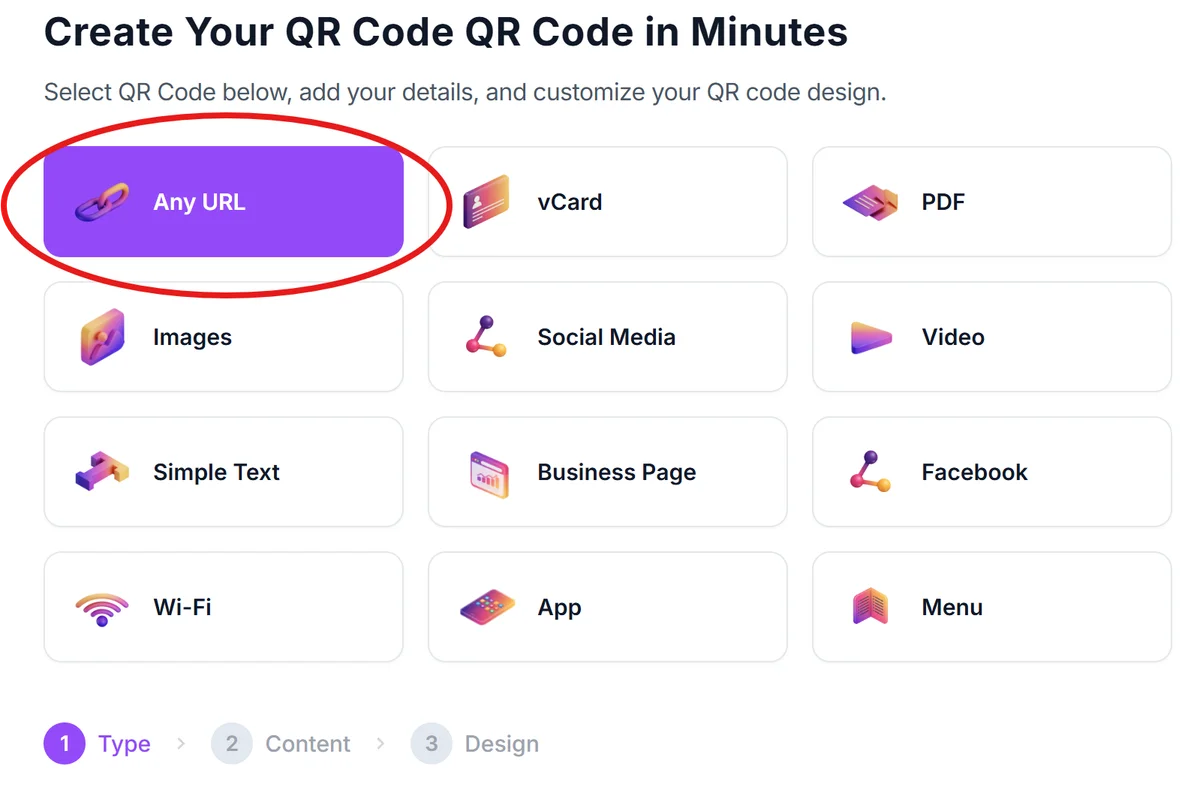
Open your Google Form and click the 'Send' button in the top right corner. Copy the shareable link that Google provides - this is what your QR code will contain. Visit our free QR code generator to start creating your code.
Paste your form URL
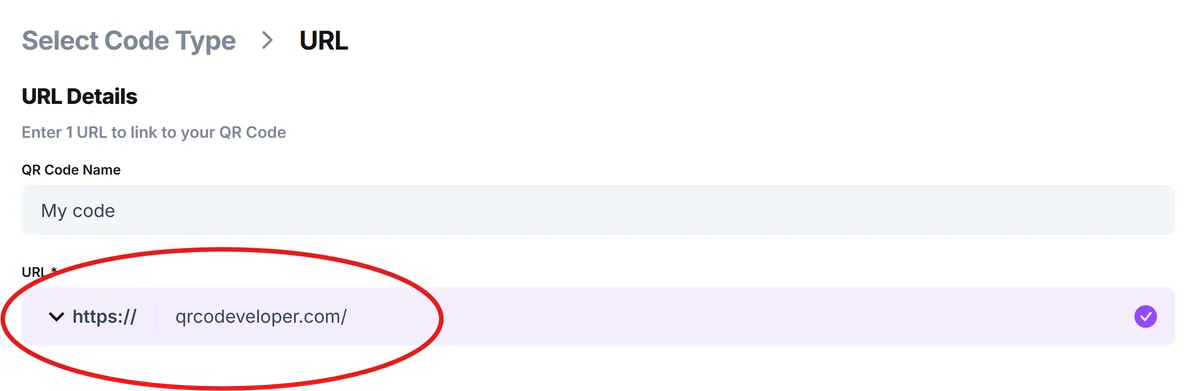
Select 'URL' as your QR code type and paste your Google Form link into the URL field. Make sure the link works by testing it in a new browser tab first.
Design for your placement context
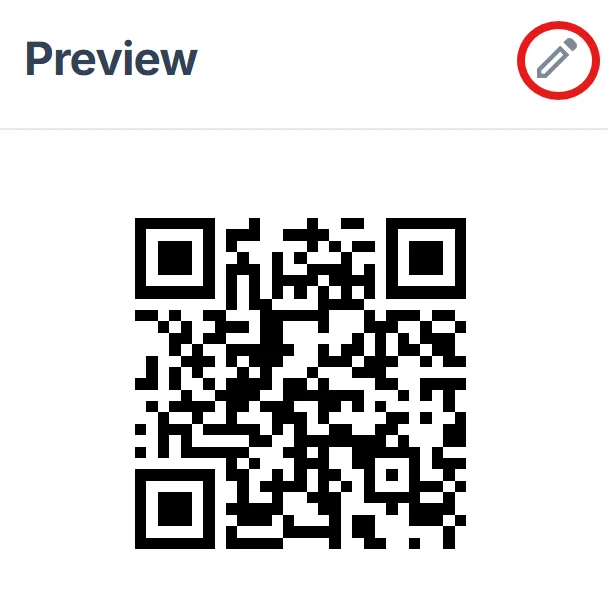
Choose colors that contrast well with where you'll place the code. For printed materials, stick with dark colors on light backgrounds. For digital displays, ensure the code remains scannable under different lighting conditions.
Size appropriately for scanning distance
Make your QR code at least 1 inch square for handheld materials like flyers or business cards. For wall displays or table tents, go larger so people can scan from a comfortable distance without crowding.
Test across different devices
Before printing or publishing, test your QR code with both iPhone and Android devices to ensure it opens your form correctly in different mobile browsers.
Maximizing response rates with QR code placement
Where and how you display your Google Form QR code directly impacts how many people will actually scan it and complete your survey.
Add clear instructions like 'Scan to share feedback' or 'Quick 2-minute survey' near your QR code so people know what to expect before scanning
Place QR codes at decision points where people are already thinking about your product or service - like after a purchase, at the end of a presentation, or while waiting in line
Include an incentive mention near the QR code, such as 'Enter to win a gift card' or 'Help us improve and get 10% off your next visit' to motivate participation
Avoid placing QR codes in areas with poor cell reception or where people are rushed - parking garages, elevators, or busy checkout lines often have low scan rates
Frequently Asked Questions
Can I track how many people scan my Google Form QR code?
Google Forms shows you response counts, but to track actual scans (including people who scan but don't submit), you'll need to use a QR code generator with analytics features.
Do QR codes work with Google Forms that require sign-in?
Yes, but users will need to sign in to their Google account after scanning. For higher response rates, consider making your form public if the data isn't sensitive.
What size should I make my Google Form QR code for printing?
Minimum 1 inch square for business cards and flyers. For posters or signs where people scan from further away, use 2-3 inches square or larger.
Can I customize the appearance of my Google Form QR code?
Yes, you can change colors and add logos while maintaining scannability. Keep good contrast and avoid covering the corner squares that cameras need for detection.
Is there a limit to how many responses I can collect through QR codes?
Google Forms can handle thousands of responses. The QR code itself has no response limit - it simply directs people to your form URL.
Related Guides
Ready to create your QR code?
Generate custom QR codes in seconds - free and easy to use.
Create Free QR Code →