QR code generator for Dropbox file sharing and cloud storage

Share Dropbox files, folders, and presentations instantly with scannable codes that work from any printed or digital material.
How Dropbox QR codes simplify file sharing
Cloud storage has fundamentally changed how we share files, but the process can often still involve copying and pasting long URLs and making sure there aren't any typos. Dropbox QR codes can help to reduce the stress by converting your file sharing links into scannable codes.
A Dropbox QR code contains the direct link to your shared file, folder, or presentation. When someone scans the code with their smartphone, they're immediately taken to your Dropbox content where they can view, download, or collaborate on your files. This works for any content you've made shareable in Dropbox, from individual documents to entire project folders.
In this guide I will show you how to create the most effective QR codes for your Dropbox content, whether you're sharing meeting materials, distributing resources to students, or providing client access to project files. You can generate these codes using QR Code Developer and customize them to match your brand or project needs, similar to how you might turn your PDF into a QR code for document sharing.
Real-world applications for Dropbox QR codes
Dropbox QR codes solve practical sharing challenges across different scenarios. From business presentations to educational resources, they bridge the gap between physical and digital content sharing. Many professionals find them particularly useful when combined with QR code business cards for seamless document access.
Conference presentations and handouts
Include QR codes on presentation slides or printed materials to give attendees instant access to detailed resources, supplementary documents, or follow-up materials stored in your Dropbox. This approach works particularly well when you add a QR code to your flyer for events or conferences.
Client project collaboration
Share project folders, contracts, or deliverables with clients by placing QR codes in emails, proposals, or printed documents, eliminating the need for them to request access or navigate complex folder structures.
Educational resource distribution
Teachers and trainers can share syllabi, reading materials, or assignment folders by posting QR codes in classrooms, on worksheets, or in course materials for easy student access. Educational institutions often combine this with QR code stickers placed around campus for quick resource access.
Real estate property information
Property managers and agents can provide instant access to floor plans, inspection reports, or property documents by placing QR codes on listing flyers, yard signs, or business cards.
Creating QR codes for your Dropbox content
Setting up a QR code for your Dropbox files takes just a few minutes and works with any shareable Dropbox content.
Access the QR code generator
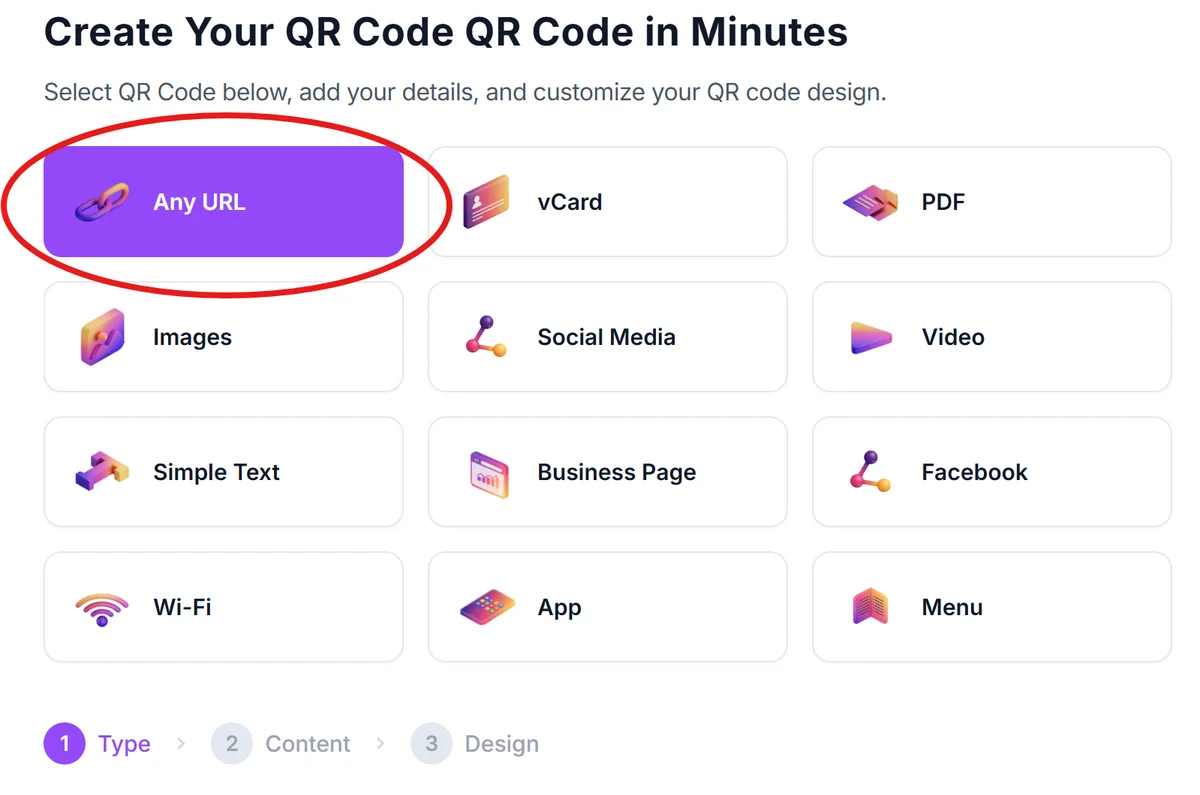
Visit qrcodeveloper.com and select the URL QR code option from the available types.
Copy your Dropbox sharing link
In Dropbox, right-click on the file or folder you want to share, select 'Share', then copy the generated sharing link. Make sure the sharing permissions are set correctly for your intended audience.
Configure your QR code design
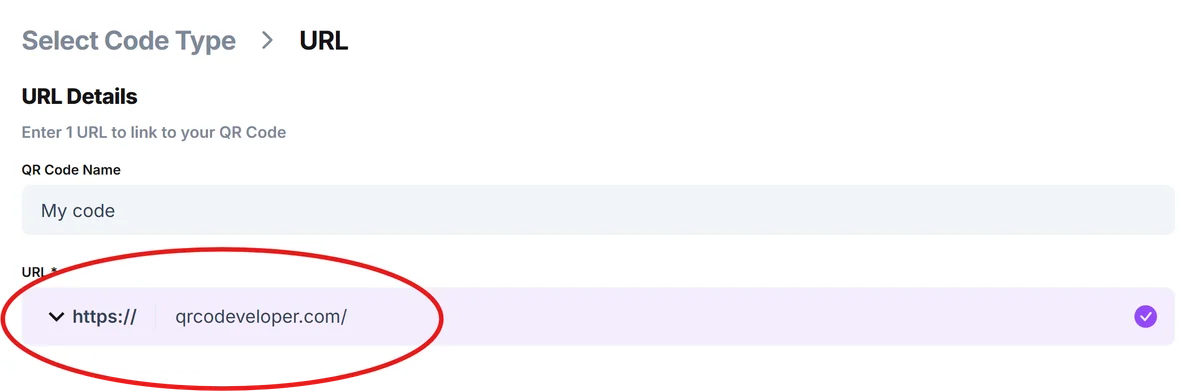
Paste your Dropbox link into the URL field, then customize the QR code's appearance. Consider using your brand colors or adding a logo to make the code more recognizable and trustworthy.
Test the QR code functionality
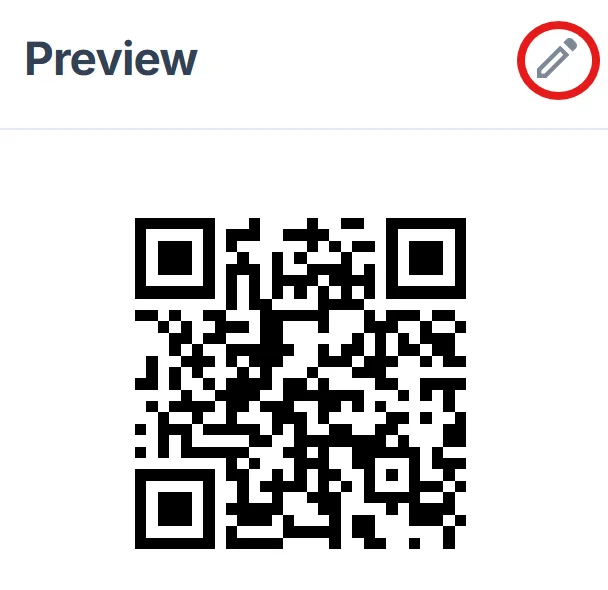
Download your QR code and test it with multiple devices to ensure it opens your Dropbox content correctly. Check that the link works for users who don't have Dropbox accounts if you've set public sharing.
Deploy with clear context
Place your QR code where your audience expects to find additional resources, and include descriptive text like 'Scan for project files' or 'Access presentation materials' to set clear expectations.
Best practices for Dropbox QR code sharing
Following these guidelines will help ensure your Dropbox QR codes work reliably and provide a smooth experience for users.
Set appropriate sharing permissions in Dropbox before creating your QR code - decide whether users need edit access or view-only access to prevent accidental changes to important files
Use descriptive folder and file names since users will see these when they access your Dropbox content through the QR code, making navigation more intuitive. Consider the security implications and review our guide on QR code safety when sharing sensitive documents.
Consider creating dedicated sharing folders for QR code distribution rather than sharing your entire Dropbox structure, which keeps your personal files private while providing organized access to relevant content
Test your QR codes with users who don't have Dropbox accounts to ensure they can still access your shared content through the web interface without being forced to create an account
Frequently Asked Questions
Do people need a Dropbox account to access files through QR codes?
No, if you've set your sharing permissions to 'Anyone with the link', people can access your files through a web browser without creating a Dropbox account. They'll have the option to download files directly or view them online.
Can I create QR codes for password-protected Dropbox links?
Yes, you can create QR codes for password-protected links. Users will be prompted to enter the password after scanning the code and accessing the link, providing an extra layer of security for sensitive files.
What happens if I move or rename files in my Dropbox after creating the QR code?
Dropbox sharing links remain active even if you move or rename files within your account, so your QR codes will continue working. However, if you delete the shared content, the QR code will lead to an error page.
Can I track how many people access my files through QR codes?
Dropbox provides basic sharing analytics that show when files were accessed, but it doesn't specifically track QR code scans. For detailed analytics, consider using a URL shortener with tracking capabilities before creating your QR code.
Are there any file size limitations when sharing through QR codes?
The QR code itself has no file size restrictions since it only contains the sharing link. However, Dropbox's standard sharing limits apply - users can view and download files up to your account's sharing limits and file size restrictions.
Related Guides
Ready to create your QR code?
Generate custom QR codes in seconds - free and easy to use.
Create Free QR Code →