Coursera QR Code Generator - Share courses and certificates instantly

Transform course links into scannable codes that students can access instantly from any device.
How QR codes make Coursera course sharing effortless
Over 100 million learners worldwide use Coursera for professional development and skill building, according to Coursera's latest enrollment data. When educators, HR professionals, or learning coordinators need to share specific courses with their teams, the traditional method involves copying long URLs, sending emails, or posting links that people often lose or forget to bookmark. Luckily, there's a better way, with QR codes!

A Coursera QR code converts any course link, certificate, or learning path into a scannable code that takes users directly to the content. Whether you're sharing a data science specialization with your team, displaying your professional certificate at a networking event, or helping students access supplementary courses, QR codes eliminate the friction of manual link sharing. This approach works similarly to converting PDFs into QR codes for easy document sharing.
This approach works particularly well for professional development programs where quick access matters. Instead of asking employees to search through emails for course links, you can place QR codes on training materials, office displays, or digital presentations. In this guide I'll show you exactly how to create these codes and share practical ways to use them in educational and professional settings using QR Code Developer. So let's dive right in!
Real-world applications for Coursera QR codes
Educational institutions and businesses use these QR codes to bridge the gap between recommending courses and actually getting people enrolled. The instant access removes barriers that often prevent follow-through on learning recommendations. Consider these different QR code applications for your specific needs.
Corporate training programs
HR departments add QR codes to onboarding packets, training manuals, and employee development plans to give instant access to required Coursera courses.
Academic course supplements
Professors include QR codes on syllabi and handouts that link to relevant Coursera specializations or individual courses that complement their curriculum.
Professional certificate display
Professionals add QR codes to their resumes, LinkedIn profiles, or portfolio websites that link directly to their completed Coursera certificates for verification. Learn more about integrating QR codes into resumes for enhanced professional presentation.
Conference and workshop materials
Speakers and presenters include QR codes on slides or handouts that direct attendees to specific Coursera courses related to their presentation topics. For event organizers, consider creating event QR codes to streamline attendee access to multiple resources.
Creating your Coursera QR code in minutes
The process takes just a few steps and works with any Coursera content - individual courses, specializations, certificates, or even your learner profile.
Access the QR generator
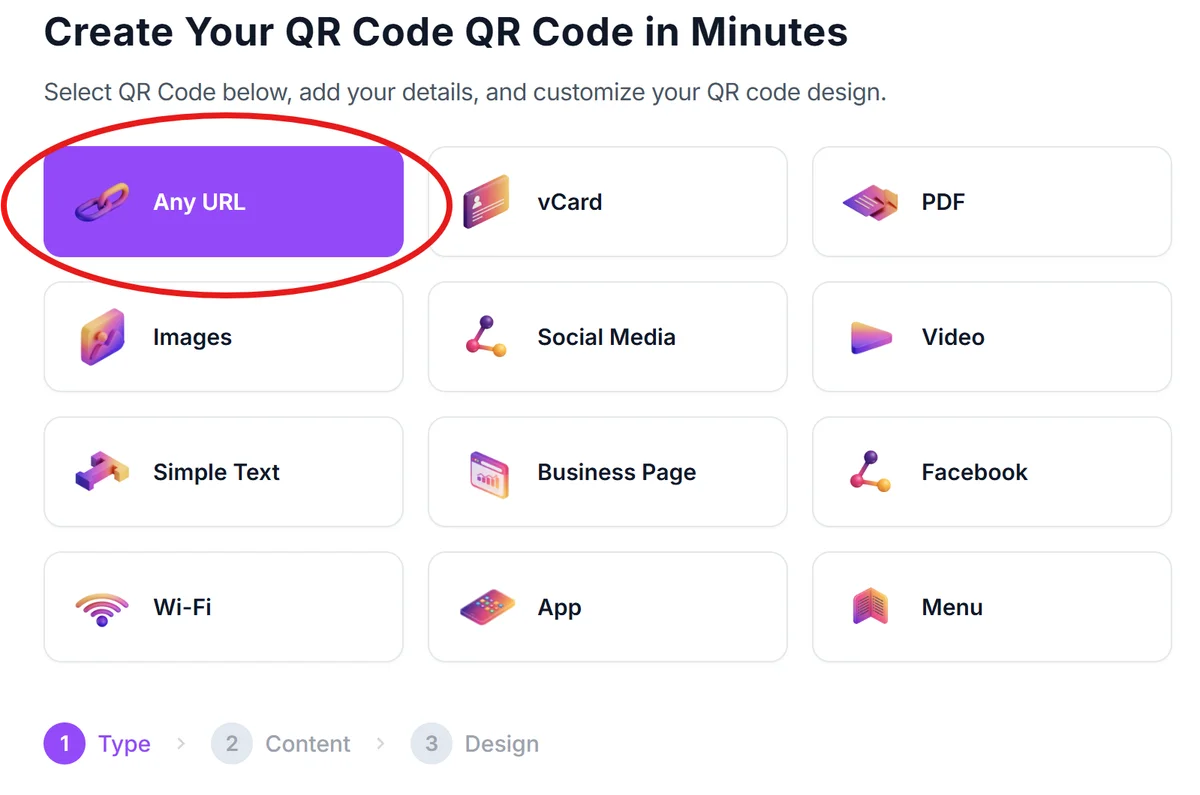
Go to qrcodeveloper.com and select the URL option from the QR code type menu.
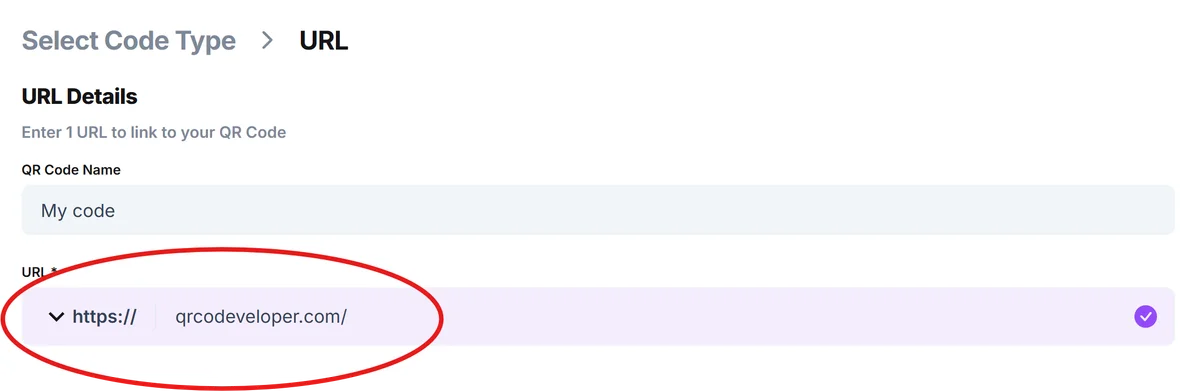
Copy your Coursera link
Navigate to the specific Coursera course, certificate, or profile page you want to share. Copy the full URL from your browser's address bar.
Customize for your audience
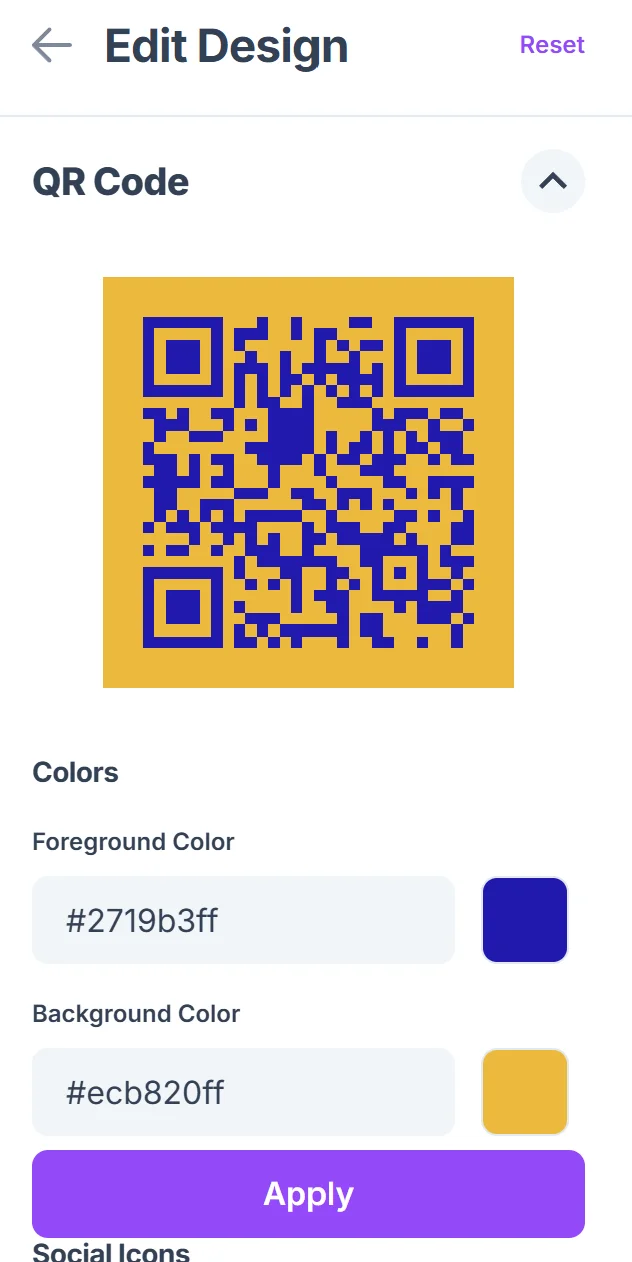
Click on the pencil icon in the Preview window to further customize your code. Customize the QR code colors to match your brand or educational materials. Consider using your institution's colors for consistency. For design inspiration, check out our QR code design tips to create visually appealing codes.

Test across devices
Download the QR code and test it on both iOS and Android devices to ensure it opens correctly in mobile browsers and the Coursera app if installed.
Add clear context
When placing the QR code, include descriptive text like 'Scan for Data Analytics Course' or 'Access Certificate Verification' so people know what they're scanning for.
Best practices for educational QR codes
These strategies help ensure your Coursera QR codes get scanned and lead to actual course engagement rather than just curious clicks.
Include enrollment deadlines or course start dates near the QR code when sharing time-sensitive programs or cohort-based courses. You can also create QR code stickers for physical materials that need to display course information prominently.
Test the mobile experience since most people will scan with phones - ensure the Coursera page loads quickly and displays well on smaller screens
Place codes at eye level on printed materials and ensure they're large enough to scan from arm's length, especially in classroom or office environments
Track which courses get the most QR code scans to identify popular topics and inform future training program decisions
Frequently Asked Questions
Do QR codes work with Coursera's mobile app?
Yes, when someone scans the QR code, it opens the course page in their mobile browser. If they have the Coursera app installed, they can easily switch to the app from there.
Can I create QR codes for paid Coursera courses?
Absolutely. The QR code links to the course page where users can see the syllabus, reviews, and enrollment options. They'll need to complete their own enrollment and payment if required.
Will the QR code still work if Coursera changes their URL structure?
Coursera typically maintains URL redirects when they update their site structure, so existing links usually continue working. However, it's good practice to test your QR codes periodically.
How can I track who scans my Coursera QR codes?
While basic QR codes don't provide scan analytics, you can use URL shorteners with tracking features before generating the QR code, or consider dynamic QR codes that include built-in analytics.
Is it free to create QR codes for Coursera content?
Yes, generating basic QR codes for Coursera links is completely free. You can create, download, and use them without any cost or registration requirements.
Related Guides
Ready to create your QR code?
Generate custom QR codes in seconds - free and easy to use.
Create Free QR Code →