QR codes for Asana project management and team collaboration

Bridge the gap between digital project management and physical collaboration by creating scannable codes that instantly connect team members to Asana projects, tasks, and boards.
How QR codes connect teams to Asana projects
Over 100,000 organizations worldwide rely on Asana for project management, yet many teams still struggle with the friction of sharing project links during meetings, presentations, or onboarding sessions. According to Asana's research, teams spend an average of 21% of their time searching for information or clarifying project details that could be instantly accessible.

An Asana QR code transforms any project, task list, or board into a scannable link that team members can access instantly with their smartphones. Instead of typing long URLs or searching through email threads, stakeholders can simply scan a code to view project timelines, task assignments, or progress updates directly in their Asana mobile app or browser.
Whether you're leading sprint reviews, client presentations, or team onboarding sessions, these codes eliminate the typical delays of sharing project access. I'll show you how to create QR codes for different Asana elements and share strategies that project managers use to improve team engagement and reduce time spent on administrative tasks. Similar to creating event QR codes, the key is making information instantly accessible to your audience.
Practical applications for Asana QR codes
Teams across different industries use Asana QR codes to reduce friction in project collaboration and improve stakeholder engagement. These codes work particularly well when you need to share project access during in-person interactions or when dealing with complex project URLs. You can also combine them with QR code business cards for networking events where you want to showcase your project management capabilities.
Sprint review presentations
Product managers display QR codes during sprint demos so stakeholders can instantly access the project board and review completed tasks, upcoming milestones, and team progress without interrupting the presentation flow.
Client onboarding and project kickoffs
Account managers include QR codes in welcome packets or display them during kickoff meetings, allowing new clients to bookmark project dashboards and stay updated on deliverables without needing lengthy email instructions.
Team meeting handouts and agendas
Meeting organizers print QR codes on agenda documents so attendees can quickly access related project boards, task lists, or goal tracking dashboards during discussions about project status and resource allocation. This approach works similarly to adding QR codes to flyers for instant information access.
Office displays and project war rooms
Operations teams post QR codes on whiteboards, monitors, or project walls in collaborative spaces, enabling anyone to scan and view current project status, team workloads, or departmental goals without needing computer access.
Creating QR codes for your Asana workspace
Setting up QR codes for Asana projects takes just a few minutes and works with any project, portfolio, or goal you want to share with your team.
Navigate to your target Asana element
Open the specific Asana project, task list, portfolio, or goal you want to share. Copy the URL from your browser's address bar - this will be the link that team members access when they scan your QR code. Head to qrcodeveloper.com to begin creating your code.
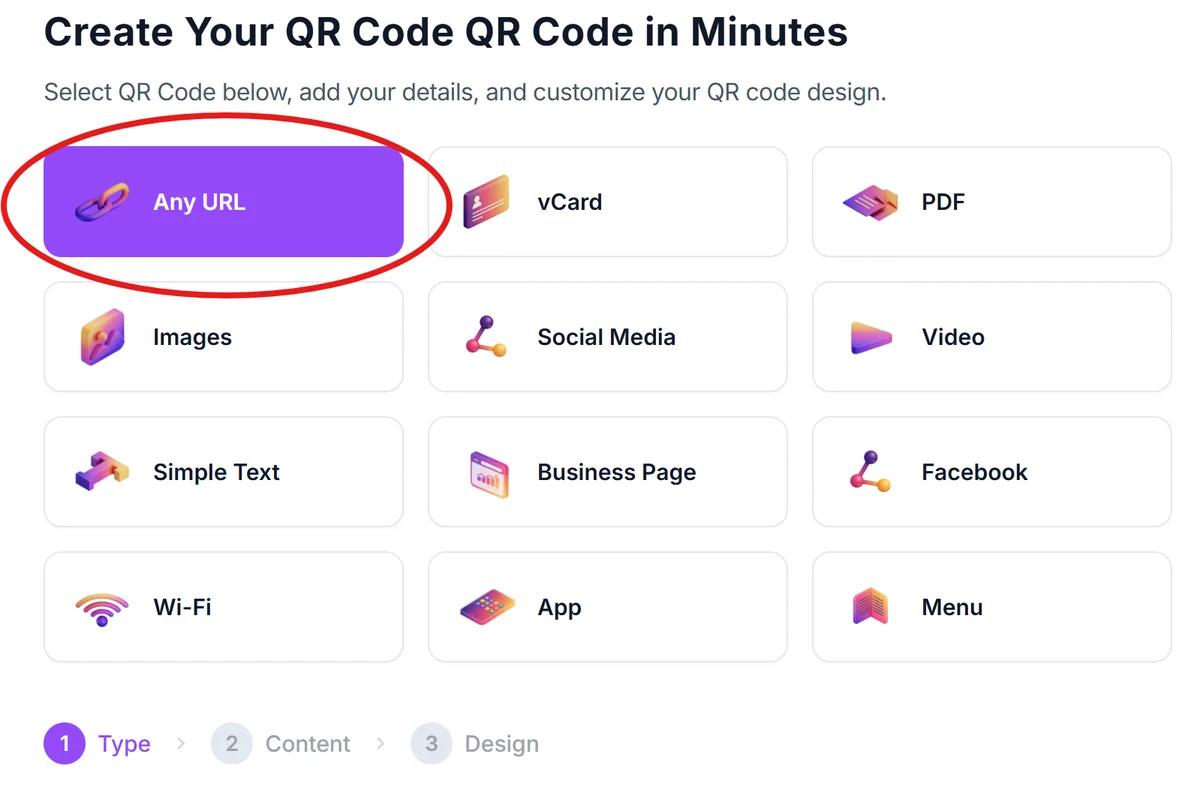
Enter your Asana project URL
Paste your copied Asana URL into the generator. Make sure the link includes any specific view settings (like timeline view, board view, or filtered task lists) that you want team members to see when they scan the code.
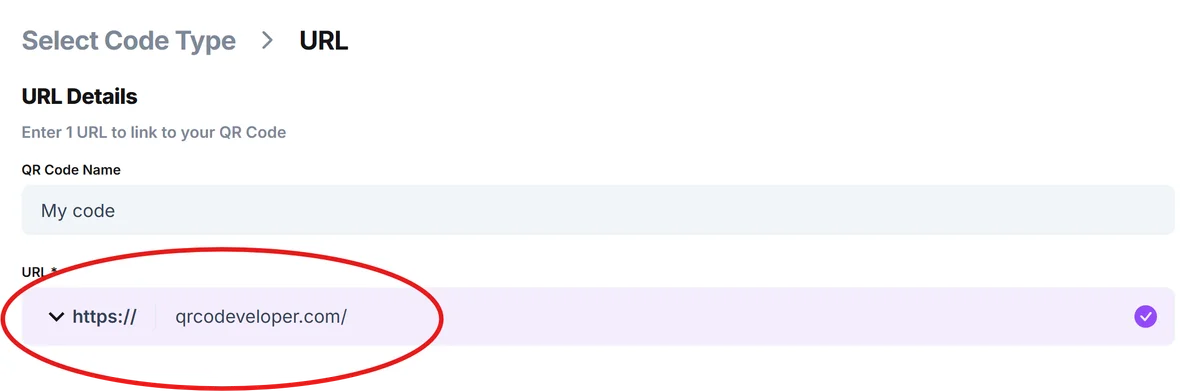
Configure professional branding
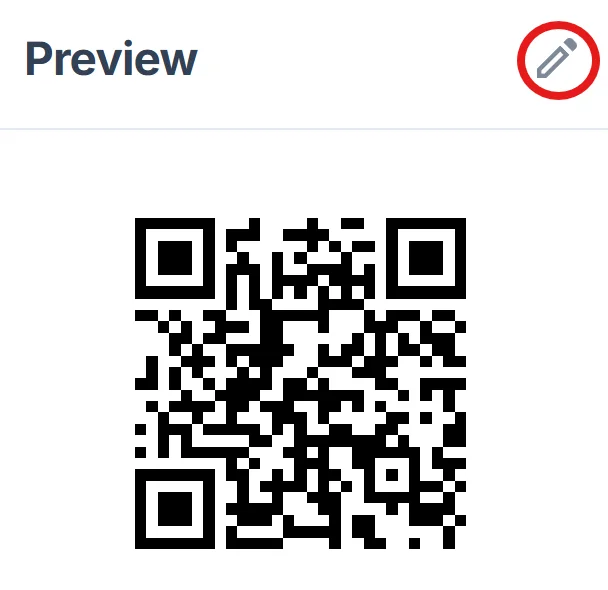
Add your company colors or Asana's brand colors to maintain visual consistency. Include a clear call-to-action like 'Scan for Project Updates' or 'Access Sprint Board' so team members understand what they'll find when scanning. For more guidance on visual appeal, check out our QR code design tips.
Test with different permission levels
Before sharing widely, test your QR code with team members who have different Asana access levels (project members, stakeholders, guests) to ensure everyone can view the intended content without permission errors.
Deploy across your collaboration tools
Download your QR code and add it to meeting presentations, project documentation, email signatures, or physical materials like project posters. You can even create QR code stickers for laptops or office walls. Consider creating different codes for different stakeholder groups if you need to control access levels.
Best practices for Asana QR code implementation
These strategies help project managers maximize engagement and avoid common pitfalls when implementing QR codes in their Asana workflows.
Create project-specific codes rather than workspace-level codes to ensure team members land exactly where they need to be. A code linking directly to your sprint board is more valuable than one linking to your general workspace.
Include context in your QR code labels - 'Q3 Marketing Campaign Board' or 'Client Feedback Tasks' helps people understand what they're accessing before scanning. This reduces confusion and improves adoption rates.
Set up separate codes for different stakeholder groups when working with external clients or cross-functional teams. Create one code for full project access and another for read-only dashboard views to maintain appropriate permission boundaries.
Update QR codes when project phases change or when you restructure your Asana workspace. A code that leads to an outdated project view can frustrate team members and reduce trust in your project management systems. Consider using dynamic QR codes for projects that frequently evolve.
Frequently Asked Questions
Can I create QR codes for private Asana projects?
Yes, but team members will need appropriate Asana permissions to view the project content. The QR code will direct them to the project, but Asana's permission system still controls what they can access.
Do QR codes work with Asana's mobile app?
Absolutely. When team members scan your QR code on their phones, they can choose to open the link in the Asana mobile app or their mobile browser, making it convenient for on-the-go project access.
How do I create codes for specific Asana views or filters?
Set up your desired view (timeline, board, list) and apply any filters in Asana first, then copy that specific URL. The QR code will preserve your view settings and filters when team members scan it.
Can I track who scans my Asana QR codes?
Basic QR code generators don't provide scanning analytics, but you can use Asana's built-in project analytics to see who accesses your projects and when they're most active.
Are there any costs for creating Asana QR codes?
Creating basic QR codes for your Asana projects is completely free. You only need your existing Asana account and a QR code generator - no additional subscriptions required.
Related Guides
Ready to create your QR code?
Generate custom QR codes in seconds - free and easy to use.
Create Free QR Code →