How to use QR code templates to build codes faster

Templates cut the setup work for menus, flyers, and event codes down to picking a layout and swapping in your own text, colors, and logo before printing.
Key Takeaways
- Templates store your frame style, color palette, and call-to-action text so you don't rebuild the same look for every new code.
- Category-specific layouts (menu, event, business card) already account for print size and scan distance, so you avoid guessing at pixel dimensions.
- Reusing a saved template across a campaign keeps flyers, table tents, and stickers visually consistent without manual matching.
For years, making a QR code meant starting from a blank canvas every single time. A restaurant owner would generate a code for the dinner menu, then repeat the whole process from scratch for the wine list, the takeout menu, and the catering flyer, tweaking colors and logo placement by hand each time, similar to the process described in our guide to creating a QR code menu. That repetition ate up time that should have gone toward running the business, not fiddling with export settings.
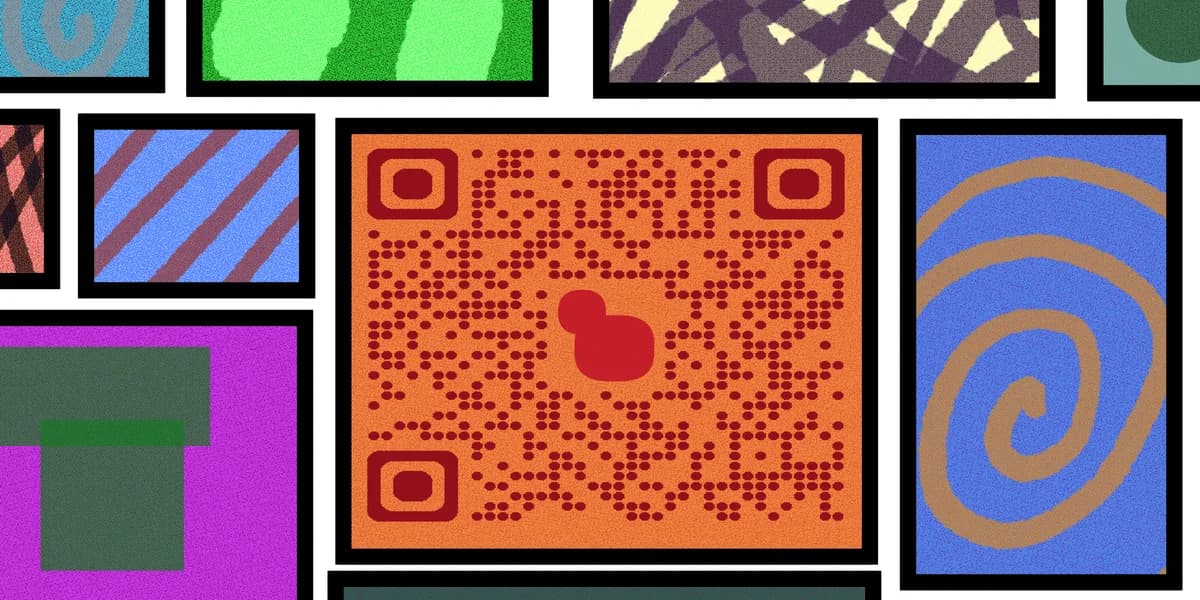
The new templates feature in QR Code Developer's generator changes that workflow. Instead of building every code from zero, you pick a pre-built layout suited to your use case, drop in your link or file, and adjust the branding once. The frame, color scheme, and call-to-action text are already arranged, so you're editing rather than designing from scratch.
This matters more now than it used to. 94% of marketers increased their QR code usage in the past 12 months, according to Bitly's 2025 data, which means more people are generating more codes, more often, across more campaigns. A repeatable template speeds up that volume without sacrificing consistency across your materials.
How to build a QR code with a template
The template workflow follows the same basic path as building a code manually, but with the design decisions already made for you. Here's how to move through it.
Step 1: Choose a category
Open the generator and select a template category that matches your use case, such as restaurant menu, event check-in, or business card. Each category comes with a frame shape and call-to-action wording that fits the context, like "Scan to view menu" or "Scan for directions," so you're not writing that copy from scratch.
Step 2: Add your destination
Paste in the link, upload the PDF, or connect the file the code should point to. If you're building a menu code, this is where a PDF turned into a QR code gets attached. If you're setting up an event, this is where you'd link to the page described in our event QR code guide.
Step 3: Adjust colors and logo
Swap the template's default palette for your brand colors and drop in your logo if you have one. Because the layout and spacing are locked in, you're only changing surface-level details, which keeps the code scannable even after the edits.
Step 5: Export and test
Download the code at print resolution and test it on at least two phones before it goes to print. This step doesn't change with templates, but it's still the one people skip most often, and it's the one that catches sizing or contrast problems before hundreds of flyers get printed.
Tips for getting the most out of templates
A few habits make the templates feature genuinely faster instead of just a slightly different starting point.
Save one template per recurring use case, such as a menu template and a separate one for event signage, rather than one generic template you tweak every time.
Keep the call-to-action text editable in your saved template so you can swap "Scan to order" for "Scan to RSVP" without redoing the layout.
Check that your logo doesn't overlap the template's quiet zone; templates handle spacing automatically, but manual logo placement can still crowd the edges.
Pair templates with a dynamic QR code so the destination link stays editable after printing, following the same logic in our static vs dynamic QR code comparison.
Frequently Asked Questions
Do templates work with dynamic QR codes?
Yes. Templates control the visual design; whether the underlying code is static or dynamic is a separate setting you choose during setup, and both work fine with any saved template.
Can I edit a template after saving it?
Yes, saved templates can be renamed, recolored, or have their call-to-action text updated at any time without affecting codes you've already generated and printed from that template.
Are templates only for business use?
No. Personal projects like wedding invite QR codes or a shared album for wedding photos use the same template system, just with different starting layouts.
Will using a template make my code less unique?
Not really. Templates set the structural layout, but colors, logos, and frame text are all customizable, so two businesses using the same starting template can end up with visually distinct codes.
Related Guides
Ready to create your QR code?
Generate custom QR codes in seconds - free and easy to use.
Create Free QR Code →