QR Codes for Shipping: A Step-by-Step Guide

QR codes on shipping labels give carriers, warehouse staff, and customers instant access to tracking data, delivery instructions, and return portals — all from a single scan.
Key Takeaways
- QR codes on shipping labels can store tracking URLs, return portals, delivery instructions, and customs data — far more than a standard 1D barcode.
- Dynamic QR codes let you update the destination URL after labels are printed, which is useful if your tracking page changes or you want to redirect scans to a promotion post-delivery.
- Print size, label material, and error correction level all affect whether a code scans reliably in a warehouse or on a doorstep.
- You can generate a free QR code at and have it ready to add to your label template within minutes.
- For multi-SKU or high-volume shipping operations, encoding a unique URL per shipment — rather than a generic tracking page — gives customers a much cleaner experience.
Traditional barcode labels on packages store a only single string of data — usually just a tracking number. However, a QR code can store significantly more information in the same amount of space, and it can be scanned from any angle with a standard smartphone camera. That difference matters a lot once you start thinking about all the data a shipping label actually needs to communicate: recipient address, handling instructions, return policy links, customs declarations, and live tracking URLs.
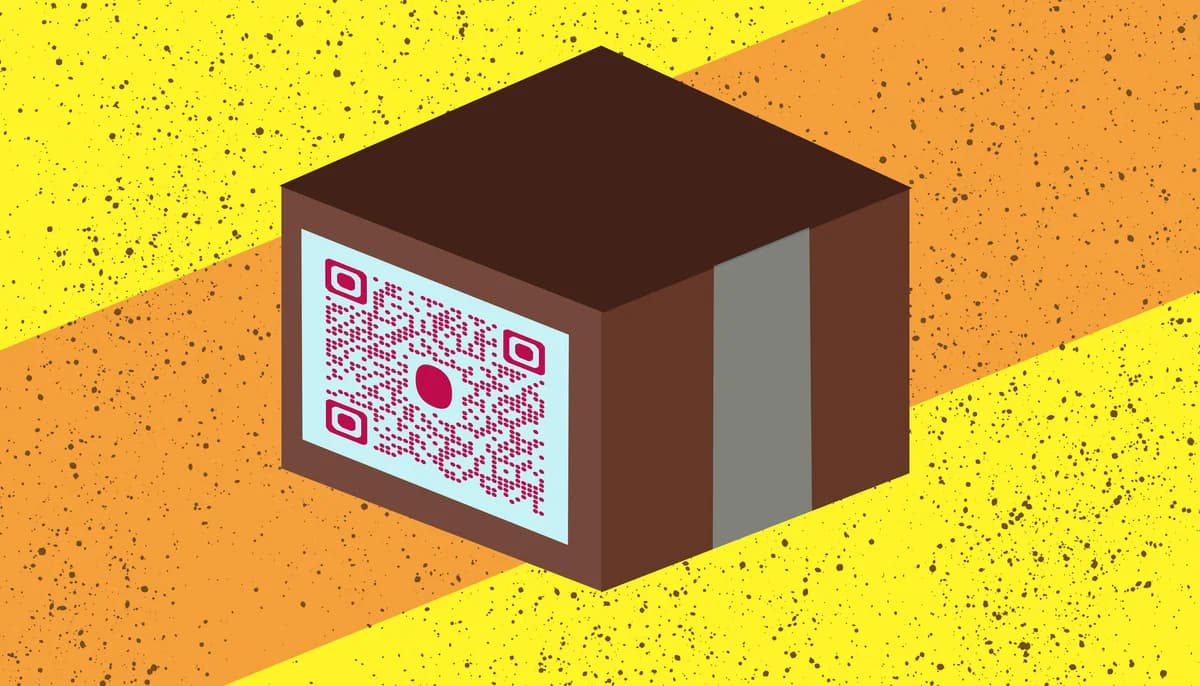
Carriers like UPS, FedEx, and USPS have all incorporated QR codes into parts of their workflows. Some use them for label-free drop-offs, others for last-mile delivery confirmation. But you do not have to wait for your carrier to roll out a new system. You can add a QR code to your own shipping labels right now to direct customers to a tracking page, a returns portal, or even a post-delivery survey — all without printing extra inserts. For a closer look at how parcel tracking with QR codes works end-to-end, see our dedicated guide on QR codes for parcel tracking.
In this guide I will walk you through the exact steps to create a shipping QR code, attach it to your labels, and make sure it scans reliably under real-world conditions like poor lighting and crinkled packaging.
How to create and use QR codes for shipping: step by step
The process breaks down into four stages: deciding what the QR code should do, generating it, adding it to your label design, and testing it before it goes on a real package. Each stage has a few decisions worth making deliberately rather than rushing through.
Step 1 — Decide what the QR code will link to
Before you open any QR code generator, get clear on the destination. The most common choices for shipping labels are a live tracking page (either your carrier's or a branded one you host), a returns and exchanges portal, a PDF of packing instructions or assembly guides for fragile items, and a customer feedback form triggered after delivery. If you want flexibility to change that destination later without reprinting labels, choose a dynamic QR code rather than a static one. Dynamic codes store a short redirect URL inside the code itself, so the actual destination can be edited at any time from your dashboard. You can learn more about the tradeoffs in our guide to static vs dynamic QR codes.
Step 2 — Generate the QR code
Head to the free QR code generator, select the URL content type, and paste in your destination link. If you are creating codes for individual shipments, you will want a system that lets you generate them in bulk with unique URLs per package — most QR platforms support CSV-based bulk generation for exactly this purpose. Set the error correction level to H (High) for shipping labels. Packages get scuffed, wet, and folded in transit, and a higher error correction level means the code can still be read even if up to 30 percent of it is obscured.
Step 3 — Download the right file format
Always download your shipping QR code as an SVG or high-resolution PNG rather than a low-resolution JPEG. Label printers — especially thermal printers like Zebra or Dymo units — render vector files crisply at any size. A pixelated JPEG that looks fine on screen can print as a blurry mess at 203 DPI, which leads to scan failures at the warehouse. If your label design software only accepts raster images, export a PNG at 600 DPI or higher.
Step 4 — Add the QR code to your label template
Place the QR code in a low-traffic area of the label — away from fold lines, tape strips, and the edges where abrasion is highest. A minimum printed size of 2 cm × 2 cm (about 0.8 inches square) is a safe baseline for most warehouse scanners and phone cameras. Leave a quiet zone — a clear white border — of at least 4 modules wide around all four sides of the code. Many printing errors that cause scan failures come from the quiet zone being cut off rather than from the code itself being damaged.
Step 5 — Test before you scale
Print a test label on the exact material you will use in production — coated paper, thermal transfer, or polyester depending on your operation — and scan it with at least two different devices: an iPhone, an Android phone, and if possible a handheld warehouse scanner. Test it again after crumpling the label, getting it slightly damp, and holding it at an angle under fluorescent lighting. If it fails any of those tests, increase the error correction level or bump up the printed size before rolling it out across your shipments.
Step 6 — Monitor scan data and update links as needed
One of the underused advantages of dynamic QR codes on shipping labels is the scan analytics. You can see when and where customers scanned the code, which tells you at what point in the delivery journey they engaged with it. That data is useful for identifying when customers tend to check tracking (usually the day after shipment and the day of expected delivery) so you can make sure your tracking page is accurate during those windows. You can also redirect the code to a post-delivery review request or loyalty offer once the package has been marked delivered. Learn more about managing dynamic codes in our .
Tips for better shipping QR codes
Once you have the basics working, these practices will make your shipping QR codes more reliable and more useful across a real-world operation.
Use a white or light-colored background behind the QR code even on dark label designs. High contrast between the modules and the background is the single biggest factor in scan reliability.
Avoid placing the QR code directly over adhesive seams or anywhere a tape gun typically crosses. A crinkled or lifted section of label will distort the code geometry enough to cause failures.
If you ship internationally, link the QR code to a multilingual landing page rather than an English-only tracking portal. A customer in Germany or Japan should be able to understand the page without extra effort. For inspiration on how to structure destination pages effectively, our guide on QR codes for landing pages covers the key design and usability considerations.
For returns labels included inside the box, consider encoding the return authorization number directly into the QR code URL as a query parameter (e.g., ?rma=123456). That way the returns portal can pre-fill the form for the customer automatically.
Keep your QR code destination URLs short and clean. Long, parameter-heavy URLs increase the data density of the code, which makes the modules smaller and harder to scan at small print sizes.
Store a backup of every QR code image file with the associated shipment record. If a customer contacts support about a scan failure, you want to be able to pull up the exact code that was on their label and reproduce the issue.
Frequently Asked Questions
Can I use a QR code instead of a barcode on a shipping label?
It depends on the carrier. Major carriers like USPS, UPS, and FedEx use their own proprietary barcodes (such as MaxiCode or PDF417) for internal scanning and sorting — you cannot replace those with a custom QR code. What you can do is add a QR code alongside the carrier barcode to give recipients and your own team quick access to tracking info, return portals, or delivery instructions. Think of it as a supplementary layer on top of the standard label, not a replacement for the carrier's required symbology.
What is the minimum size a shipping QR code should be printed at?
For thermal label printers running at 203 DPI, a printed size of at least 2 cm × 2 cm (roughly 0.8 × 0.8 inches) is the practical minimum. If your label is going on a small poly mailer with limited real estate, use a higher error correction level (H) and keep the URL as short as possible so the code stays simple enough to scan reliably at that size. For industrial warehouse scanners, you can sometimes go slightly smaller, but phone-camera scanning at small sizes is less forgiving.
Do I need a special app to scan a QR code on a shipping label?
No. Both iPhone (iOS 11 and later) and most Android phones running Android 9 and later can scan QR codes natively through the built-in camera app — no third-party scanner needed. Warehouse staff using handheld barcode scanners may need a model that supports 2D symbologies, but most modern units do. The recipient on the other end almost certainly has a smartphone camera that will read the code without downloading anything.
What should my shipping QR code link to?
The most useful destination is a live tracking page specific to that shipment. Beyond that, popular options include a returns and exchanges portal pre-filled with the order number, a PDF of assembly or care instructions, a post-delivery customer satisfaction survey, or a loyalty program landing page. If you use a dynamic QR code, you can change the destination after the label is printed — for example, switching from a tracking URL to a review request page once delivery is confirmed.
Are dynamic QR codes necessary for shipping, or will static ones work?
Static QR codes work perfectly well if your destination URL never changes — for example, a returns portal that always lives at the same address. Dynamic codes become important when you need a unique tracking page per shipment (and want to manage those links centrally), when your tracking page URL might change, or when you want to redirect scans to a different page after delivery. For small-volume shippers with a stable tracking URL, static codes are simpler and cost nothing to maintain. For high-volume operations, dynamic codes give you much more control.
What causes a QR code on a shipping label to fail to scan?
The most common culprits are printing at too low a resolution (below 300 DPI), cutting into the quiet zone border around the code, placing the code on a glossy surface that creates glare under certain lighting, physical damage from moisture or abrasion, and low contrast between the code and the background. Setting error correction to level H helps the code survive partial damage, and using a vector file (SVG) at print time ensures the modules stay crisp regardless of label size.
Related Guides
Ready to create your QR code?
Generate custom QR codes in seconds - free and easy to use.
Create Free QR Code →