qr code resolution converter

Sharper output files mean fewer failed scans at checkout counters, on posters, and inside packaging inserts where a pixelated code simply won't read on the first try.
Key Takeaways
- Resolution problems almost always trace back to starting from a screenshot or a compressed web preview instead of the original export file.
- Converting to a vector format like SVG or EPS solves the scaling problem permanently, since vectors have no fixed pixel count to run out of.
- For digital screens, codes should render at a minimum of 200 x 200 pixels, growing to 400 x 400 px or larger on TV and signage displays, per Linkbreakers.
- Print files need 300 DPI at the final print size, not at whatever size the file happens to be saved.
Why does a QR code that looked perfectly fine on a laptop screen suddenly turn into a smudged mess once it's printed on a banner or a product label? The answer almost always comes down to resolution. A QR code resolution converter takes a low-quality raster file — usually a small JPG or PNG someone screenshotted or downloaded from a preview — and rebuilds it at a higher pixel count or converts it to a vector format like SVG so it stays sharp no matter how large you print it.
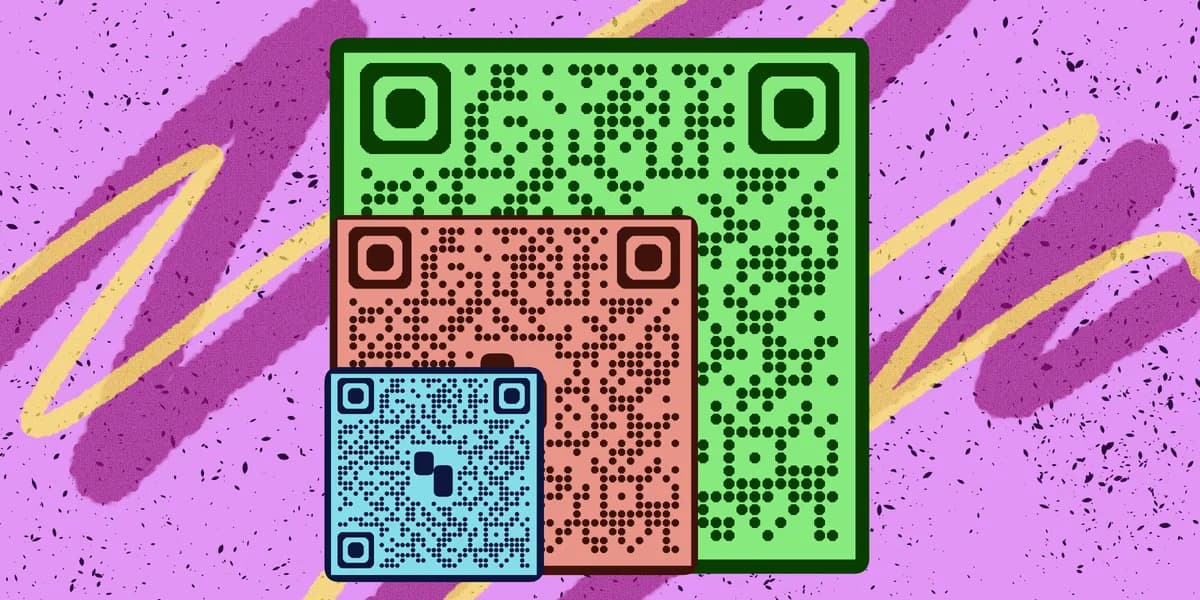
This matters more than most people realize because a QR code isn't a photo — it's a data grid made of black and white squares called modules. If those modules blur together or get compressed into muddy gray blocks, the scanner's camera can't tell where one module ends and the next begins, and the scan fails. A resolution converter fixes that by regenerating clean, sharp edges instead of just stretching the existing pixels.
Before you go hunting for a converter tool, it's worth checking whether you actually have the original high-resolution file somewhere. Codes created with the free QR code generator are typically available as vector downloads from the start, which sidesteps this whole problem entirely.
How to convert a low-resolution QR code
Fixing a blurry QR code is a short process once you know which format you're aiming for, and it helps to first understand how QR codes are structured. Follow these steps in order rather than skipping straight to upscaling, since the source file you start with determines how much quality you can actually recover.
Step 1: Identify the current file format and pixel dimensions
Open the file's properties or right-click for "get info" to see its exact pixel width and height. A code saved at 150 x 150 pixels will never look crisp printed at 4 inches wide — you need to know the starting point before deciding whether upscaling or regeneration is the right fix.
Step 2: Locate or recreate the original vector source
Check whether the platform that generated the code offers an SVG, EPS, or PDF export option. Most generators keep this available even after the code has been downloaded once as a PNG, so it's worth logging back in before assuming you have to start from scratch.
Step 3: Run the file through a resolution converter
If no vector file exists, use a dedicated image resolution or vectorization tool to trace the existing black-and-white modules into clean paths. Avoid generic photo upscalers built for portraits or landscapes — they smooth edges in ways that blur the sharp module boundaries a scanner depends on.
Step 4: Export at the correct DPI for your use case
For anything going to a printer, export at 300 DPI at the final physical size the code will appear, following the print benchmark from Linkbreakers — the same standard worth checking before you add a QR code to a flyer. For digital use, export as PNG at a minimum of 200 x 200 pixels, and size it larger for signage or video screens.
Step 5: Test scan the converted file before mass production
Print a single proof copy or display the file on the actual screen it will live on, then scan it with two or three different phone models. This catches resolution issues before you've committed to a full print run of flyers, packaging, or stickers.
Tips for getting sharp scans every time
A few habits will save you from ever needing a resolution converter again on future projects.
Always download the vector version (SVG or EPS) from your generator the first time, even if you only need a PNG right now — the difference matters more once you understand static vs dynamic QR codes, since you can convert down from vector to raster easily, but not the other way around.
Follow the 10:1 sizing rule when scaling a code up for distance viewing: add one centimeter of code width for every 10 centimeters of expected scanning distance, as outlined by QR Code Dynamic.
Never resize a QR code by dragging its corner in a word processor or slide deck — these tools often resample the image and introduce blur that a dedicated converter would have avoided.
Keep a labeled folder of source files organized by campaign so you're not hunting through email attachments the next time a print vendor asks for a higher-resolution version.
Frequently Asked Questions
Can you increase the resolution of a QR code without breaking it?
Yes, as long as you convert to a vector format or regenerate from the original data rather than simply stretching a low-res raster image. Stretching pixels just makes the blur bigger; a converter rebuilds the module edges cleanly.
What's the best file format for a high-resolution QR code?
SVG is generally the safest choice because it scales to any size without quality loss. If your printer or platform requires a raster file, export a PNG at 300 DPI sized specifically for the final dimensions you need.
Why does my QR code look fine on screen but fail when printed?
Screens display at roughly 72-96 DPI while print needs 300 DPI, so a file that looks sharp on a monitor can be far too low-resolution once it hits paper at a larger physical size. Always check the DPI setting before sending a file to print.
Does resolution affect whether a QR code scans successfully?
Yes — if the modules blur together or the code falls below the minimum size recommendations, scanner apps can't distinguish individual squares and the read fails. This is separate from data capacity issues but produces the same result: a code that won't scan.
Can I convert a QR code screenshot into a usable high-resolution file?
It's possible using vectorization software, but results vary depending on how compressed the screenshot was. Whenever possible, regenerate the code fresh from its original data using a tool like the free QR code generator instead of trying to rescue a screenshot.
Related Guides
Ready to create your QR code?
Generate custom QR codes in seconds - free and easy to use.
Create Free QR Code →