qr code quiet zone

Reliable scans depend on empty space as much as the code pattern itself. Getting margin sizing right prevents misreads on flyers, packaging, and signage before printing ever begins.
Key Takeaways
- The quiet zone is a plain border of at least four modules on every side, required by the ISO/IEC 18004 standard for scanner recognition.
- A practical print margin is roughly 10-15% of the code's total width, or about 8mm for codes built with 2mm modules, according to QR Insights.
- Text, borders, logos, or background photos that touch the code's edge are the most common cause of quiet zone failures on flyers and packaging.
What's the point of leaving blank space around a code that already has plenty of black and white squares packed into it? It turns out that empty border is doing more work than the pattern itself when a scanner first locks onto your code.
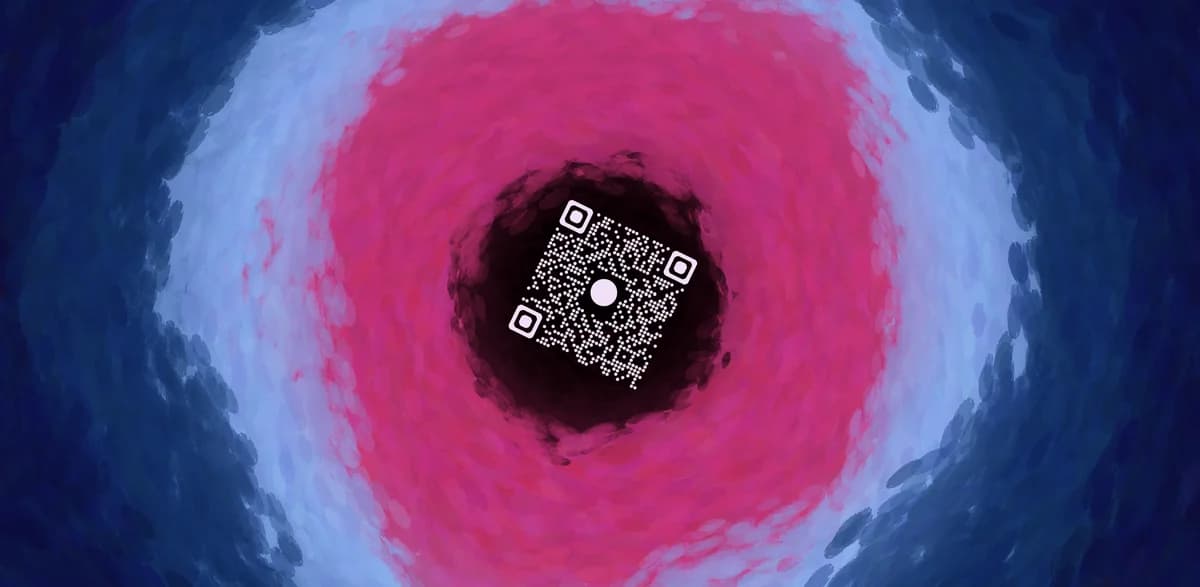
A quiet zone is the plain, unobstructed margin surrounding a QR code's outer edge. It has no dots, no logos, no text, and no design elements touching it. Scanner software uses this blank space to detect where the code starts and ends before it even attempts to read the data inside. Without it, a phone camera can mistake the code for part of a busier background image and fail to recognize it as a scannable object at all.
The official standard, ISO/IEC 18004, sets the minimum quiet zone at four modules of light background on every side of a standard QR code, with Micro QR codes requiring only two modules. A "module" is just one of the small squares that make up the code's grid, so the required margin scales with how dense the code is.
How to set up a proper quiet zone
Getting the margin right is less about design taste and more about arithmetic. Once you know the module count of your code, the quiet zone math is straightforward and repeatable across any print size.
Step 1: Generate the code at its final size
Build your QR code through a tool like the free QR code generator at the actual dimensions it will be printed or displayed. Module size shifts depending on output resolution, so measuring quiet zone requirements on a preview that's smaller than the final print can give you a false sense of how much margin you actually have.
Step 2: Measure four modules on each side
Count the modules along one edge of your code, then multiply that module width by four to get your minimum quiet zone in millimeters or pixels. For a code with 2mm modules, that comes out to roughly 8mm of blank space per side, matching the practical guidance from QR Insights.
Step 3: Keep the margin free of design elements
Nothing should cross into that border, not a drop shadow, not a colored background panel, not a call-to-action line squeezed in tight. Even a subtle texture behind the code can confuse the scanner's edge detection if it bleeds into the quiet zone.
Step 4: Test the final layout before mass printing
Print a single proof copy at actual size and scan it with two or three different phone models, since camera autofocus and app behavior vary, much like testing recommended in guides on the most secure QR code scanners. This step catches quiet zone issues that only show up once the code is on paper, such as ink bleed shrinking the effective margin.
Tips for avoiding quiet zone problems
A few habits from print production catch quiet zone mistakes before they cost you a reprint.
Leave extra margin beyond the four-module minimum when the code will sit on a busy background photo, since patterned surfaces make edge detection harder for the scanner, an issue worth reviewing alongside general QR code design tips.
Avoid wrapping decorative borders or brand frames directly around the code edge; if you want a frame, add extra padding between the frame and the code itself.
Check quiet zone spacing separately for each print size, since scaling a design down for a sticker can shrink the margin proportionally more than expected if it's not recalculated.
Watch for text overlays added in design tools like Canva when placing a code on a flyer, since captions and taglines are often dragged too close to the code border.
Frequently Asked Questions
What happens if the quiet zone is too small?
Scanners may fail to detect the code at all, or they may read it inconsistently depending on lighting and camera angle. A cramped quiet zone is one of the most common reasons a QR code scans fine on screen but fails once printed.
Can I put a logo inside the quiet zone?
No. Logos, icons, and any graphic element should stay outside the blank margin entirely. A logo placed in the center of the code itself is fine when using higher error correction, but it should never overlap the quiet zone border.
Does background color count against the quiet zone?
Yes. The quiet zone needs to contrast clearly with the code's dark modules, so a colored or patterned background right up to the code's edge can interfere with detection the same way a missing margin would.
Is the quiet zone requirement different for small codes on packaging?
The module-based math stays the same, but small codes on packaging leave less room for the required margin in absolute terms, which is why designers often round up past the four-module minimum for tiny codes.
Related Guides
Ready to create your QR code?
Generate custom QR codes in seconds - free and easy to use.
Create Free QR Code →