How QR codes simplify multi-factor authentication

Login screens become faster and phishing-resistant when a scan replaces typed codes, cutting support tickets while keeping account access locked down for both IT teams and end users.
Key Takeaways
- QR-based MFA replaces typed one-time codes with a scan, cutting login time and reducing the copy-paste errors that cause failed attempts.
- Because the code is generated per session and expires quickly, QR authentication resists the phone-based phishing tactics that plague SMS codes.
- Pairing a QR login prompt with a dynamic, well-tested QR code generator prevents the broken or stale codes that frustrate users during rollout.
Most people hate typing six-digit codes under time pressure., but a QR code can eliminate that friction entirely: a phone camera reads an encoded challenge, confirms it against a trusted app, and the login completes without a single keystroke. That's the quiet reason so many banks, workplace tools, and cloud dashboards have quietly swapped SMS codes for a scan-and-go prompt.
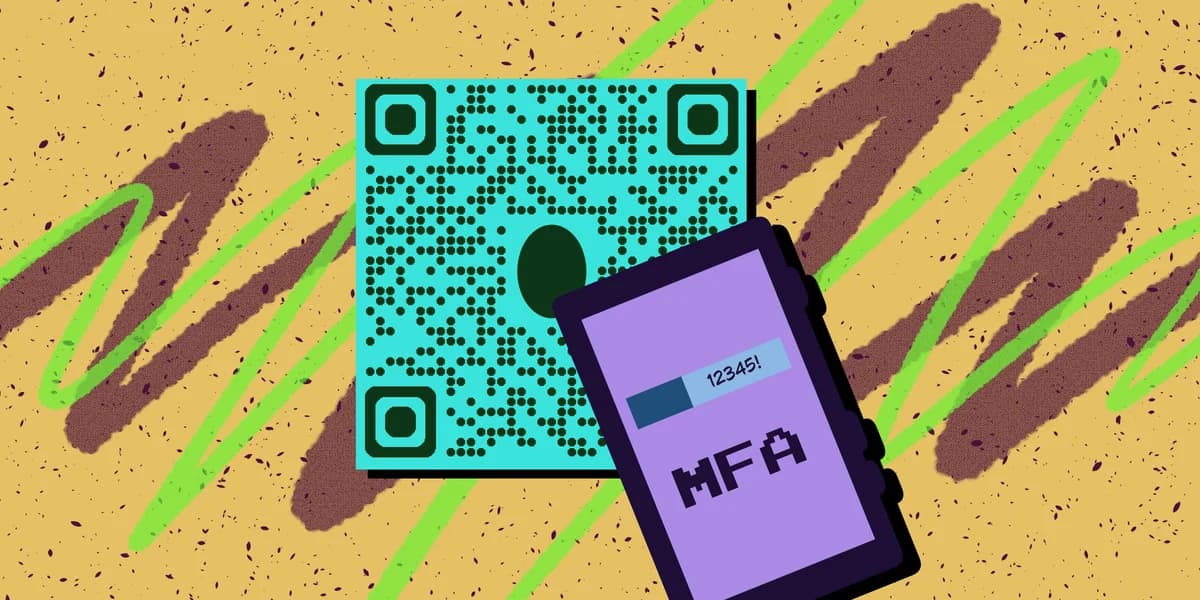
Multi-factor authentication exists to prove you are who you say you are using something you know plus something you have. A password covers the "know" part. A QR code scanned by a device already tied to your identity covers the "have" part, and it does so without exposing a code that can be intercepted over SMS or copied from a screenshot. That distinction matters more than most login screens let on, and it's part of why QR-based MFA has grown popular alongside broader concerns about QR code safety.
This guide walks through how QR-based authentication actually works, how to set it up for your own accounts or team, and what to watch for so a convenience feature doesn't turn into a security gap.
Setting up QR-based MFA step by step
Whether you're securing a personal account or rolling this out across a team, the mechanics are similar. Below is the general process most authentication providers follow, from enabling the feature to testing it on a live login.
Step 1: Enable MFA in your account security settings
Open the security or login settings for the service you want to protect and look for a multi-factor or two-step verification option. Most platforms list several methods here, including authenticator apps, SMS, and QR-based login. Select the QR option if it's available, or choose an authenticator app that supports QR scanning as its enrollment method.
Step 2: Scan the enrollment QR code with your authenticator app
The service will display a QR code meant to link your account to an authenticator app like Google Authenticator, Authy, or a built-in company app. Open the app, choose "add account," and scan the code with your phone's camera, similar to how you'd scan a QR code from a photo in other contexts. This step exchanges a shared secret key between the service and your device, which is what makes future logins possible without retyping anything.
Step 3: Confirm the pairing with a test login
After scanning, most systems ask you to log out and back in to confirm the pairing works. On this test run, you'll either enter a code generated by the app or scan a fresh QR code shown on the login screen, depending on which flow the service uses. A successful test means your device is now tied to that account as your second factor.
Step 4: Save backup codes before you finish
Every reputable MFA setup gives you a set of backup codes in case you lose your phone. Download or print these and store them somewhere separate from your device. Skipping this step is the single most common reason people get locked out of their own accounts after switching phones.
Step 5: Roll it out to a team if you're managing access for others
For business accounts, generate individual enrollment QR codes for each team member rather than sharing one code, since a shared code defeats the purpose of individual authentication. If you're distributing physical instructions or posters explaining the process, a tool like the QR code generator can help you create clear, scannable enrollment prompts for onboarding materials.
Tips for a smoother rollout
A few practical habits keep QR-based MFA reliable instead of becoming another help-desk headache.
Set enrollment QR codes to expire within a few minutes so an old screenshot can't be reused later by someone else.
Test the login flow on both iOS and Android cameras before rollout, since default camera apps handle QR scanning slightly differently across devices.
Keep a printed backup-code sheet in a locked drawer for shared work accounts, separate from any digital copy, so account recovery doesn't depend on the same device that got lost.
Review your quishing awareness training alongside MFA rollout, since attackers increasingly target authentication prompts with fake QR overlays; our quishing guide covers what that looks like in practice.
Frequently Asked Questions
Is QR-based MFA more secure than SMS codes?
Generally yes. SMS codes can be intercepted through SIM-swapping or network vulnerabilities, while a QR code tied to an authenticator app relies on a locally stored cryptographic key that never travels over a cell network.
What happens if I lose the phone linked to my QR authentication?
Use the backup codes generated during setup to log in, then re-enroll a new device through your account's security settings. Without backup codes, you'll typically need to go through account recovery with the service provider, which can take longer.
Can someone hack my account by showing me a fake QR code?
It's possible if you scan a QR code from an untrusted source during login, which is why quishing attacks exist. Only scan enrollment or login QR codes displayed directly on the official website or app, never one sent through email or text.
Do I need special hardware to use QR-based multi-factor authentication?
No. A smartphone with a camera and a free authenticator app is all that's required. Some services also support hardware security keys with QR pairing, but that's optional for most personal and small business use cases.
Related Guides
Ready to create your QR code?
Generate custom QR codes in seconds - free and easy to use.
Create Free QR Code →