QR Code Generator for Trustpilot

Turn your Trustpilot review page into a scannable QR code and place it anywhere customers are — receipts, packaging, signs, or thank-you cards — so collecting reviews becomes effortless.
What Is a Trustpilot QR Code?
Most customers who have a great experience with your business simply move on. Not because they do not want to leave a review — but because the process feels like one more task to squeeze into a busy day. However, a Trustpilot QR code can change this and get your business the valuable feedback you need!

A Trustpilot QR code is a scannable image that links directly to your Trustpilot review page. When a customer points their phone camera at it, they land on the exact page where they can write and submit a review — no searching, no typing a URL, no hunting through menus. The whole journey from scan to submission takes under a minute.
Under the hood, the QR code encodes your Trustpilot business profile URL into a scannable image. You generate that code once, download it as a PNG or SVG, and then print or display it wherever your customers are most likely to see it right after a purchase or service interaction. Because the code is just a URL link, it works with every modern smartphone camera app without requiring a separate scanner app.
If you want to understand the broader mechanics of how URL-based QR codes work before you build yours, the Understanding QR Codes guide covers the technical side in plain language.
Where to Use a Trustpilot QR Code
A Trustpilot QR code is only as useful as the places you put it. The goal is to position it at the exact moment a customer feels good about your business — right after delivery, right after service, right after checkout. Here are the highest-impact placements to consider.
Packaging and Unboxing Inserts
A printed card tucked inside a parcel is one of the most reliable review drivers available to e-commerce businesses. The customer is already in a positive moment — they just received something they ordered. A short line like "Loved your order? Scan to share your thoughts" next to a QR code is all it takes. The insert is cheap to print and travels inside every single shipment you send out. You can also apply the same approach with QR code stickers for a low-cost, versatile alternative.
Printed Receipts and Invoices
Whether you hand over a paper receipt at a counter or email a PDF invoice to a client, adding a Trustpilot QR code to the footer turns a transactional document into a review prompt. Customers already read receipts to check totals, so the code gets seen without any extra effort on their part.
In-Store Signage and Countertop Displays
Brick-and-mortar retailers and service providers can print the QR code on a small tent card and place it at the point of sale, at a reception desk, or near a waiting area. Customers who are already in your space and waiting for a moment are natural candidates for a quick scan.
Staff Uniforms and Name Badges
A small QR code sticker or printed badge insert works well in service industries where a technician, driver, or consultant completes a job on-site. The staff member can hand the customer a card or point to their badge at the end of the job — a personal touch that converts well because the interaction is still fresh.
Email Signatures and Thank-You Emails
Post-purchase email sequences are a natural home for a Trustpilot QR code image. Embedding the code in a follow-up email sent a day or two after delivery catches customers at the right moment. It also works well in the email signature of anyone in a customer-facing role, so every outgoing message carries a passive review prompt.
Vehicle Wraps and Branded Merchandise
Tradespeople, delivery companies, and mobile service businesses can place a QR code on their branded vehicles or company merchandise. Anyone who sees the van parked outside, or receives a branded tote bag, becomes a potential reviewer — even if they are not yet a customer.
How to Create a QR Code for Trustpilot
Creating a Trustpilot QR code takes about two minutes from start to finish. Here is the exact process using the .
Find your Trustpilot review page URL
Log in to your Trustpilot Business account and go to your public profile page. Copy the full URL from your browser address bar. It will look something like https://www.trustpilot.com/review/yourbusiness.com. If you want to send customers straight to the review submission form, append ?stars=5 or similar parameters supported by Trustpilot to pre-select a star rating.
Open the QR Code Developer generator
Head to the QR Code Developer generator page. You do not need to create an account to generate a basic code, which means you can have a working QR code ready in under two minutes.
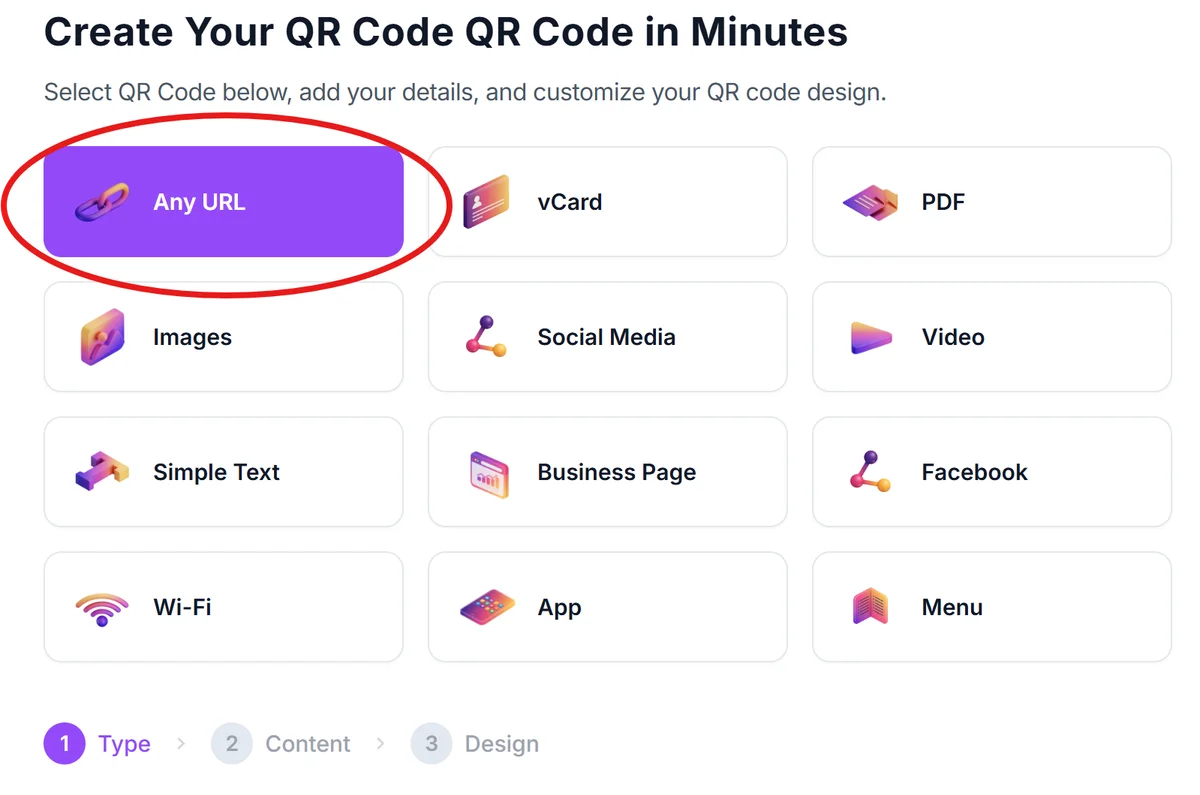
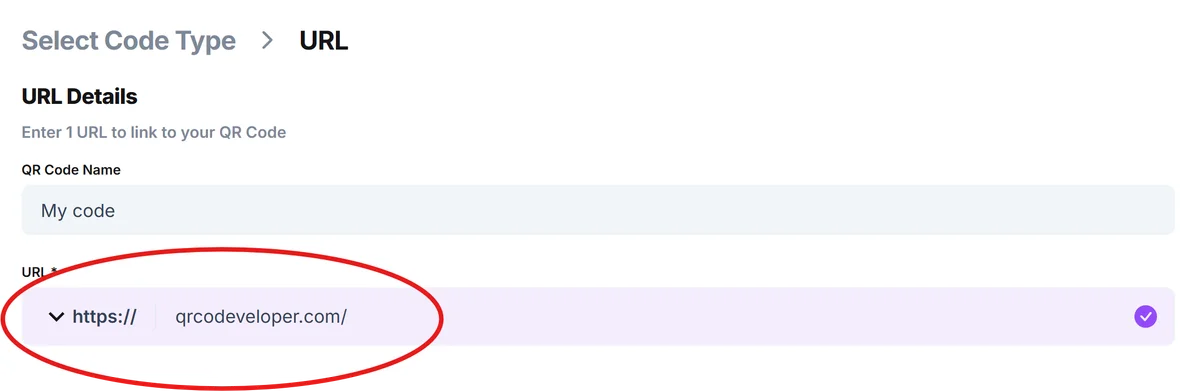
Select the URL option and paste your link
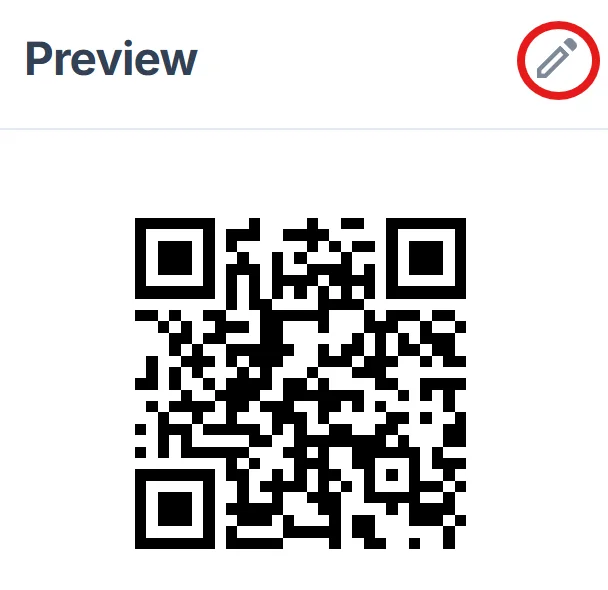
Choose the URL content type from the generator options. Paste your Trustpilot review page URL into the input field. The generator will create a preview of your QR code in real time as you type.
Customise the design (optional)
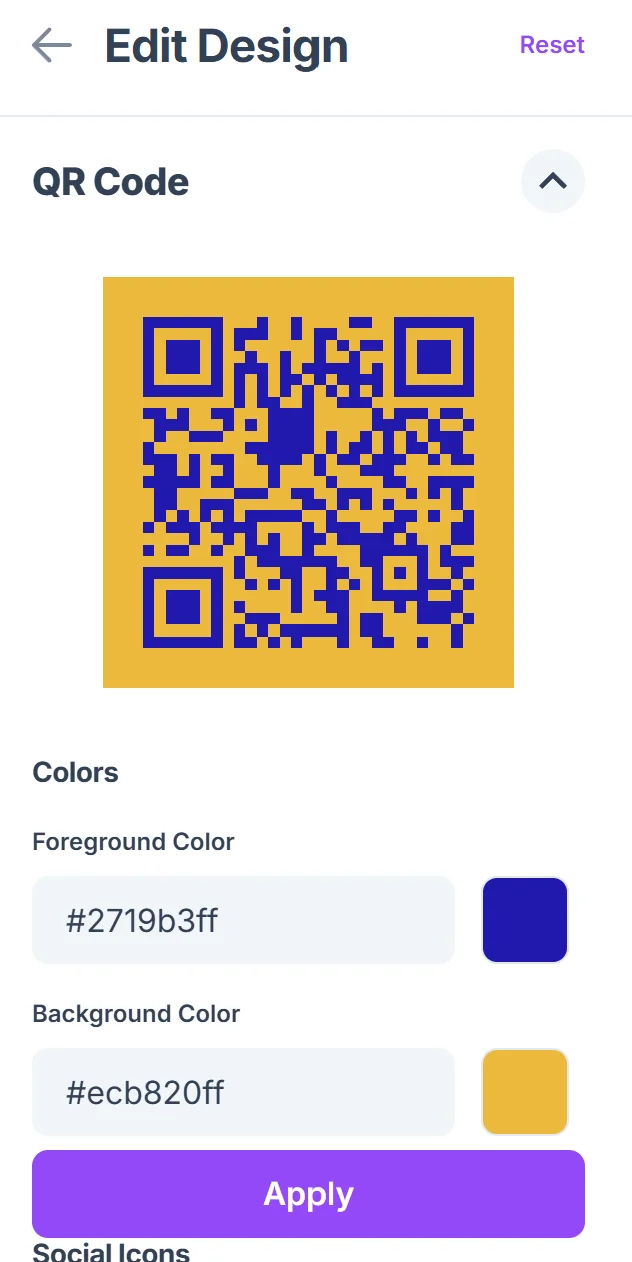
You can adjust the foreground colour to match your brand palette, add a logo in the centre of the code, or choose a different dot pattern style. Keep contrast high — dark code on a light background always scans more reliably than low-contrast colour combinations. For more inspiration on making your code look great, check out our QR Code Design Tips.
Download and test before printing
Download the code as a PNG for digital use or an SVG for print materials where you need sharp edges at any size. Before sending anything to print, scan the code yourself using at least two different phones to confirm it resolves to the correct Trustpilot page. A broken QR code on a thousand printed flyers is an expensive mistake to fix — see our guide on how to add a QR code to your flyer for best practices.
Tips for Getting More Scans
Generating the code is the easy part. Getting customers to actually scan it requires a little thought about context, copy, and placement. These practical tips will help you maximise the return from your Trustpilot QR code.
Add a clear call to action near the code. A QR code on its own gives customers no reason to scan. A short line like "Share your experience — scan to review us on Trustpilot" tells them exactly what will happen and why it is worth their ten seconds.
Print at a minimum size of 2 cm x 2 cm. Smaller than that and some phone cameras struggle to read the code, especially on textured or slightly glossy surfaces. For signage meant to be read from more than arm's length, scale up to at least 5 cm x 5 cm.
Use a high-contrast colour scheme. Black on white is the gold standard. If your branding requires colour, keep the foreground much darker than the background and always test the finished design before committing to a large print run.
Place the code at eye level and in good lighting. A QR code on the floor of a shop or on the underside of a package rarely gets scanned. Position it where a customer naturally looks — at counter height, on the front of a card, or in the top half of an email.
Time the prompt well. The best moment to ask for a review is right after a positive interaction, not a week later when the experience has faded. Placing the QR code on a delivery note, a completed job card, or an immediate post-purchase email captures customers while goodwill is highest.
Test across multiple devices before printing at scale. Android and iOS handle QR code scanning differently, and some older devices need slightly more generous quiet zones around the code. A quick multi-device test saves you from printing hundreds of unreadable codes.
If you plan to track scan performance over time, consider pairing your Trustpilot URL with a UTM-tagged link or a short redirect URL before encoding it. That way you can see in your analytics exactly how many visits to your Trustpilot page came through the QR code versus other channels. For a deeper look at tracking QR code performance, see our guide on Static vs Dynamic QR Codes.
Frequently Asked Questions
Does a Trustpilot QR code violate Trustpilot's review guidelines?
No, as long as you follow Trustpilot's guidelines around review solicitation. You are allowed to invite customers to leave a review — you just cannot offer incentives in exchange for positive reviews, and you should invite all customers, not only those you expect to rate you highly. A QR code is simply a convenient way to make the invitation, so it is fully compliant when used correctly.
What URL should I use for the QR code?
Use the direct URL to your Trustpilot business profile page, which typically follows the format https://www.trustpilot.com/review/yourdomain.com. You can find it by logging into Trustpilot Business and viewing your public profile. If you want to send customers straight to the review writing form, Trustpilot also supports a direct review link that you can find in the Invite customers section of your Business account dashboard.
Do customers need a Trustpilot account to leave a review?
Yes, Trustpilot requires reviewers to either create a free account or log in with an existing Google or Apple account before submitting a review. This is part of how Trustpilot maintains review integrity. The process is quick, but it is worth setting expectations in your call to action so customers are not surprised when they are asked to sign in.
Can I use the same QR code on multiple materials?
Absolutely. Once you have generated and downloaded your QR code, you can use the same image file on as many printed or digital materials as you like — there is no limit on the number of times a static QR code can be scanned. Just make sure you download the highest resolution version available so the image stays sharp when scaled up for large-format printing.
Will the QR code stop working if I change my Trustpilot URL?
Yes. A static QR code permanently encodes whatever URL you entered when you created it. If your Trustpilot URL changes — for example, if you rebrand your business domain — you would need to generate a new QR code and reprint any physical materials. This is one reason some businesses prefer dynamic QR codes, which allow you to update the destination URL without reprinting the code itself.
What file format should I download for print versus digital use?
For digital use such as email signatures, social media posts, or website embeds, a PNG file works well. For anything that will be printed — business cards, packaging inserts, signage — download an SVG file if available, since SVG is a vector format that stays perfectly sharp at any size without pixelation.
Related Guides
Ready to create your QR code?
Generate custom QR codes in seconds - free and easy to use.
Create Free QR Code →