print qr code on label

Label printers demand exact file sizing, contrast, and quiet zones that a screenshot from a website never gets right, causing smudged codes that phones refuse to scan on shelves.
Key Takeaways
- Vector files (SVG or high-res PNG) print sharper on label stock than a screenshot ever will, especially at small sizes under one inch.
- A dynamic QR code lets you fix a broken link or update a product page without reprinting a single label roll.
- Glossy, curved, or dark-colored label materials cause more scan failures than the code design itself — test on the actual material before a full print run.
The traditional method is for a warehouse crew used to hand-write SKU numbers on masking tape, then retype them into a spreadsheet every time a pallet moved. It can work, until someone's handwriting got sloppy or the tape peeled off in the rain. That's the old way of tracking product, and it's slow, error-prone, and impossible to scale past a few hundred items.
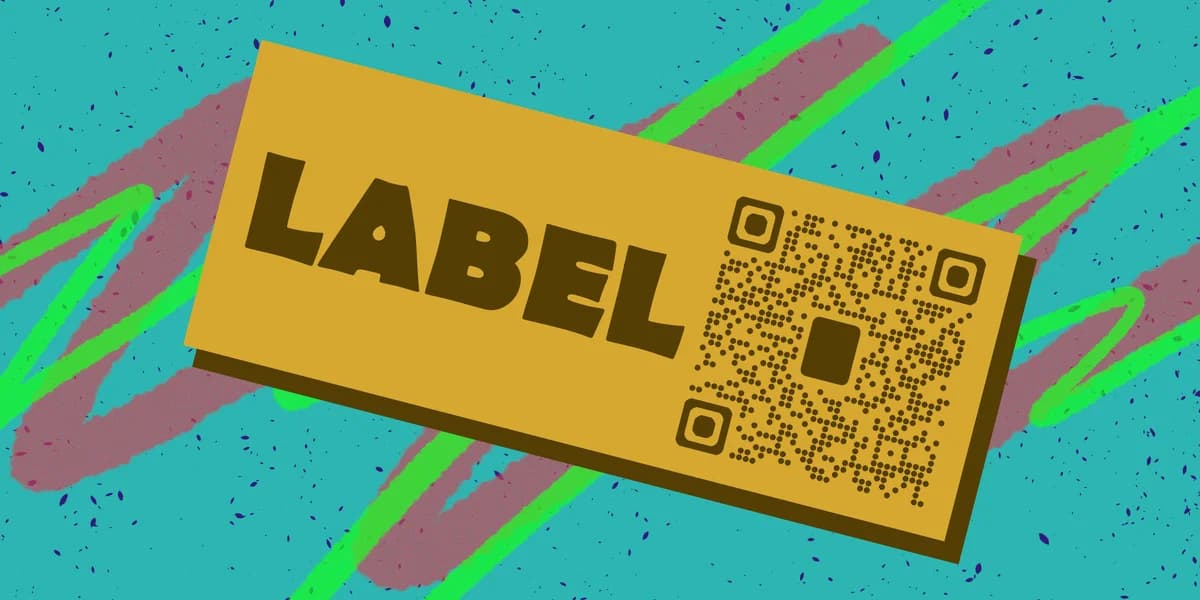
Swap the tape and marker for a printed QR code label and the whole process changes. One scan pulls up a product page, a batch number, a care instruction sheet, or a tracking link, and the label itself never needs to change even if what's behind it does.
Step-by-step: printing a QR code on a label
Getting a clean, scannable QR code onto physical label stock takes more than dragging an image into a design file. Follow these steps in order and you'll avoid the reprint headaches that come from guessing on size or resolution.
Step 1: Generate a dynamic QR code
Start with a link, not a static block of raw data. Head to the free QR code generator and create a dynamic code pointing to your product page, tracking portal, or PDF instructions. Dynamic codes let you swap the destination later without touching the printed label, which matters a lot once thousands of labels are already stuck on boxes.
Step 2: Download the right file format
Grab an SVG or a PNG saved at 300 DPI or higher. Label printers, especially thermal ones used in warehouses, render low-resolution images as blurry blocks that scanners can't parse. If your label design software supports vector graphics, use the SVG every time — it stays crisp no matter how small the final label ends up.
Step 3: Set size relative to scan distance
A code meant to be scanned from arm's length on a shipping box needs to be larger than one meant for a close-up scan on a jewelry tag, similar to sizing considerations covered in QR codes for parcel tracking. A rough rule: the code's width should be at least one-tenth of the expected scan distance. A label read from three feet away needs a code roughly 3.6 inches wide, while a code on a small product tag scanned inches away can be as small as half an inch.
Step 4: Check contrast and quiet zone
Dark modules on a light background scan far more reliably than the reverse. Keep at least a small margin of blank space around the entire code — that's the quiet zone — because label backgrounds with logos or borders crammed right up to the edge confuse the scanner's ability to find the code's boundaries.
Step 5: Print a test batch on the real material
Run five or ten labels on the actual stock you'll use, whether that's matte paper, glossy vinyl, or a curved plastic bottle wrap. Scan each one with two or three different phone models before committing to a full production run. Glossy finishes reflect light and can wash out the code under warehouse lighting, so this test step catches problems before they multiply across thousands of labels.
Step 6: Apply to curved or textured surfaces carefully
Bottles, tubes, and cylindrical packaging distort a QR code when the label wraps around them, a common issue with QR codes on food packaging. Keep the code itself on a flat portion of the label rather than letting it span the curve, and avoid placing it near a seam where the label overlaps itself.
Tips for label printing that actually scans
A few extra minutes of prep before the print run saves a lot of wasted label stock and frustrated customers later.
Match your printer's DPI setting to at least the resolution of your source file, since downscaling a low-res image on a high-DPI printer doesn't fix pixelation.
Avoid laminating over a code with a heavily textured or frosted finish, which scatters light and can make phone cameras hunt for focus.
Leave a plain white or light-colored border around the code even when the rest of the label uses a busy pattern, following general QR code design tips, since that border is what scanners lock onto first.
Batch-test a sample sheet after any printer firmware update or ribbon change, because thermal transfer printers can shift alignment slightly and clip the code's edges.
Frequently Asked Questions
What's the smallest size a QR code can be printed on a label?
Codes can go as small as 0.4 to 0.5 inches wide for close-range scanning, but smaller sizes require a lower data density, so keep the underlying link short and use a dynamic QR code rather than embedding long text directly.
Can I use a regular inkjet printer for QR code labels?
Yes, for small runs an inkjet printer works fine as long as you print on label paper rated for it and let the ink dry fully before handling, since smudged ink can distort the modules and break the scan.
Why does my printed label scan fine on one phone but not another?
Older phone cameras and lower-end scanning apps are more sensitive to contrast and lighting than newer models, so a code that passes on a flagship phone can still fail on a budget device. Test with a range of phones before finalizing a print run.
Should I use a static or dynamic QR code for product labels?
Dynamic is almost always the better choice for labels because you can update pricing, product details, or tracking links after the labels are already printed and applied. See our static vs dynamic QR codes guide for a full comparison.
What file format should I send to a professional label printing company?
Vector formats like SVG or EPS are preferred by commercial printers since they scale without quality loss at any print size, but a high-resolution PNG (300 DPI or higher at the final print size) also works for most standard label runs.
Related Guides
Ready to create your QR code?
Generate custom QR codes in seconds - free and easy to use.
Create Free QR Code →