Make a QR Code for a WiFi Login in 6 Easy Steps

Key Takeaways
- QR codes can be used for easy WiFi login
- Codes are easy to make and widely understood
- Scanning a QR code is much easier and safer than entering in a password
WiFi is everywhere now. Homes, businesses, offices, even bus stops and train stations. It's great to have the convenience of the internet wherever you go and not need to use up all of your 5g and data plan. Accessing these networks, however, is a different story.
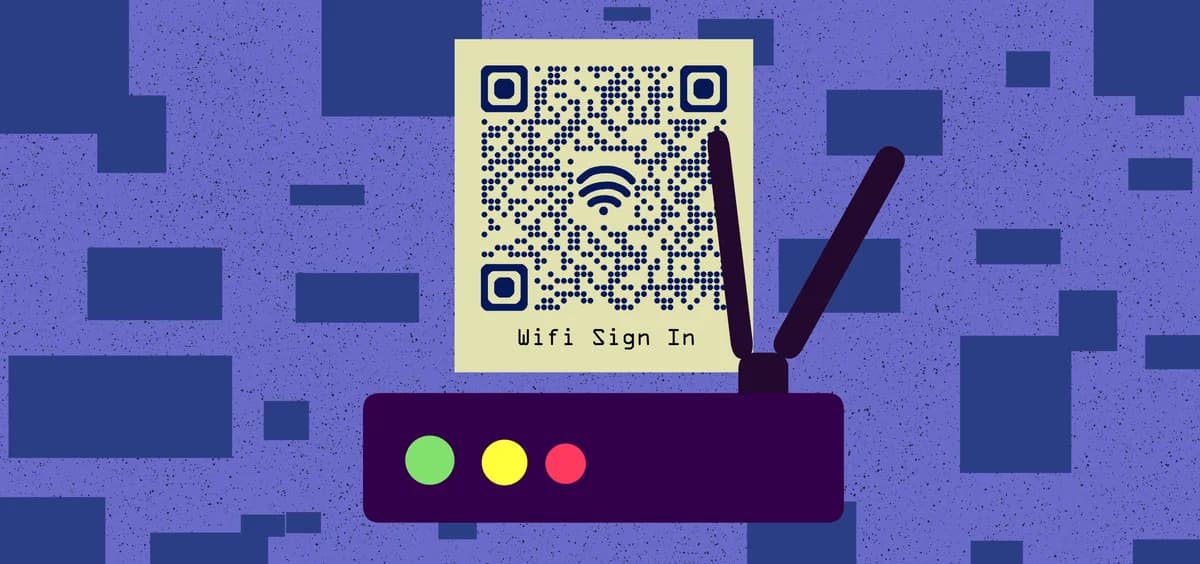
It's difficult to even pick out the right network when dozens of router names appear on your phone, and then oftentimes you have to type in a password, which is its own pain in the neck. Luckily, there's an easier way to sign in to just about any WiFi network, QR codes!
In this piece I will go over how QR codes can be used with WiFi networks, as well as provide a step by step guide on how to make your own code for this purpose. I'll also share some helpful tips on how to get the most out of your codes.
So let's dive right in!
What is a QR code?
A QR code is a type of encoded image that contains data within monochrome, usually black and white, dots or squares. The technology is similar to that of the UPC barcodes you might find on products in a grocery store, but can store much more data and be used to share and access a wide variety of digital content.
QR codes can be used for website links, social media pages, payment programs, online maps, magazines, videos, surveys, presentations, parcel tracking, or in this case, WiFi networks. Since QR codes are just simple 2D images in the real world, they can be placed just about anywhere you can print a picture, like on posters, flyers, stickers, and cards.
It's likely that you've already encountered a QR code today!
How can QR codes be used for WiFi networks?
QR codes can be used as an easy way to sign into a particular WiFi network without needing to get approval or type in a password. Simply print out a QR code with all the information needed, place it near the router or wherever you want your intended audience to see it, have them scan it, and you're all set!
This works extremely well in spaces where you expect a large number of people to want or need to use your WiFi network, like in an office building, work space, public business, or other kind of public space.
How to make a QR code for a WiFi network
• In QR Code Developer, click on Create code.
• Select the WiFi option.
• Enter your Network Name, Network Type, and Password into the bars.
• (Optional) Add landing page details and click on the pencil icon in the Preview window to further customize your code.
• Click Generate.
• Test your code on multiple devices.
Benefits of using QR codes
Ease of use
QR codes are both easy to use and easy to make through something like QR Code Developer. Just about every smart phone on the market has a QR code scanner built right in. All you need to do is point the camera at the code and tap the link when it pops up. QR codes can also be scanned from almost any angle and even when visible damage has been done to the code.
Widely understood
By now, most people with smart phones are at least familiar with QR codes and know how to use them. In many regions, QR code payment is more popular than cash or cards.
Customizable
QR codes can be heavily customized, with unique colors and appearances to fit your needs or branding.
Hands free communication
The usage of QR codes surged during the COVID 19 pandemic since it allowed for people to communicate with each other, access content, and share resources, all without needing to touch each other or even be in the same space.
Trackable
If you use something like QR Code Developer to make your codes, then it's possible to monitor how your codes are used. This can include information like how many scans your code got, where they were scanned, and even on what device they were scanned.
Monitoring code usage
With the tools available on QRCodeveloper, as well as other code generators, you can monitor the usage of any code you create. This can include how many times a code has been scanned, where it has been scanned, on what device, using what browser, and more. With these tools, you can figure out which codes are reaching the most people and where to focus any advertising efforts.
With QRCodeveloper you can monitor:
• Number of scans
• Number of scans by operating system
• Scans by browser
• Scans by country
• Scans by city
• Scans by language
• Unique scans
General tips
Know your audience: If you're certain that most of your intended audience doesn't know how to use QR codes or just don't like them, then don't use them.
Keep instructions clear: Provide clear instructions on how to use and scan QR codes as well as where the codes will redirect to. For a WiFi login code, it would be wise to print the network password below the code in case it doesn't work or someone is trying to sign in with a laptop.
Place codes on a flat surface: To make sure that codes are still scannable, only put them on flat surfaces, like walls, tables, posters, or fliers.
Use high contrast: If using custom colors on a code, make sure that the colors are distinct enough from each other to be read as a QR code.
Make sure codes are visible: Don't place codes where patrons are unlikely to see them.
Only use codes when necessary: If an alternative exists that's easier for all parties involved, use that.
Test on multiple devices: Make sure your codes work whether scanned on an Android device, iPhone, tablet, or other device.
Stay safe: Make sure that only approved individuals have access to your WiFi code and that your network is secure.
Frequently Asked Questions
Q: Can QR codes be used to sign into WiFi networks?
A: Yes. QR codes can be easily made to allow people to sign onto WiFi networks with one simple scan.
Q: Do I need to hire someone to make my QR codes?
A: No. QR codes can be made by yourself for free through a service like QR Code Developer.
Q: Do I need to download anything to scan QR codes?
A: While QR scanner apps are available for mobile devices, they are not necessary. Most modern smart devices are perfectly capable of scanning codes right from the built-in camera app.
Q: What devices can scan QR codes?
A: Most modern smart devices with both a built-in camera and an internet connection can scan QR codes and access the content within. This includes smart phones, tablets, and even some handheld gaming consoles.
Q: Are QR codes safe?
A: While there are some risks in using QR codes, they are relatively safe.
Ready to create your QR code?
Generate custom QR codes in seconds - free and easy to use.
Create Free QR Code →