How to Use QR Codes for Giveaways and Contests

A QR code turns any printed surface into a contest entry point, letting you collect participants, track scan data, and run promotions across both physical and digital channels without friction.
Key Takeaways
- Use a dynamic QR code so you can update the destination URL if your contest page changes without reprinting materials.
- Link your QR code to a dedicated contest landing page or entry form, not a generic homepage — specificity increases conversion. See how QR codes for landing pages can be structured for maximum impact.
- Always include a short call to action near the code, such as "Scan to enter" or "Scan for a chance to win," so people know exactly what happens when they scan.
- Test the QR code on at least two different devices before printing or publishing at scale.
- Track scan analytics to compare which placements — physical vs. digital, indoor vs. outdoor — drive the most entries.
- Make sure the entry page is fully mobile-optimized, since every scanner will be on a smartphone.
It's a well documented fact that discounts and promotional offers are often the most effective reason for consumers to scan a QR code — and giveaways sit squarely in that category. People are already motivated to enter a contest; a QR code simply removes the barriers standing between that motivation and the actual entry form.
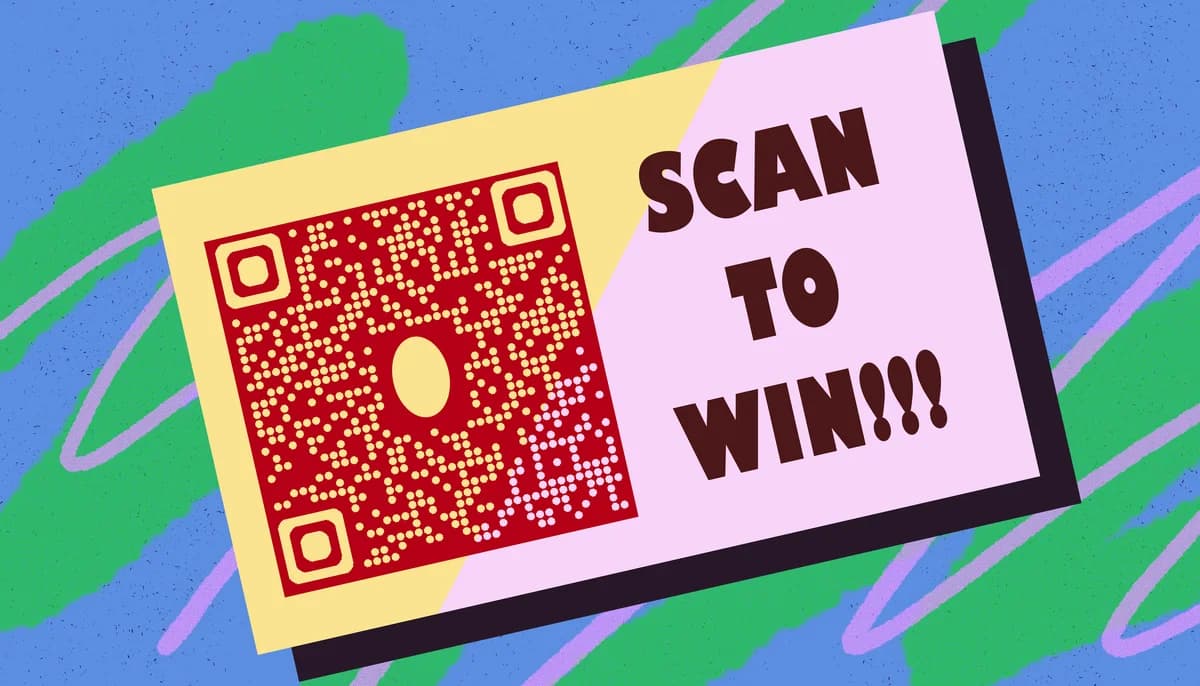
Traditional contest entry methods — typing a URL, hunting for a social media handle, or mailing in a form — all introduce steps where people can drop off or lose interest. However, a simple QR code scan can eliminate much of these tedious steps. Whether you print it on a product package, a trade-show banner, a flyer, or a table tent at a restaurant, the path from "I want to enter" to "I have entered" becomes a matter of seconds.
There is also a practical analytics benefit. Dynamic QR codes let you see exactly how many people scanned, when they scanned, and on what device — data that a simple URL printed on paper can never give you. That means you can measure the ROI of each placement and adjust your campaign in real time. Learn more about the difference in our guide to static vs dynamic QR codes.
Step-by-step: How to set up a giveaway QR code
Setting up a QR code for a contest takes less time than most people expect. The process breaks down into a handful of distinct decisions — get each one right and the whole campaign runs much more smoothly. Here is exactly how to do it.
Step 1 — Build your contest entry page first
Before you generate a single QR code, you need somewhere to send people. Build a dedicated landing page or entry form that does one thing: captures contest entries. Keep the form short — name, email, and any required entry action. Every extra field you add reduces completion rates. If you are using a third-party tool like Typeform, Google Forms, or a contest platform such as Gleam or Rafflecopter, grab the direct link to that form — that is what your QR code will point to.
Step 2 — Choose a dynamic QR code type
Head to the and select a URL QR code. For a giveaway, you almost always want a dynamic code rather than a static one. Dynamic codes let you change the destination URL at any point — so if your contest platform link changes or you want to redirect to a winners announcement page after the contest closes, you can do that without reprinting anything. Static codes are permanently locked to the URL you enter at creation.
Step 3 — Enter your contest URL
Paste the direct URL of your entry form or contest landing page into the generator. Double-check for typos — a broken link on launch day means missed entries and frustrated participants. If your URL is very long, a dynamic QR code will automatically shorten it in the background, which also keeps the QR code pattern less dense and easier to scan.
Step 4 — Customize the QR code design
A branded QR code gets scanned more often than a plain black-and-white one because it looks intentional and trustworthy. Add your brand colors, incorporate your logo in the center, and choose a style that matches your campaign materials. For more guidance on colors, logos, and contrast, check out these QR code design tips. The one rule: always maintain strong contrast between the code modules and the background. Light gray on white, for example, will fail in poor lighting. When in doubt, test with the contrast as dark as possible and adjust from there.
Step 5 — Download in the right format for your placement
For print materials — banners, flyers, product packaging — download the QR code as an SVG or high-resolution PNG. Vector formats scale to any size without losing clarity. For purely digital placements like social media posts, email newsletters, or your website, a standard PNG at 1000×1000 pixels or larger will work fine. If you plan to use stickers as part of your contest promotion, see our guide to creating QR code stickers for format and sizing advice. Never stretch a low-resolution QR code; a pixelated code often fails to scan.
Step 6 — Add a clear call to action
A QR code sitting alone on a poster without context will get ignored. Add a short line of text directly above or below the code that tells people what they get when they scan. Something like "Scan to enter our $500 giveaway" or "Scan for a chance to win — contest ends July 31" gives people a reason and a deadline. Both elements drive action.
Step 7 — Test before you publish or print
Scan your finished QR code on an iPhone and an Android device before sending anything to print or posting anywhere publicly. Verify that the destination page loads correctly, that the entry form works, and that the page looks good on a small screen. Check this step again if you ever update the destination URL on a dynamic code.
Step 8 — Deploy across placements and monitor scan data
Place your QR code wherever your target audience will see it — product inserts, event signage, social media graphics, email footers, or receipts. If you want to compare performance across locations, generate a separate dynamic code for each placement so the scan data stays segmented. Check your analytics dashboard regularly throughout the contest run to see which placements are working and which need more visibility. You can read more about reading QR code analytics in the .
Tips for higher scan rates on your giveaway QR codes
Getting people to actually scan the code comes down to placement, clarity, and incentive. These practical tips will help you get more entries out of the same printed or digital footprint.
Size matters on print: QR codes smaller than 1 inch square are hard to scan at arm's length. For banners or posters, go much larger — at least 3–4 inches square — since people are scanning from a distance.
Use a short, readable URL below the QR code as a fallback. Some people still prefer typing, and it builds trust by showing the destination is legitimate.
Add urgency with a deadline. "Scan by June 30 to enter" consistently outperforms an open-ended call to action because it triggers a reason to act now rather than later.
Place the QR code at eye level on physical displays whenever possible. Codes on the floor or above standing eye level get far fewer scans.
For product packaging, put the QR code on the front panel or the back panel at the top — not buried at the bottom where it competes with barcodes and regulatory text.
On social media, post the QR code as a static image rather than embedded in a video or story where it can't be scanned from a screen. Alternatively, link the entry form directly in the post caption alongside the QR code image.
If you run a multi-week contest, refresh your QR code placements mid-campaign. Swap in a new creative with the same QR code to catch audiences who scrolled past the first version.
Frequently Asked Questions
Can I use one QR code for multiple giveaway entry points?
Yes — one dynamic QR code can be placed across as many surfaces as you want, and they all route to the same entry page. However, if you want to know which placement drove the most scans, it is better to create separate dynamic codes for each location. That way your analytics stay clean and you can make smarter decisions about where to focus future promotions.
What happens to the QR code after the contest ends?
With a dynamic QR code, you can update the destination URL so the code now points to a winners announcement page, a thank-you page, or your next promotion. Anyone who scans the old code from old materials will land on the new page automatically. This is one of the biggest practical advantages of dynamic over static codes for time-limited campaigns.
Do I need a special QR code type for giveaways, or is a standard URL code enough?
A standard URL QR code is almost always sufficient. You build your entry form on a third-party platform or your own website, and the QR code simply points to that URL. There is no special "giveaway" QR code format — the code is just the bridge between the physical or digital placement and your entry page.
How do I prevent people from scanning the QR code multiple times to get multiple entries?
QR code scanning itself cannot be restricted to one scan per person — the code is public by nature. The entry limits need to be enforced at the form or contest platform level. Tools like Gleam, Rafflecopter, and most dedicated contest platforms have built-in duplicate email detection and entry limits. Set those rules in your platform rather than trying to solve it at the QR code level.
Is it safe to link a QR code to a third-party contest form?
Yes, as long as the form platform is reputable and your privacy policy is clearly linked on the entry page. Participants are handing over their email address, so make sure you disclose how you will use their data. This is both good practice and, in many jurisdictions, a legal requirement for promotional contests.
Can I use a QR code for an Instagram or social media giveaway?
Absolutely. A QR code is especially useful when you want to bridge offline audiences (event attendees, in-store shoppers) to a social media giveaway. Point the code to your contest post, your brand profile, or a landing page that explains the social entry steps. Just check that the destination works for users who are not already logged in, since some social pages require a login to view.
Related Guides
Ready to create your QR code?
Generate custom QR codes in seconds - free and easy to use.
Create Free QR Code →