embed image in qr code

A logo embedded in a QR code turns an anonymous black-and-white square into an instantly recognizable brand asset, boosting trust and click-through without sacrificing scan reliability.
Key Takeaways
- The embedded image sits in the code's center, where the highest error-correction level absorbs the visual interruption without losing data integrity.
- Logo size matters more than logo detail — keep it under roughly 20% of the total code area to avoid scan failures on cheaper phone cameras.
- Testing on at least three different phone models before printing catches the rare combination of small logo plus low-contrast background that fails to scan.
The traditional method is for a marketing team to print a plain black QR code on their flyer, then paste a separate logo sticker next to it because nobody trusted an unbranded code enough to scan it. However, that workaround added a print step, looked cluttered, and still didn't connect the code to the brand in the customer's mind. The fix is simpler than a second sticker: embed the logo directly inside the QR code itself.
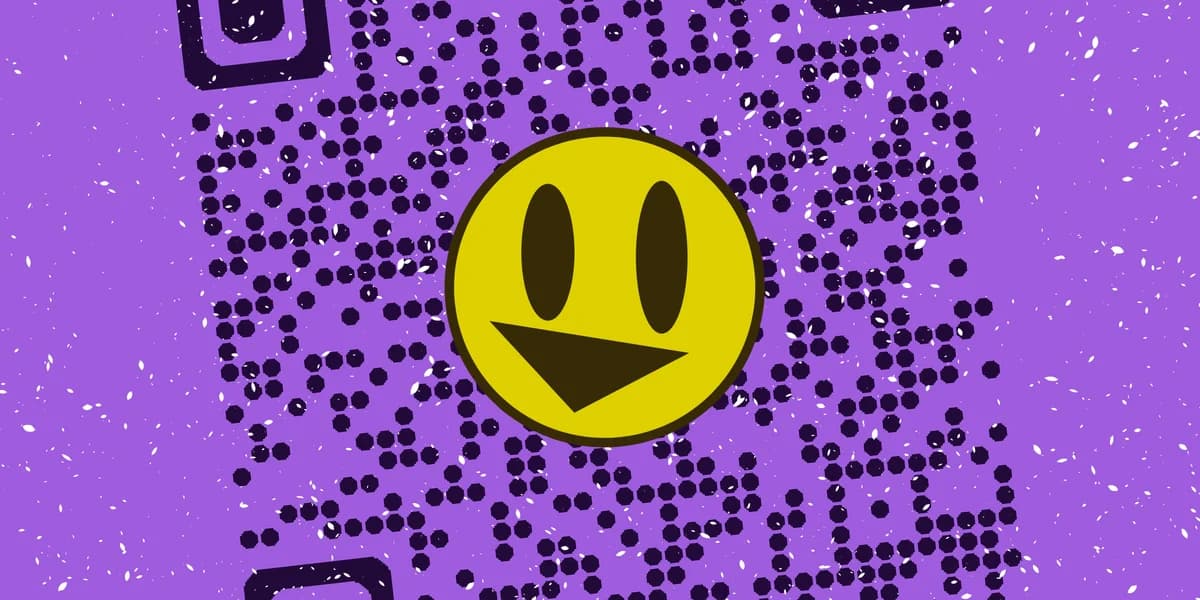
Modern QR generators can place a small image — a logo, mascot, or icon — right in the center of the code while keeping the error-correction data intact around it. The result looks like a single branded graphic instead of a generic scan target, and it can be built in a few minutes with the free QR code generator.
Branded codes aren't just prettier. Custom-colored, logo-embedded QR codes see up to 30% more scans than plain black-and-white codes, according to QRbuild's scan rate benchmarks. This guide walks through exactly how to embed an image without breaking the code's readability.
How to embed an image step by step
Embedding a logo isn't a photo-editing trick layered on top of a finished QR code — it's a setting built into most generator tools that reserves space in the code's pattern for your image while boosting the surrounding error correction to compensate. Here's how to do it correctly from start to finish.
Prepare your logo file
Export your logo as a PNG with a transparent background, sized at least 300x300 pixels so it stays sharp when scaled. Avoid busy, multi-color logos with fine detail — simple shapes and solid colors survive the compression better once they're placed inside the code's dense pattern.
Choose the right error correction level
QR codes support four error correction levels, and level H (high) is the one to select when adding a logo, since it recovers up to 30% of obscured data — a concept covered in more depth in this guide to understanding QR codes. Most generator tools set this automatically once you upload an image, but it's worth confirming manually if you're using a design tool that doesn't flag it.
Upload and position the image
In the QR code generator, enter your destination URL first, then look for the logo or image upload option, which works well whether you're building a QR code business card or another branded asset. Drop in your prepared file and the tool will automatically center it and resize the surrounding pattern to keep the finder markers — the three corner squares — untouched, since those are what phone cameras use to lock onto the code.
Adjust colors and contrast
Once the logo is placed, check that the code's foreground color still has strong contrast against the background. A dark logo on a light module color reads better than a light logo dropped onto dark modules, since scanners rely on contrast difference, not color recognition, to decode the pattern.
Export at print resolution
Download the finished code as an SVG or high-resolution PNG rather than a compressed web-size file. If this code is going on a flyer or a package, a low-resolution export can blur the logo edges and make the embedded image look muddy at print size.
Tips for a clean, scannable result
A logo embedded well disappears into the design; one embedded poorly turns into a scan failure. These practical checks separate the two outcomes.
Keep the logo simple — a wordmark or icon reads better than a photo, since photos add visual noise that competes with the code's own pattern.
Never resize the logo so large that it touches or overlaps the three corner finder squares, since covering any of them stops most cameras from recognizing the code at all.
Print a physical test copy at the actual size you plan to use, not just a screen preview, since ink bleed on paper can shrink the visible white space around a small logo.
Use a dynamic QR code if the destination link might change later, so you don't need to redesign and reprint the logo placement every time the URL updates — see the difference in static vs dynamic QR codes.
Frequently Asked Questions
Will embedding a logo make my QR code harder to scan?
Not if the logo stays small and the error correction is set to level H. The code's data is spread redundantly across its pattern, so covering a modest center area with an image doesn't remove information the scanner needs — it just relies more heavily on the built-in recovery data.
What image format works best for the embedded logo?
PNG with a transparent background is the standard choice, since it keeps sharp edges and avoids adding a visible box around the logo. SVG works too if your generator supports vector uploads, and it scales cleanly for large-format printing.
Can I embed a photo instead of a logo?
Technically yes, but it's risky. Photos have gradients and fine detail that get compressed once resized into a small center square, and the resulting blur can lower scan success rates. A simplified icon or cropped version of the photo works far more reliably.
Does an embedded image increase file size or generation cost?
No — the image is rendered visually inside the code graphic, not encoded as additional data within the QR pattern itself. The underlying URL or text payload stays exactly the same size regardless of the logo you add.
Should I use the same embedded logo across all my QR codes?
Consistency helps recognition, especially across print materials like business cards or flyers, but there's no technical requirement to keep it identical. Swapping logos per campaign is fine as long as each code is tested after the change.
Related Guides
Ready to create your QR code?
Generate custom QR codes in seconds - free and easy to use.
Create Free QR Code →