how to create branded qr codes with templates

Templates let marketing teams apply logo colors, corner shapes, and frame text to every code in minutes, so a code posted on a flyer matches the one on a receipt or storefront sign.
Key Takeaways
- Locking colors and logo placement into a reusable template keeps every code visually identical across flyers, packaging, and signage.
- High-contrast color pairings and a centered logo scan just as reliably as a plain black-and-white code when error correction is set correctly.
- Skipping a scan test on the exact printed material — not just a screen preview — is the most common reason branded codes fail in the field.
Would a customer trust a random black-and-white square more than one wrapped in your logo and colors? Most people won't scan a code that looks like it was slapped together, but they will scan one that clearly belongs to a brand they already recognize.
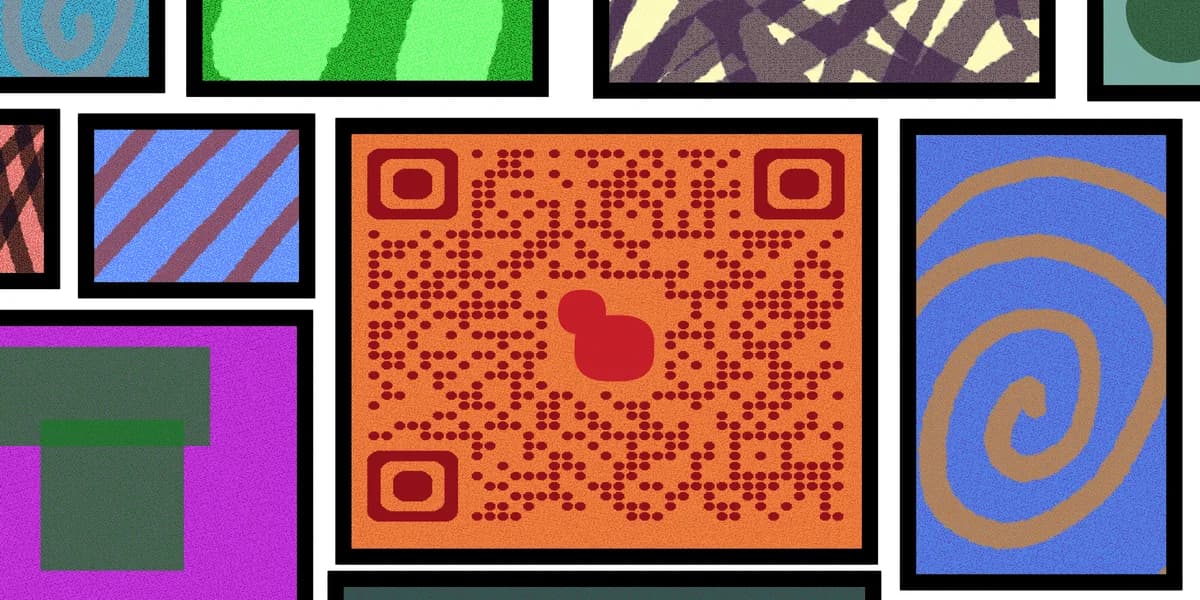
That trust gap shows up in the data. 49% of marketers say adding a logo is the most valuable part of QR code customization, and branded codes with custom colors reportedly generate 50-80% more scans than plain black-and-white codes. Templates make that kind of consistent branding possible without a designer touching every single code you produce.
Instead of building a code from scratch for each campaign, a template locks in your color palette, logo placement, and frame style once. From there, you swap the destination link — a menu, a landing page, an Instagram profile — and the visual identity stays intact.
Building a branded QR code step by step
Here's the actual workflow for turning a plain code into one that looks like it belongs to your brand, from picking a destination to exporting a print-ready file.
Step 1: Pick the destination and code type first
Decide what the code needs to do before touching any design settings. A code pointing to a restaurant menu needs different sizing than one on a business card, since print size and scan distance change what's legible. If the destination link might change later — a seasonal promo, a rotating playlist — choose a dynamic code so you're not reprinting materials every time the URL updates.
Step 2: Choose a template that matches your brand kit
Open the free QR code generator and select a template style rather than starting from a blank canvas. Match the template's color scheme to your existing brand guidelines — primary color for the pattern, a neutral or white background, and your logo's accent color for the frame or call-to-action text underneath.
Step 3: Add your logo without breaking scannability
Upload your logo into the center of the code, but keep it small relative to the overall grid — generally no more than about 20-25% of the total area. Bump the error correction level up to high (Level H) when adding a logo, since this gives the code enough redundancy to still scan correctly even with the center partially obscured.
Step 4: Adjust colors for contrast, not just aesthetics
Dark pattern on a light background scans best. If your brand colors are both mid-tone, darken the foreground color rather than lightening the background, since scanners rely on contrast between the two to read the pattern correctly. Avoid gradients across the entire code face — they look sleek but can confuse older camera scanners, so it's worth reviewing broader QR code design tips before finalizing.
Step 5: Add a frame with a call-to-action
A frame around the code with text like "Scan for menu" or "Scan to save 10%" gives people a reason to pull out their phone. This is especially useful on printed materials like flyers or table cards where the code alone might get overlooked in a crowded design.
Step 6: Export at print resolution and test before distributing
Export as a vector file (SVG or EPS) for anything going to a print shop, since raster images can pixelate at large sizes like banners or window decals. Print a physical sample at the actual intended size and scan it with two or three different phone models, following a QR code safety guide to confirm the final file is reliable before sending it for mass production.
Tips for consistent brand codes
A few extra details separate a branded code that scans reliably from one that just looks good on a screen.
Save your finalized template as a reusable preset so every new campaign starts from the same locked-in colors and logo placement.
Keep a minimum quiet zone (blank margin) around the code even when adding a frame, since crowding the edges is a common cause of failed scans.
Test branded codes on both dark-mode and light-mode phone cameras, since some scanning apps apply filters that reduce contrast further.
Match the code's finish to its surface — matte finishes on glossy packaging reduce glare that can block a scanner's camera.
Frequently Asked Questions
Do branded QR codes scan as reliably as plain black-and-white ones?
Yes, as long as contrast between the foreground and background stays strong and the logo doesn't cover too much of the center. Setting error correction to high before adding design elements keeps scan rates consistent with standard codes.
Can I reuse the same template across multiple campaigns?
That's the whole point of a template — save your color scheme, logo placement, and frame style once, then swap out the destination link for each new flyer, product, or event without redesigning anything.
What file format should I use for printed branded codes?
Vector formats like SVG or EPS hold up best at large print sizes since they don't pixelate. PNG works fine for digital use like social media posts or email, but avoid stretching a PNG code beyond its original dimensions.
How much of the code can my logo cover?
Keep the logo to roughly 20-25% of the total code area and centered. Anything larger risks blocking too much data even with high error correction turned on, especially on smaller printed codes.
Related Guides
Ready to create your QR code?
Generate custom QR codes in seconds - free and easy to use.
Create Free QR Code →