Bitly QR Code Generator

Bitly bundles QR code creation with link shortening, but dedicated generators give you more design control, no account wall, and better customization for print and digital campaigns.
What Is the Bitly QR Code Generator?
Bitly is best known as a link shortener — you paste in a long URL, and it spits out a compact link like bit.ly/3xampleABC. Recently, Bitly has added QR code generation to its platform. The idea is straightforward: once you have a shortened Bitly link, you can also download a QR code that points to it. It lives inside the Bitly dashboard, tucked next to your link analytics and custom domain settings.
The QR code Bitly generates is a dynamic code tied to their short link. That means the destination URL can be changed later without printing a new code — useful in theory, but it also means your code's reliability depends entirely on Bitly's infrastructure staying active. If you ever downgrade your plan or Bitly changes its pricing, your codes could stop resolving correctly. For a deeper look at how dynamic and static codes differ, see our guide on static vs dynamic QR codes.
One thing worth knowing upfront: Bitly's QR code feature sits behind a paid plan. Free users get very limited access, which catches a lot of people off guard. If you need a QR code right now without signing up or paying, a standalone generator like is a faster route with no account required.
When People Use Bitly QR Codes
There are a handful of situations where generating a QR code through Bitly makes practical sense — usually when you're already managing links inside the Bitly dashboard and want everything in one place.
Marketing campaigns with tracked short links
If your team already uses Bitly to track click data on shortened URLs, generating a QR code from the same dashboard keeps your workflow consolidated. You can see scan-driven traffic alongside direct link clicks without switching between tools.
Event promotions and printed materials
Flyers, banners, and event programs often use QR codes to direct attendees to registration pages or schedules. Bitly's dynamic QR codes let you update the destination after printing, which helps if a URL changes last minute before an event. For a full walkthrough of this use case, check out our guide on how to add a QR code to your flyer.
Social media bio links
Creators who already use Bitly to shorten their bio links sometimes generate a matching QR code for offline promotions — business cards, merch, or booth signage at markets and conventions. If you're adding a code to a card, our guide on QR code business cards covers sizing and placement in detail.
Small business storefronts
Retailers and restaurants that manage their online menu or ordering link through Bitly may use the QR code feature to bridge offline customers to their digital presence without maintaining a separate tool. If you're setting this up for a food business, our guide on how to create a QR code menu walks through the full process.
How to Create a QR Code From a Bitly Link
Whether you want to generate a QR code inside Bitly or simply use your Bitly short link in a dedicated generator, here's how both paths work.
Shorten your link in Bitly (or skip this step)
Log into your Bitly account and paste your destination URL to create a short link. If you don't have a Bitly account, you can skip this entirely — just use your original long URL directly in a QR code generator.
Navigate to the QR code option in Bitly
Inside the Bitly dashboard, find the link you just created and look for the QR code icon or option associated with it. Bitly will display a preview of the code, though full download functionality typically requires a paid plan.
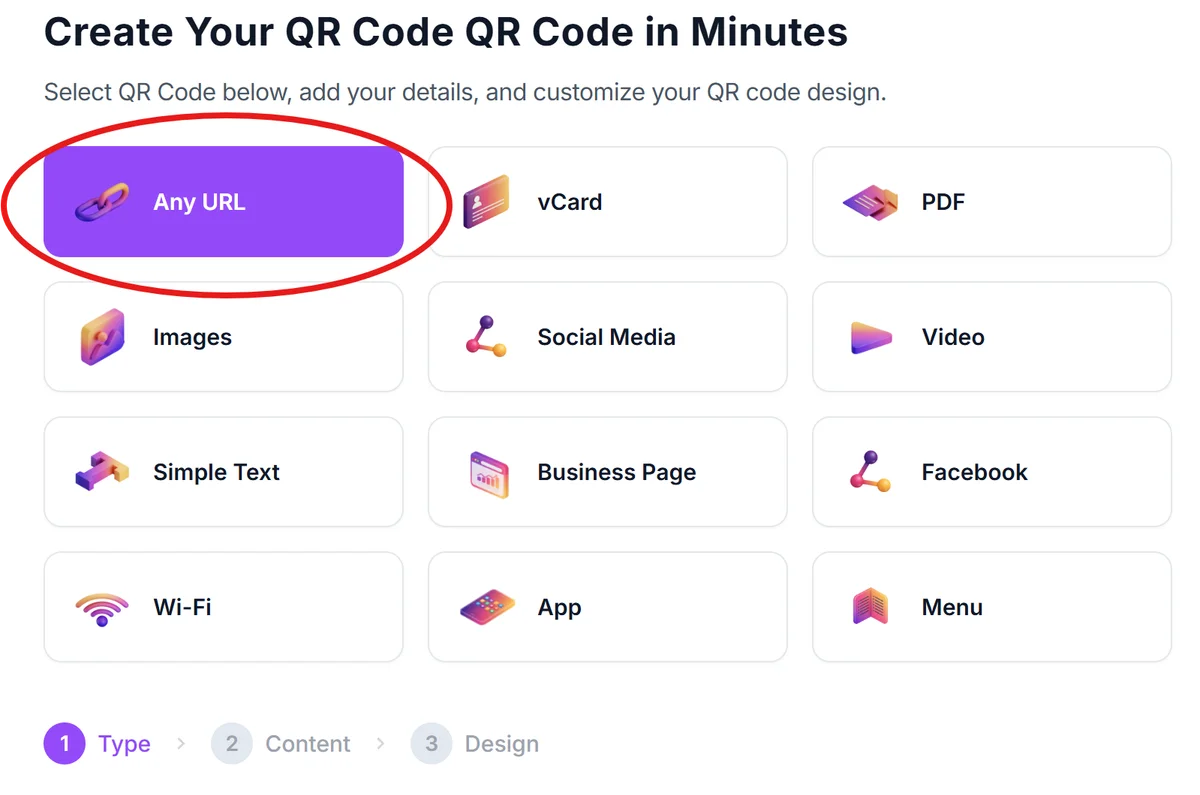
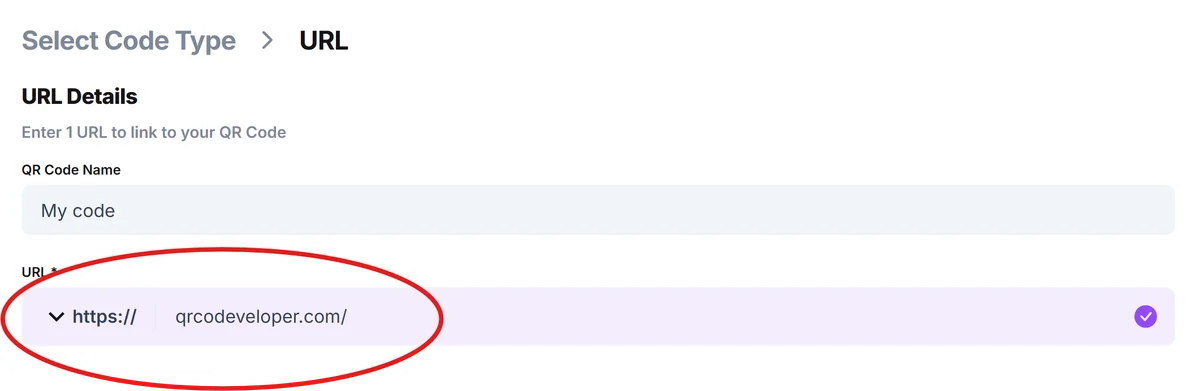
Paste your Bitly URL into QR Code Developer instead
For a faster, free alternative, copy your Bitly short link (or any URL) and paste it into the . No account needed — the code generates instantly.
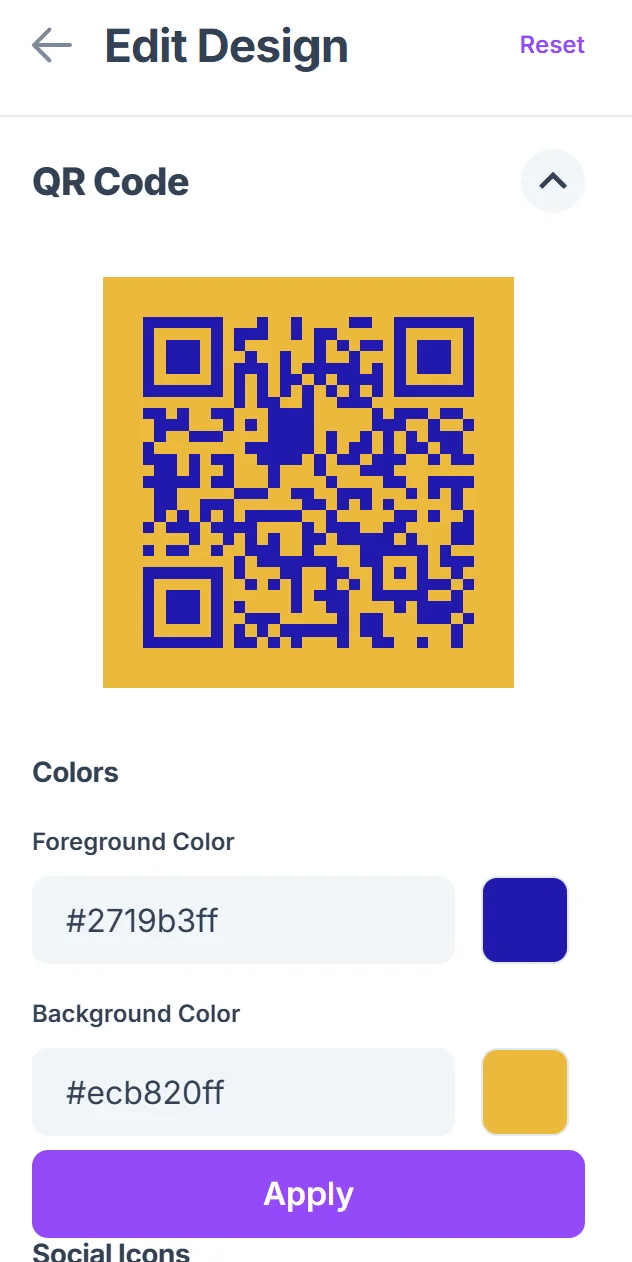
Customize the design
Choose your colors, adjust the error correction level, and select a format that suits your use case — PNG for digital use, SVG for print. A dedicated generator gives you far more design flexibility than Bitly's built-in tool.

Download and deploy
Download your QR code file and test it with at least two different camera apps before printing or publishing. Check that the destination loads correctly, especially if you're using a redirect chain through a short link.
Tips for Getting the Most Out of Your QR Code
A QR code is only as useful as the thought that goes into it. Whether you generated it through Bitly or a standalone tool, these practices will help it actually perform in the real world.
Test before you print. Scan your code with an iPhone, an Android device, and a third-party scanner app. Redirect chains — common with Bitly links — can sometimes fail on slower connections, so confirm the full destination loads reliably.
Size it correctly for the surface. A QR code printed at one inch square on a business card is fine for close-range scanning. A poster or window sign meant to be scanned from several feet away needs a much larger code, typically at least three to four inches across.
Add a call to action near the code. A bare QR code gives people no reason to scan it. Short prompts like "Scan to see the menu" or "Scan for exclusive pricing" dramatically increase scan rates compared to codes printed without any label.
Use a high contrast color scheme. Dark code on a light background is the most reliable combination for scanner compatibility. Avoid light-on-dark reversals or low-contrast color pairings — they cause scan failures more often than you'd expect, especially under uneven lighting.
Keep the destination mobile-friendly. Since phones do the scanning, the page your QR code opens must load fast and display well on a small screen. A link that opens a slow, desktop-only page wastes every scan. Check your page load time and mobile layout before launching.
Consider what happens if the short link breaks. If you're using a Bitly link inside your QR code and you ever lose access to that Bitly account, the code becomes useless. For critical long-term uses — like codes on packaging or permanent signage — linking directly to your own domain is safer. Read more about the tradeoffs in our guide on static vs dynamic QR codes.
Frequently Asked Questions
Does Bitly generate QR codes for free?
Bitly offers limited QR code functionality on free accounts, but full access — including downloads in usable formats — is restricted to paid plans. If you need a free QR code without account requirements, a standalone tool like QR Code Developer works without any paywall.
Can I use a Bitly link inside a QR code from a different generator?
Yes, and this is a perfectly practical approach. Just copy your Bitly short URL and paste it into any QR code generator the same way you'd paste a regular link. The resulting code will redirect through Bitly's infrastructure to your final destination.
What happens to Bitly QR codes if I cancel my plan?
This is a real concern. Bitly's dynamic QR codes resolve through their short links. If your account is downgraded or closed and the short link stops working, any printed codes pointing to it will fail. For permanent materials, consider using a static QR code pointed directly at your own URL.
Is a QR code generated from a Bitly link trackable?
Yes — if someone scans the code and lands on your Bitly short link, that visit shows up in Bitly's click analytics. However, Bitly doesn't distinguish between a scan from a QR code and a direct click on the short URL unless you use separate links for each channel.
What file format should I download my QR code in?
PNG works well for digital use — social media posts, email campaigns, websites. For print, SVG is the better choice because it scales without losing quality at any size. If you're sending files to a print shop, ask which format they prefer; most professional printers favor vector formats like SVG or EPS.
Can I customize the appearance of a Bitly QR code?
Bitly offers minimal design options for its QR codes. If you want custom colors, logo embedding, or rounded module styles, you'll get significantly more control from a dedicated generator. You can still use your Bitly link as the destination URL — just generate the visual design elsewhere.
Related Guides
Ready to create your QR code?
Generate custom QR codes in seconds - free and easy to use.
Create Free QR Code →