Automate QR Code Customization Steps

Marketing teams cut design turnaround from days to minutes by scripting logo placement, color rules, and file naming once, then applying that same setup to every new batch of codes automatically.
Key Takeaways
- Defining your color and logo rules as a reusable template file removes the need to rebuild design settings for every new code batch.
- Bulk data input through a spreadsheet or CSV lets one automated pass generate hundreds of destination-specific codes instead of one at a time.
- Automated batches still need spot-check scans before printing, since a bad template applied at scale multiplies errors instead of catching them.
The traditional method for many is to hand-design a new QR code every time a franchise location opened. Someone would pull the brand colors from an old file, drop in the logo, resize it, export it, then email it to the print shop — repeating that whole process for every one of the twenty-plus locations that opened that year.
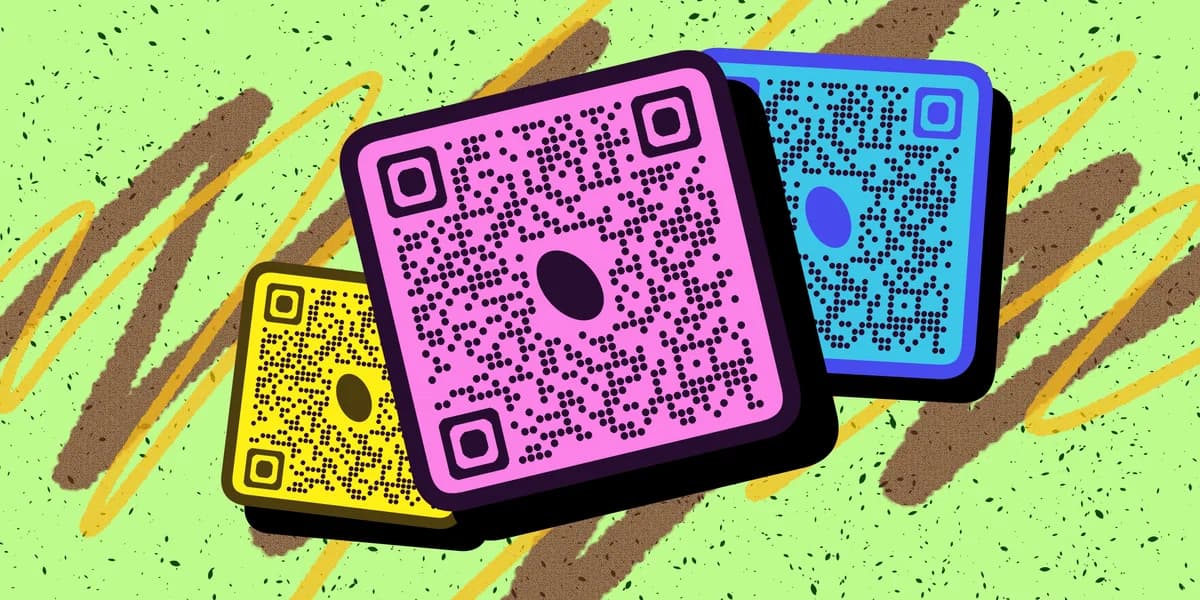
Clever atomization can solve this problem! Instead of manually customizing each code, you can simply define the rules once — brand colors, logo file, frame style, error correction level — and apply that template programmatically or through batch tools to generate dozens or hundreds of codes in one pass. The free QR code generator handles single codes well, but once you're producing codes on a recurring basis, scripting or bulk-upload workflows save real hours.
This guide walks through how to structure that automation, from picking a consistent template to validating output before it goes to print.
Setting up an automated customization workflow
Automation only pays off once the underlying design decisions are locked down. Trying to automate a process that's still being figured out just means automating inconsistency faster. Start by finalizing the visual template, then move to the data layer, then set up the batch process itself.
Step 1: Lock the design template
Pick the final logo file, color hex codes, corner style, and frame text before writing any automation. Save this as a template preset in whatever tool you're using — many generators let you save a style profile you can reference by name in bulk jobs, so you're not re-entering the same hex values every time.
Step 2: Build a structured data source
Set up a spreadsheet with one row per code: destination URL, code name, and any variable fields like store location or product SKU. This becomes the input file your automation reads from. Keeping this file clean and column-consistent is what actually makes bulk generation possible — messy data is the most common reason batch jobs fail halfway through.
Step 3: Run the batch generation pass
Feed the spreadsheet and the saved template into your bulk generation tool. This produces a full set of styled codes in one export, each pointing to its own unique link while sharing the same visual identity. For teams managing menus or flyers across multiple locations, this is the same logic used when producing a QR code menu for each branch without redesigning from scratch.
Step 4: Automate the file naming and export folders
Set your export naming convention to pull directly from the spreadsheet columns — location name plus date, for example — so files land in predictable folders without manual renaming. This step gets skipped often, and it's usually the reason someone later can't find which code belongs to which printed flyer.
Step 5: Connect to your update workflow
If you're using dynamic codes, automation doesn't stop at generation — set up the process so destination URLs can be updated in bulk later without reprinting anything. This matters most for teams switching between static and dynamic QR codes, since dynamic ones let you redirect an already-printed batch to a new page.
Tips for keeping automated batches on-brand
Automation speeds up production, but it also speeds up mistakes if the source template has a flaw. These practices catch problems before hundreds of codes go to print.
Run a five-code test batch before generating the full set, and scan each one on at least two different phone models.
Store the template file with version numbers so a rebrand or logo update doesn't get mixed with old color values in future batches.
Keep error correction at a higher level when logos are embedded, since automated logo overlays can accidentally cover more of the code than a manual placement would — a detail covered further in these QR code design tips.
Audit the spreadsheet for duplicate or malformed URLs before running the batch — one bad link in row 40 becomes one bad code you won't notice until a customer reports it.
Frequently Asked Questions
What tools actually support automated QR code customization?
Most bulk QR generation tools support CSV or spreadsheet uploads paired with a saved design template, letting you generate styled codes for dozens of URLs in a single export rather than customizing each one individually.
Can I automate updates to codes that are already printed?
Yes, but only if the codes are dynamic rather than static. Dynamic codes point to a redirect link you control, so updating the destination in bulk changes where every printed code sends people without reprinting anything.
How do I avoid inconsistent branding across a large automated batch?
Lock your logo file, colors, and frame style into a single saved template before running any batch, and test a small sample first. Inconsistency in automated runs almost always traces back to an unfinalized template.
Does automating customization affect scan reliability?
It can if the template itself has a flaw, like a logo sized too large or contrast that's too low. Automation applies whatever template you give it at scale, so testing the template thoroughly before running the full batch matters more than with a one-off code.
Related Guides
Ready to create your QR code?
Generate custom QR codes in seconds - free and easy to use.
Create Free QR Code →