QR and Canva: How QR Codes can be used with Canva

But what if you want to add a little more visual flair to your work? What if you want to stand out amongst your competition? Well, for this, Canva is the tool for you! Canva offers similar cloud storage and collaboration features to Google Drive and Microsoft Office, but allows for far more creativity and customization.
In this piece I will go over how you can use QR codes in conjunction with Canva, as well as offer a step by step guide on how to create a code for the service. So let’s get started!
What is a QR code?
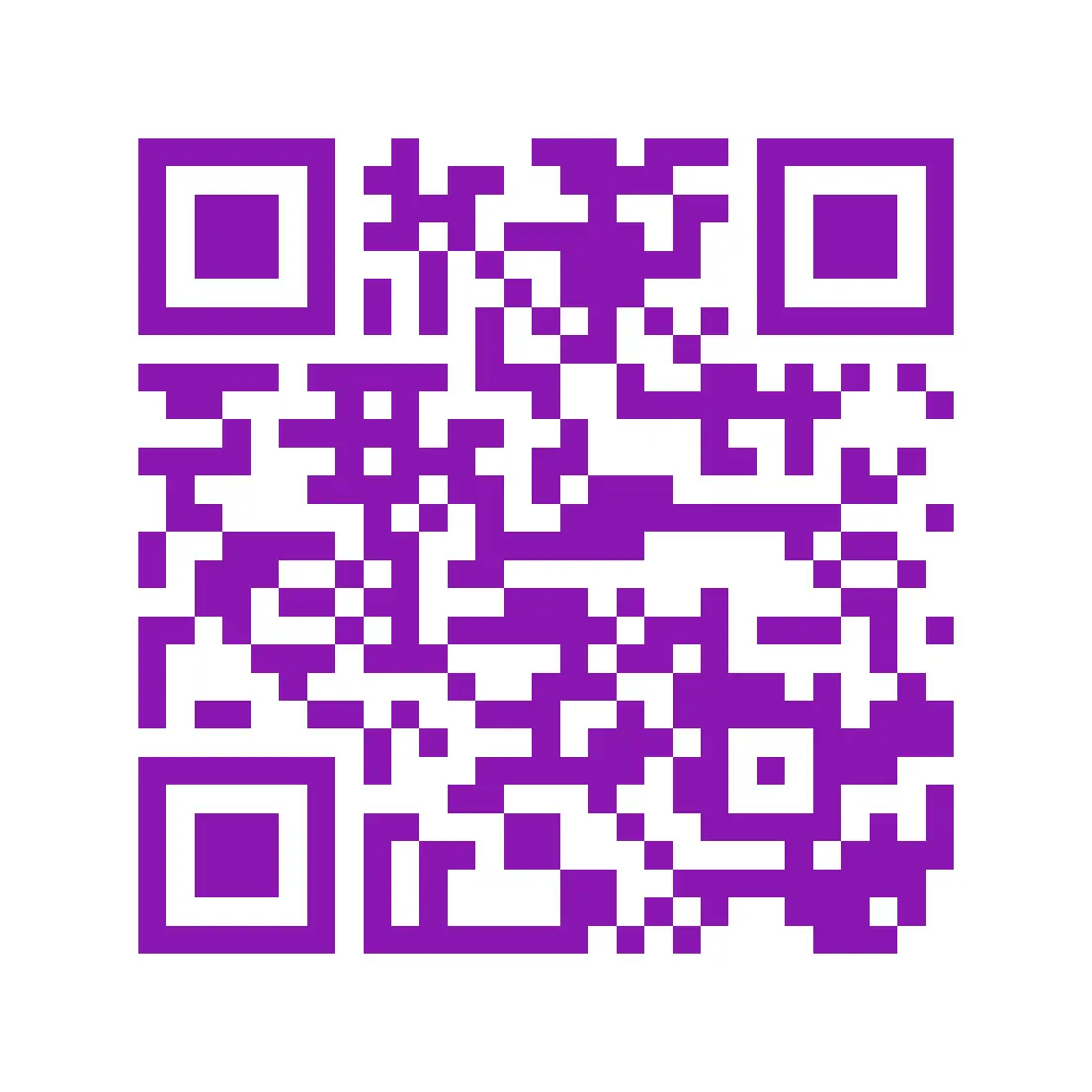
A QR code is an image made of usually black and white squares arranged so that they carry a code that can then be scanned by a device, like a phone, tablet, or barcode scanner. Once scanned, they can be used to access a variety of content and information, including web addresses, images, contact information, social media links, and more!
QR codes work similarly to a traditional barcode that you might see in a grocery store. However, these codes can do much more, as they can store data vertically as well as horizontally. Essentially, they’re like bar codes times four.
What is Canva?
Canva is a service that allows users to create, share, and edit content like presentations (similar to Power Point), text documents, spreadsheets, comic strips, and more! What sets Canva apart from other services is the customization options and artistic flair you can add to each piece.
Canva documents often look far more professional and thought out than those made with other programs, while still offering the same level of collaboration and sharing options as Google Drive or Microsoft Office. Canva also offers tons of different tools and templates you can use across the many services they provide.
How can you use QR codes with Canva?
Any project made in Canva can be easily shared via a URL link. Since links can be easily paired with a QR code, this means that all Canva projects can also be distributed through a QR code. A qr code for a Canva project can be printed on a flier, poster, business card, sticker, sign, or basically anything else you can print an image onto.
How to make a Canva QR code
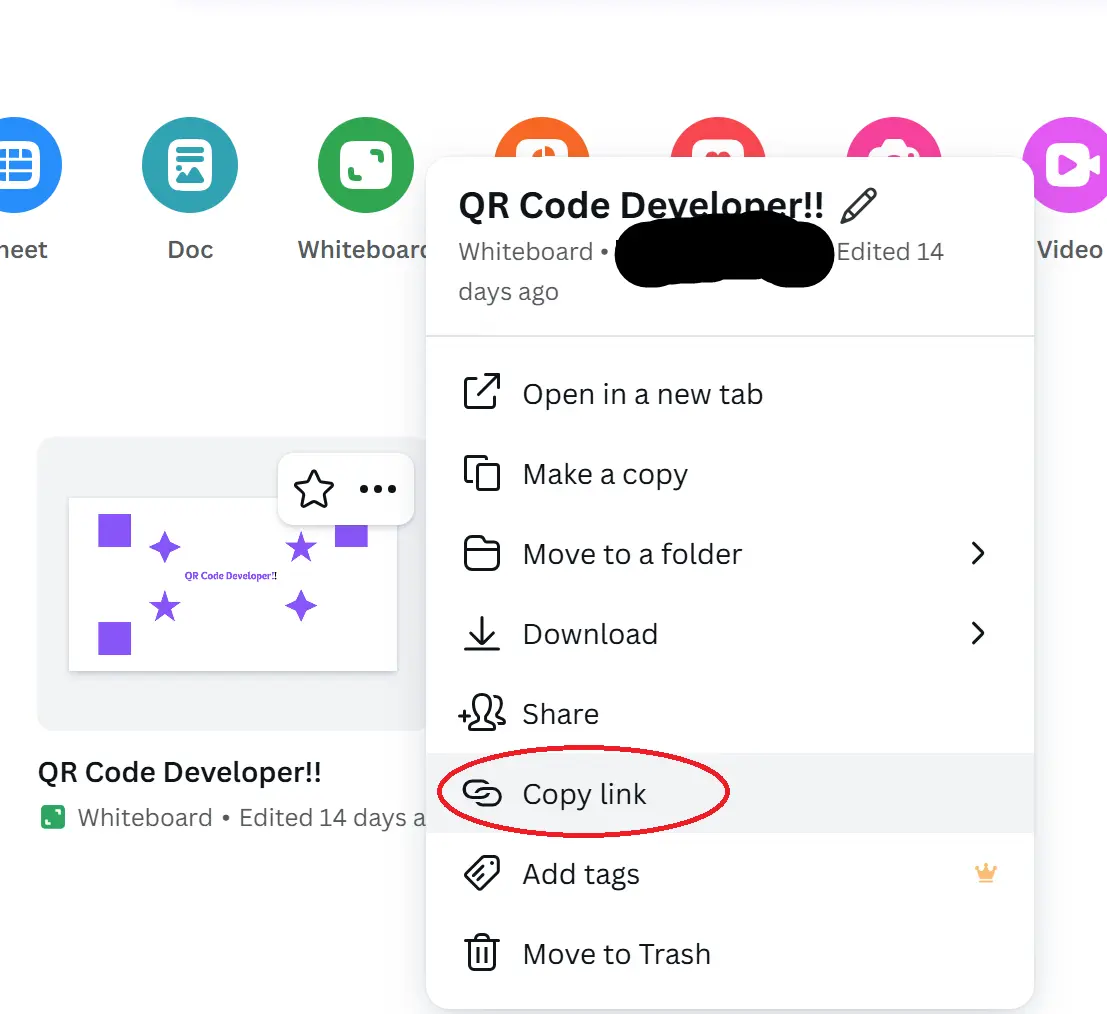
Step 1: In Canva, copy the share link of your project.
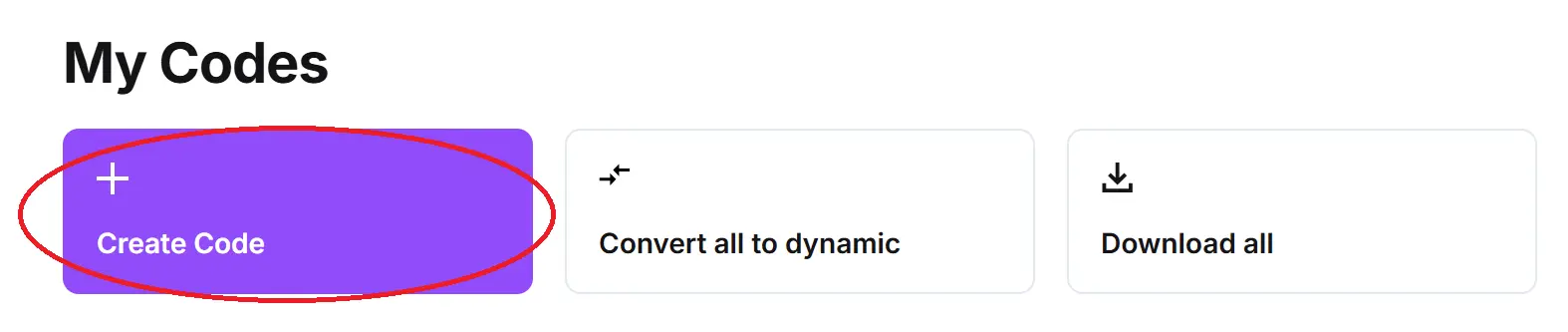
Step 2: In QR Code developer, click on Create Code.
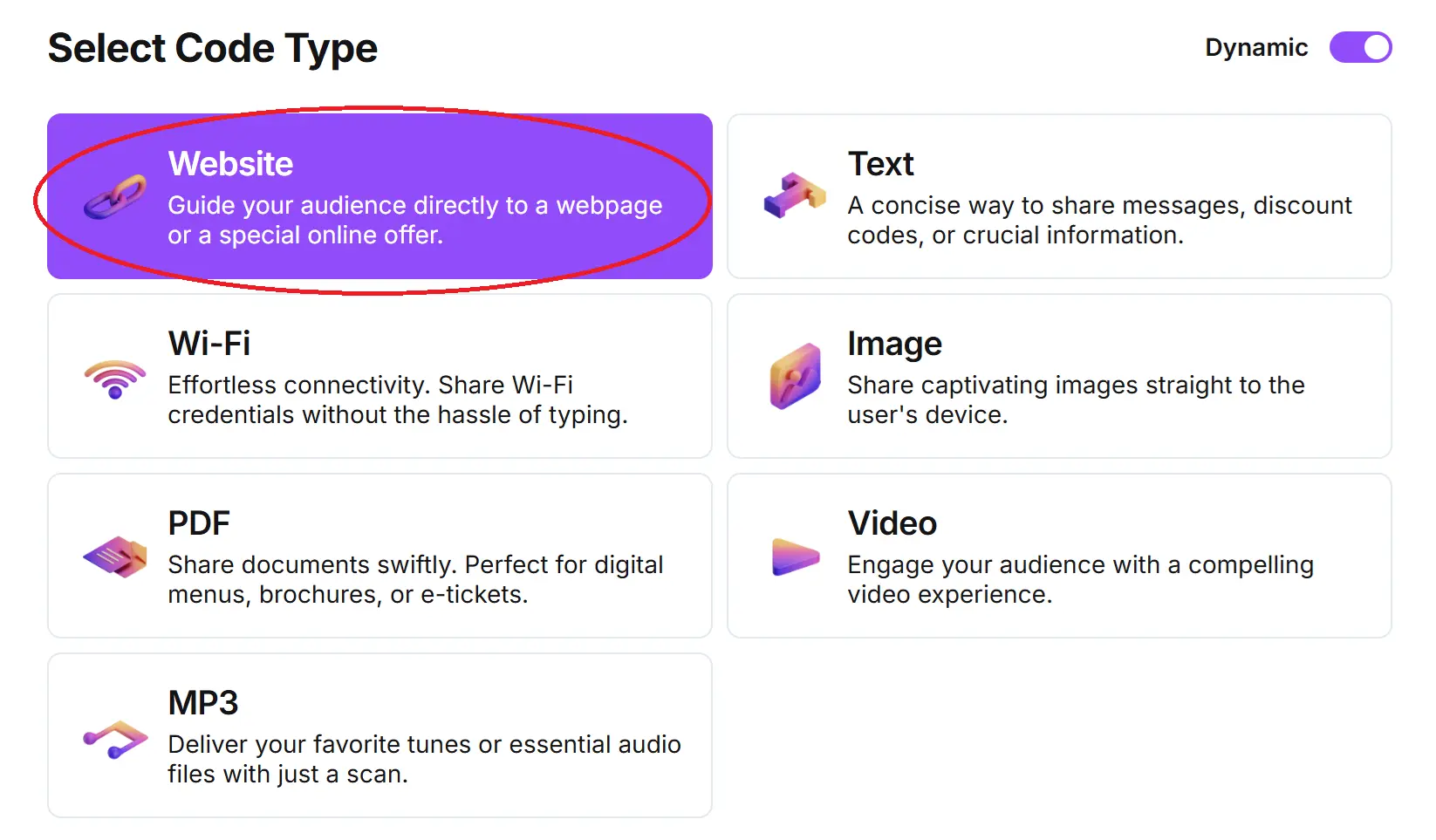
Step 3: Select the Website option.
Step 4: Name your code and paste the URL into the bar.
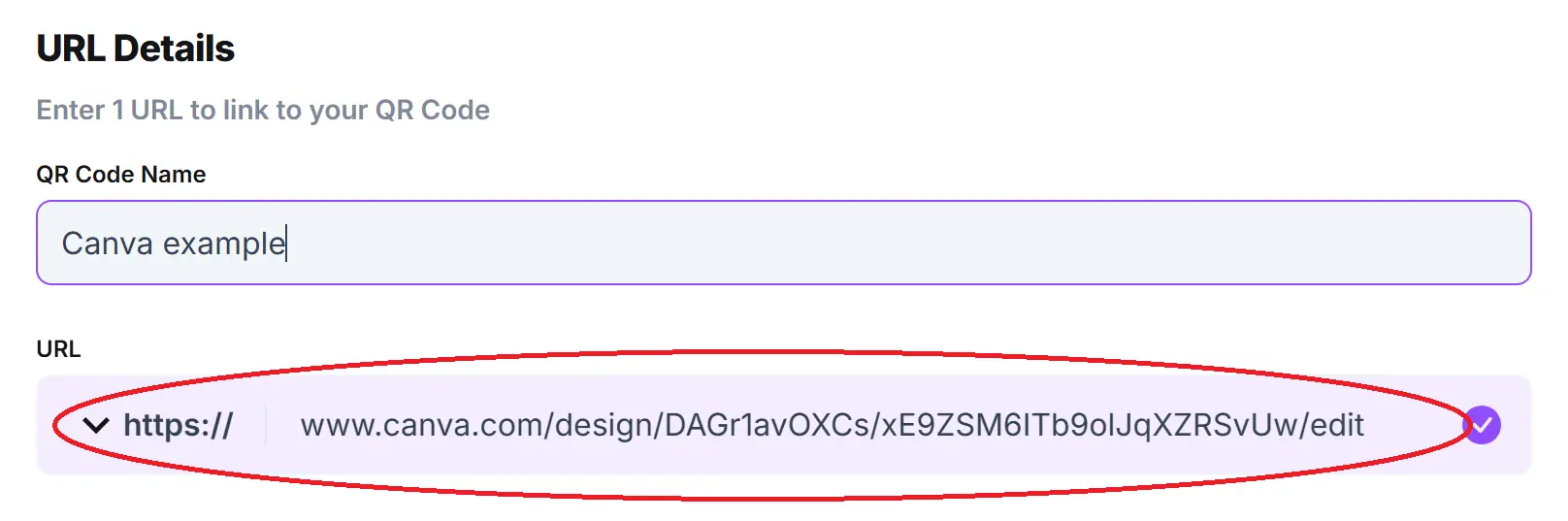
Optional: Click the pencil icon in the Preview window to further customize your code.

Step 5: Click Generate.

Step 6: Test your code on multiple devices.
General tips
- Know your audience: If you’re certain that most of your intended audience doesn’t know how to use QR codes or just don’t like them, then don’t use them.
- Keep instructions clear: Provide clear instructions on how to use and scan QR codes as well as where the codes will redirect to.
- Place codes on a flat surface: To make sure that codes are still scannable, only put them on flat surfaces, like walls, tables, posters, or fliers.
- Use high contrast: If using custom colors on a code, make sure that the colors are distinct enough from each other to be read as a QR code.
- Make sure codes are visible: Don’t place codes where patrons are unlikely to see them.
- Only use codes when necessary: If an alternative exists that’s easier for all parties involved, use that.
- Test on multiple devices: Make sure your codes work whether scanned on an Android device, iPhone, tablet, or other device.
Monitoring code usage
With the tools available on QR Code Developer, as well as other code generators, you can monitor the usage of any code you create. This can include how many times a code has been scanned, where it has been scanned, on what device, using what browser, and more. With these tools, you can figure out which codes are reaching the most people and where to focus any advertising efforts.
With QRCodeveloper you can monitor:
- Number of scans
- Number of scans by operating system
- Scans by browser
- Scans by country
- Scans by city
- Scans by language
- Unique scans
FAQ
Q: Do I need to hire someone to make a QR code for me?
A: No. You can make a QR code by yourself through a service like QR Code Developer.
Q: Which Canva services can I make into a QR code?
A: Any presentation, document, spreadsheet, or anything else you can make on Canva can be converted into a QR code.
Q: Does Canva cost to use?
A: While Canva does offer premium packages that cost around $120 per person per month, there is a free option with limited access to the creative suite.
Q: Where can I put a QR code?
A: QR codes can be put anywhere you can print an image, including posters, fliers, stickers, and business cards. In the case of Canva, it would be a good idea to place your code somewhere everyone on your team will see, like a flier in the office.
Q: Can I see who scans my code?
When you create your code through QR Code Developer, you can monitor code usage and view scans by region, device, and frequency.
Q: What devices can scan a QR code?
A: Most modern devices with cameras, like tablets and phones running both iOS and Android, can scan QR codes with no need for additional applications.
Q: What else can I use QR codes for?
A: QR codes can be used to distribute a variety of media, including web addresses, social media pages, videos, images, and more.
Conclusion
Canva is an extremely versatile and helpful tool for anyone in the business world looking to add more visual flair to their documents, presentations, or anything else they need to make for the workplace. While Microsoft Office and Google Drives are also great resources, they do still lack in some areas that Canva excels at.
By pairing your Canva presentation with a QR code, you can allow anyone who needs to access them a quick and easy way to view and collaborate on your projects. You can create a QR code for free with the tools available from QR Code Developer. Get started today!
Ready to create your QR code?
Generate custom QR codes in seconds - free and easy to use.
Create Free QR Code →